Connecting Breeze Connect to Tronic Cloud Voice AI takes two short parts. In Part 1 you use the built-in Setup Wizard to create the Breeze Connect trunk in your dashboard. In Part 2 you point your Breeze Connect number at Tronic Cloud using Simple SIP URI forwarding.
Have these ready from Breeze Connect before you start: your Username and Password (issued by Breeze Connect) and your assigned DID(s). Contact Breeze Connect support if you don’t have them yet.
Part 1Configure the Tronic Cloud dashboard
The SIP Provider Setup Wizard creates the inbound trunk, outbound trunk and dispatch rule for Breeze Connect in one flow — no manual trunk building required.
Open the Setup Wizard
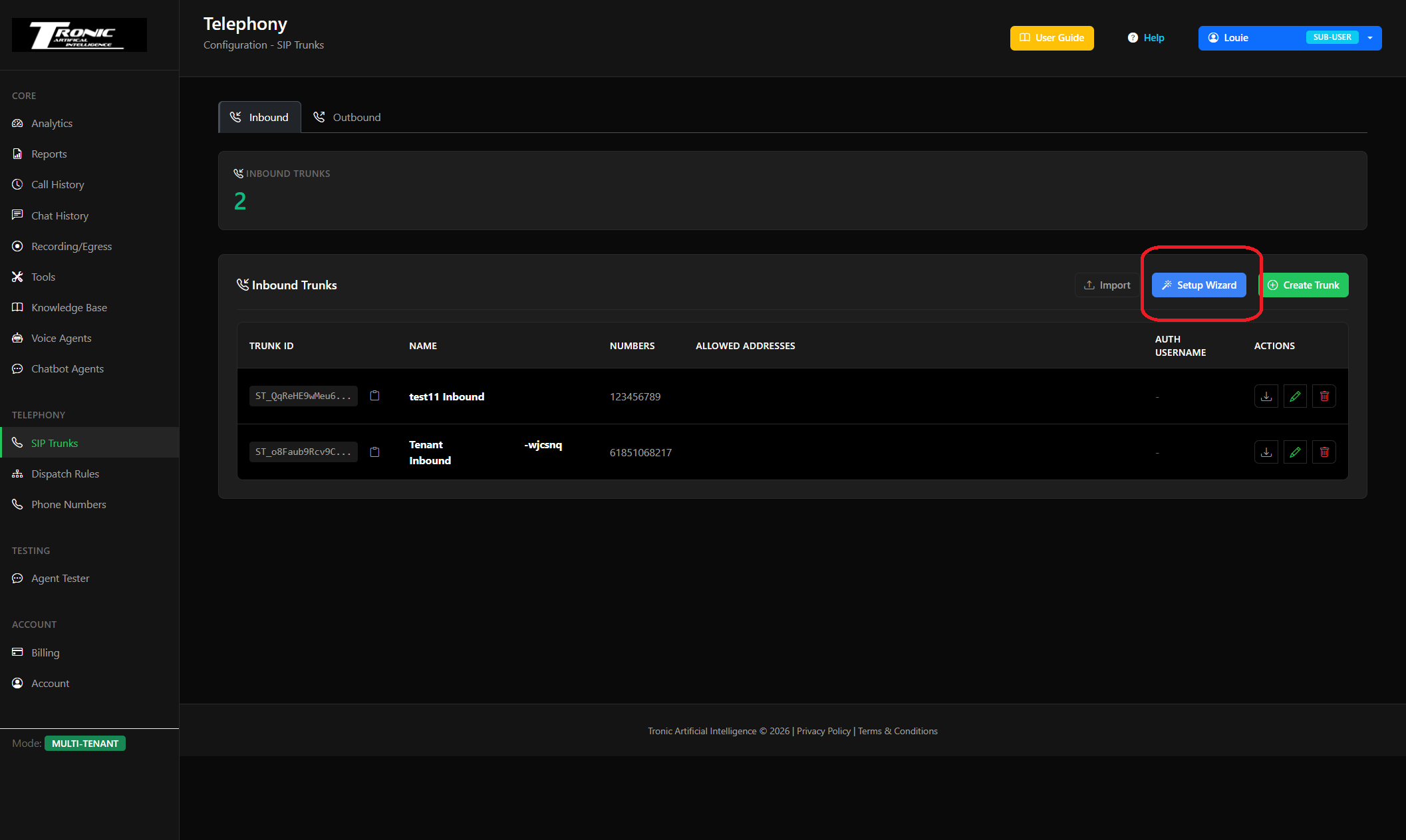
In the Tronic Cloud dashboard, go to Telephony → SIP Trunks, stay on the Inbound tab, and click Setup Wizard.
Choose Breeze Connect and name your trunks
On the Provider step, select Breeze Connect (“Use your existing Breeze Connect SIP trunk and numbers”). In Name for these trunks, enter a name — it becomes the prefix on all three objects it creates: «Name» Inbound, «Name» Outbound and «Name» Inbound Rule. Click Next.
Gather your Breeze Connect details
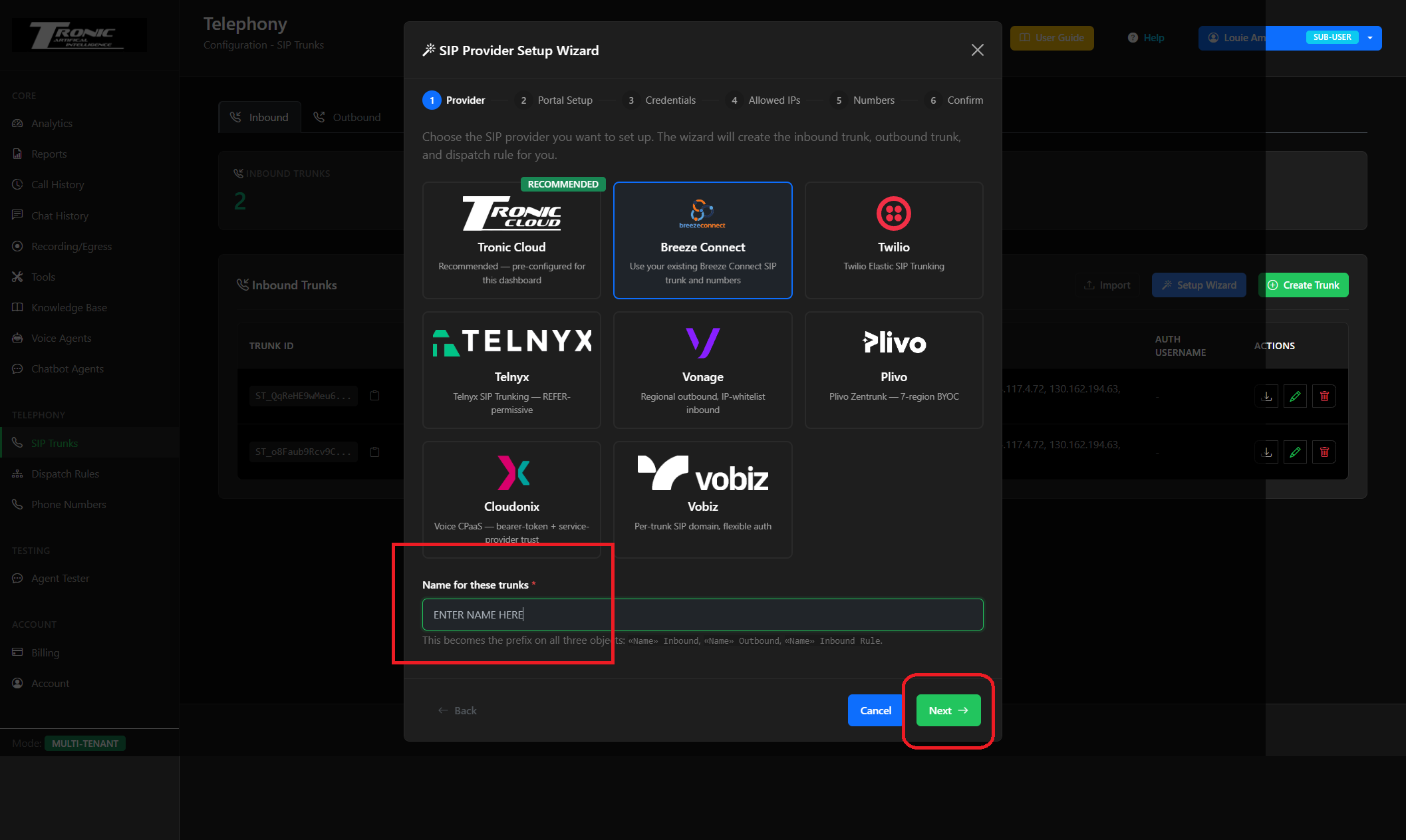
On the Portal Setup step, confirm you have your Breeze Connect Username, Password and assigned DID(s) — tick all three to continue. Breeze Connect is pre-configured in Tronic Cloud, so these are the only values you need to supply. Click Next.
Enter your credentials
On the Credentials step, enter the Username and Password issued to you by Breeze Connect, then click Next.
Accept the Allowed IPs
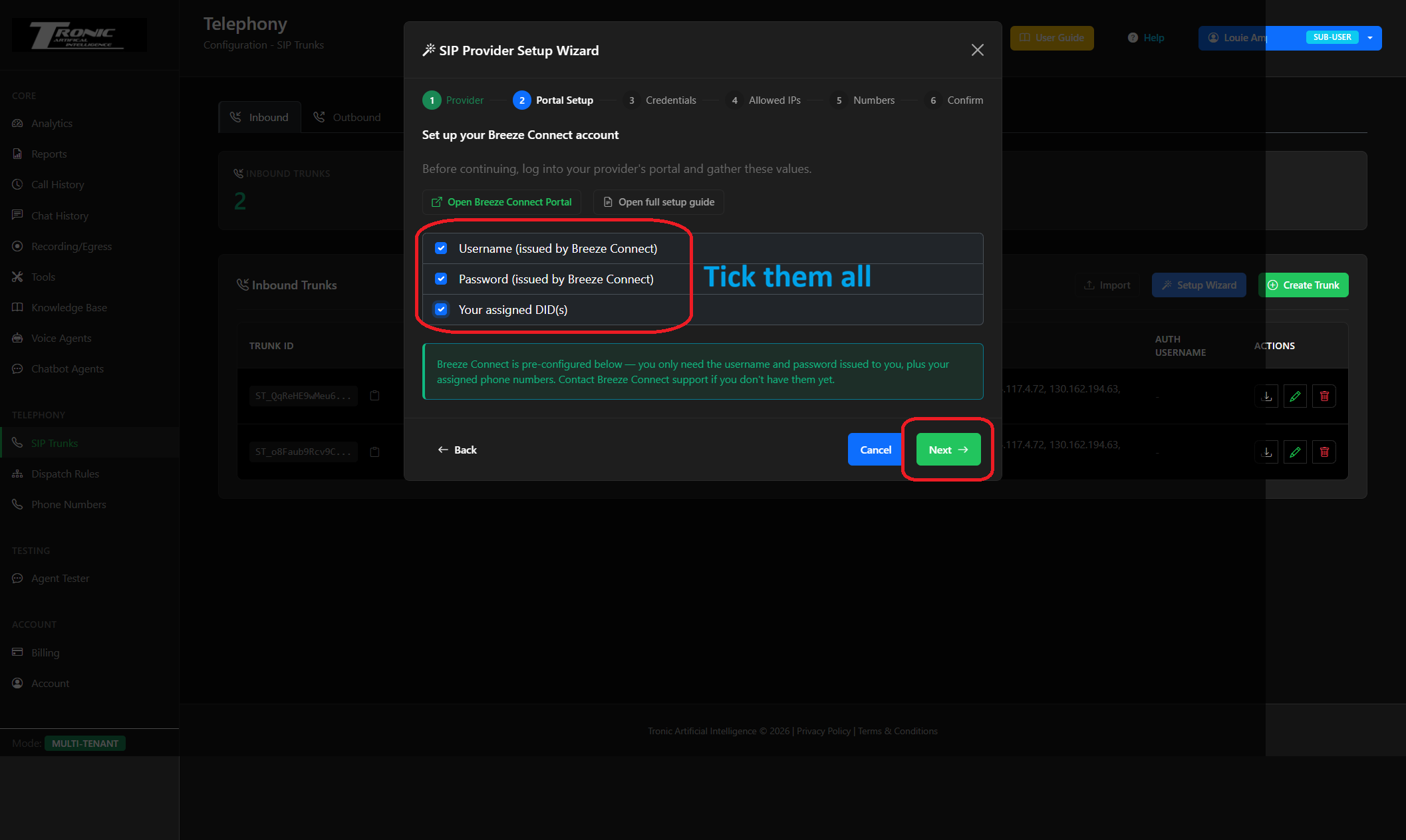
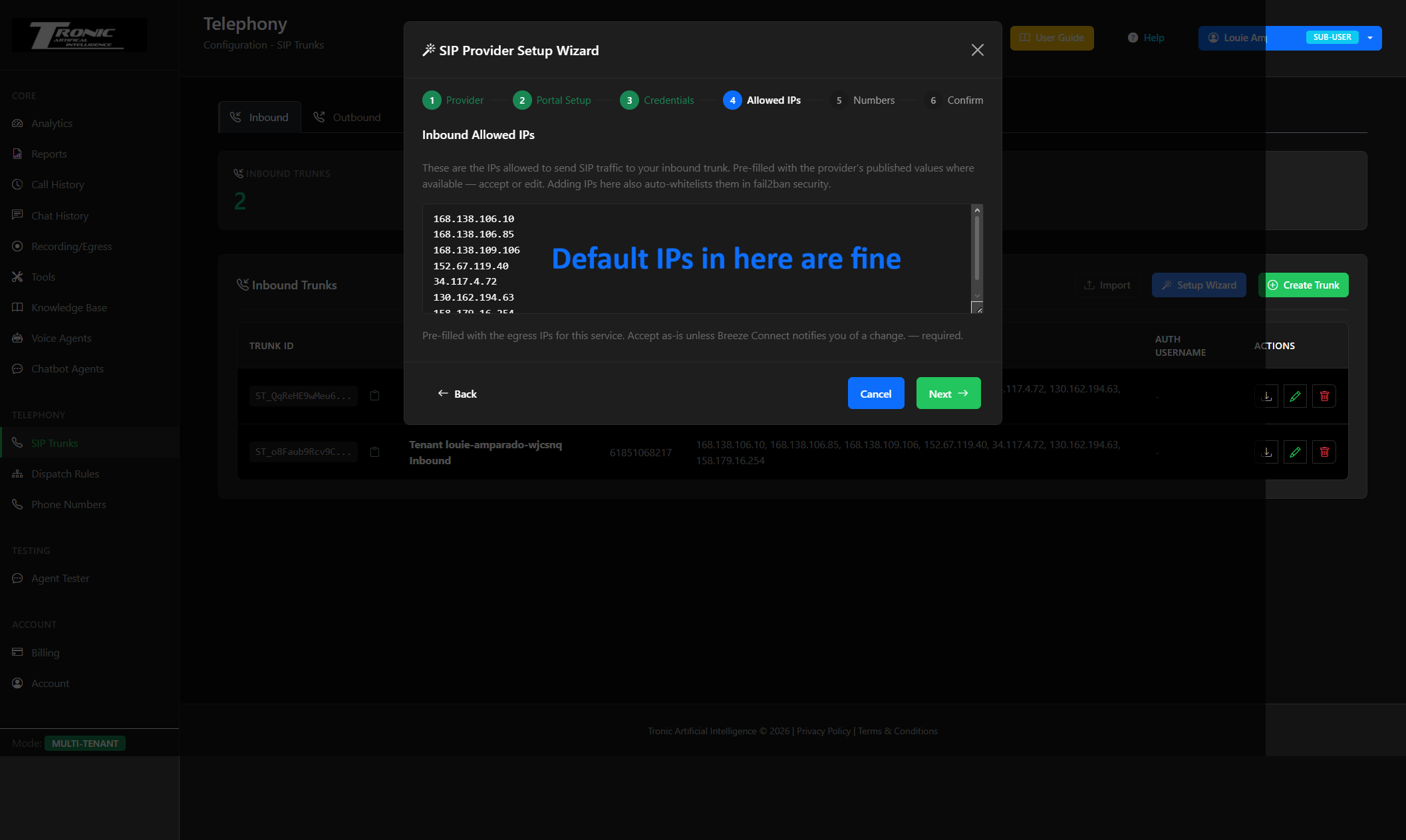
The Allowed IPs step is pre-filled with Breeze Connect’s published egress IPs (these are the IPs allowed to send SIP traffic to your inbound trunk, and they’re auto-whitelisted in security). Leave the defaults as they are unless Breeze Connect notifies you of a change, then click Next.
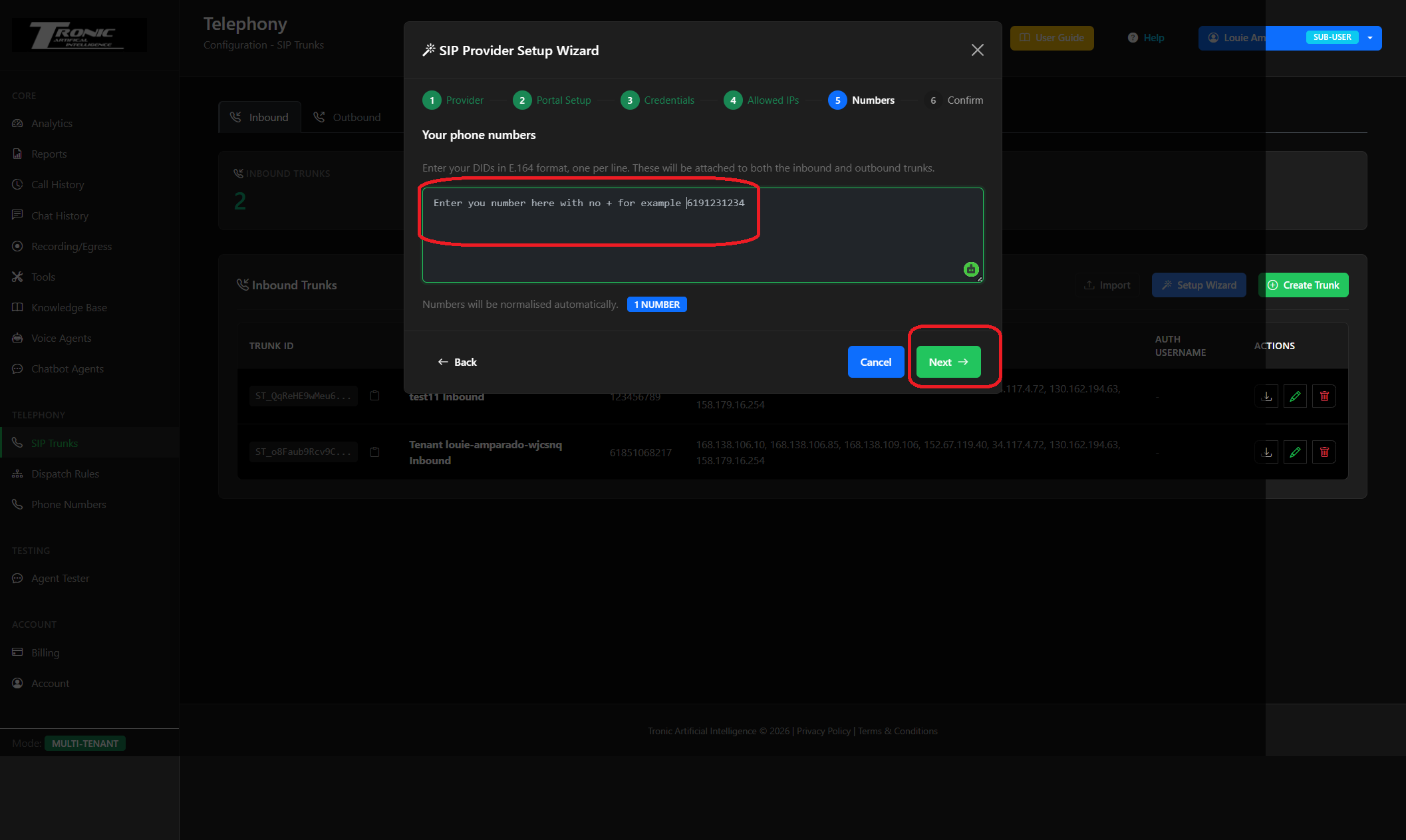
Add your phone numbers
On the Numbers step, enter your DIDs in E.164 format, one per line, with no leading “+” — for example 6191231234. These are attached to both the inbound and outbound trunks and are normalised automatically. Click Next.
Confirm
Review the summary on the Confirm step and finish. The wizard creates your inbound trunk, outbound trunk and dispatch rule for Breeze Connect, ready to route calls to your voice agents.
Part 2Point Breeze Connect at Tronic Cloud
Breeze Connect doesn’t have a dedicated “connect to Tronic Cloud” option, but its Simple SIP URI forwarding achieves the same result — forward your Breeze Connect number to your Tronic Cloud SIP address. Do this in the Breeze Connect portal.
Open the trunk’s Inbound Settings and edit Call Forwarding
Select your Trunk, open the Inbound Settings tab, then click Edit on the Call Forwarding card.

Choose “Simple SIP URI forwarding”
In the Call Forwarding Mode dropdown, select Simple SIP URI forwarding.

Enter the forwarding number and SIP address
Fill in the Forward to number and the SIP URI (your Tronic Cloud SIP address), set a Timeout, and leave Keep original CLI switched on so your agent sees the caller’s real number. The call is delivered as Forward to @ SIP URI. Click Apply.

What to enter in each field
| Field | What to enter |
|---|---|
| Forward to | The destination number your Tronic Cloud agent expects (usually your Tronic Cloud DID / agent number). This becomes the user part of the SIP URI. |
| SIP URI | Your Tronic Cloud SIP address (the host), e.g. sip.troniccloud.com.au. Confirm the exact value from your dashboard or with Tronic support. |
| Timeout (sec) | How long to ring before giving up — e.g. 15–30 seconds. |
| Keep original CLI | On. Passes the caller’s real number through so your agent (and your call logs) see who’s calling. |
Test before you rely on it. Place a call to your Breeze Connect number and confirm it reaches your agent, that caller ID passes through, and that the timeout suits your flow. If it doesn’t connect, double-check the SIP address, the DIDs entered in the wizard, and that your Tronic Cloud agent is running.
How it fits together
Part 1 sets up the Tronic Cloud side — an inbound trunk that accepts calls for your Breeze Connect DIDs from Breeze’s IPs, an outbound trunk, and a dispatch rule to your agents. Part 2 sets up the Breeze Connect side — forwarding your number’s inbound calls to your Tronic Cloud SIP address. Once both are in place, calls to your Breeze Connect number are answered by your AI voice agent, with everything (recording, transcript, booking, routing) handled in your Tronic Cloud dashboard, hosted onshore in Australia.
Need a hand?
If you’re not sure of your SIP address or want us to check your setup, we’re happy to help.