
Welcome to Tronic Cloud Voice AI
This guide walks you through everything you need to get your AI voice agent answering calls — from logging in and finding your phone number, to creating an agent, switching it on, pointing your number at it, and making your first test call. Every step has a screenshot. Click any image to enlarge it.
Getting your account
How a Tronic Cloud account is created, and what you get on day one.
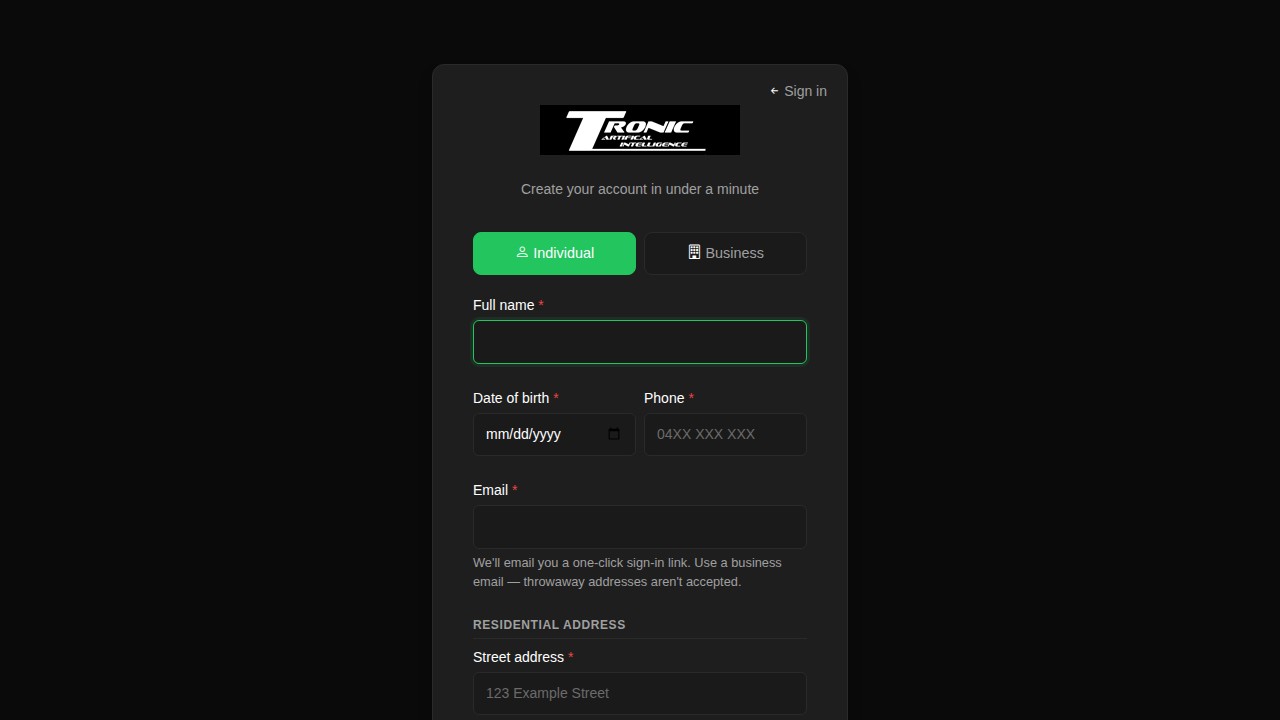
If someone has already set your account up for you, skip ahead to Logging in. To sign up yourself, go to portal.troniccloud.com.au and click Register.
The form asks for:
- Individual or Business — pick whichever matches how you’ll be invoiced.
- Your name, date of birth and phone number.
- Your email address. Use a real business address — throwaway addresses are rejected, and this becomes your login.
- Your address, with the option to give a different billing address.
- Preferred phone area code (optional) — 02, 03, 07 or 08, if you want your number to look local to a particular state. Leave it on No preference and we’ll assign any available Australian number.
1. Logging in
How to get into your Tronic Cloud dashboard the first time and after.
1 Open your welcome email and set a password
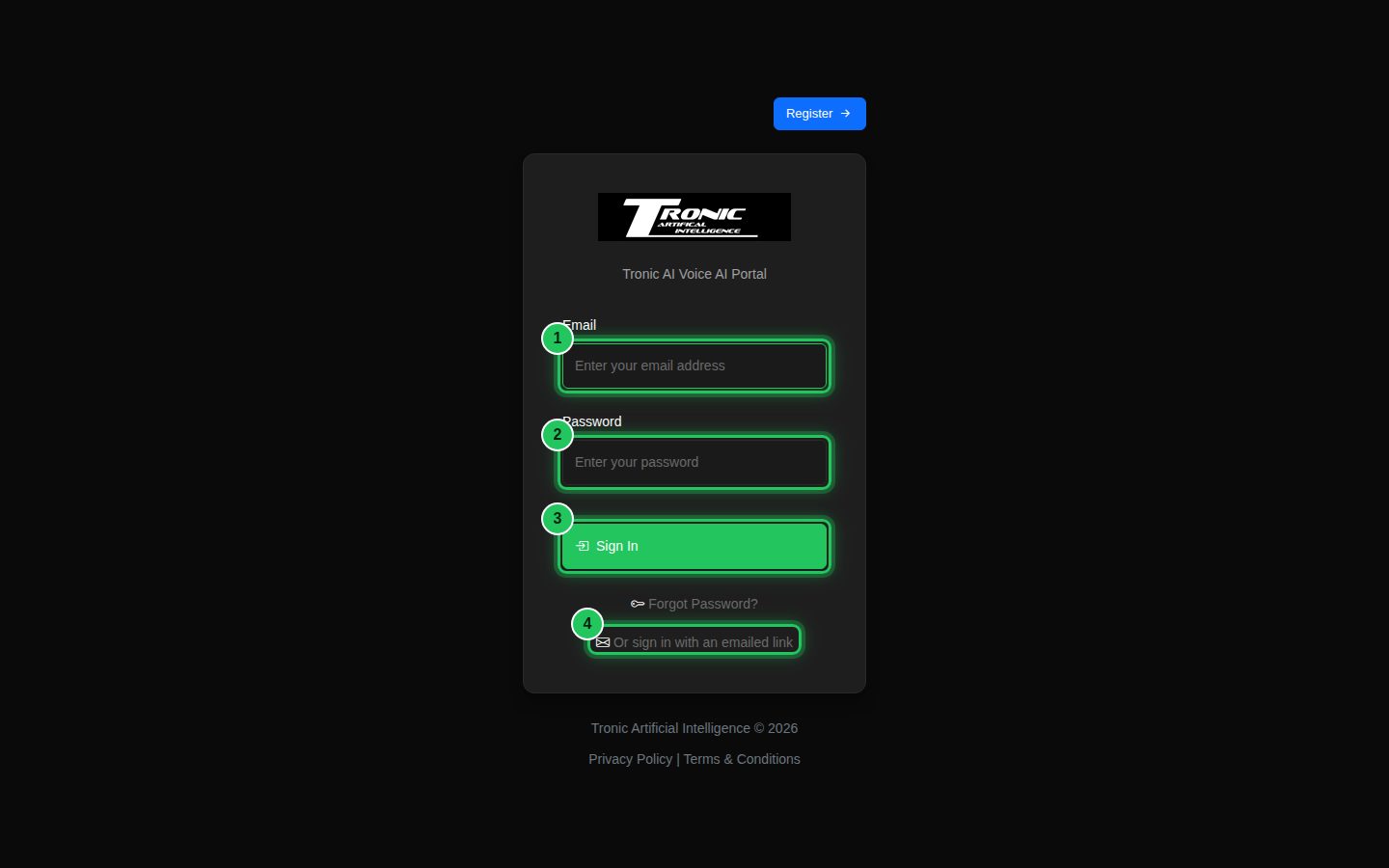
When your account is created you receive an email titled “Welcome to Tronic Cloud — your phone number is ready”. Click the secure link inside to choose your password. After that, you log in any time with your email address and password.
Forgotten your password?
Click Forgot Password? on the login page, or use “Or sign in with an emailed link” to get a fresh one-click link. Sign-in links are single use and expire after a short time, so request a new one rather than re-using an old email.
2. Your dashboard
The overview page you land on after logging in.
2 Get your bearings
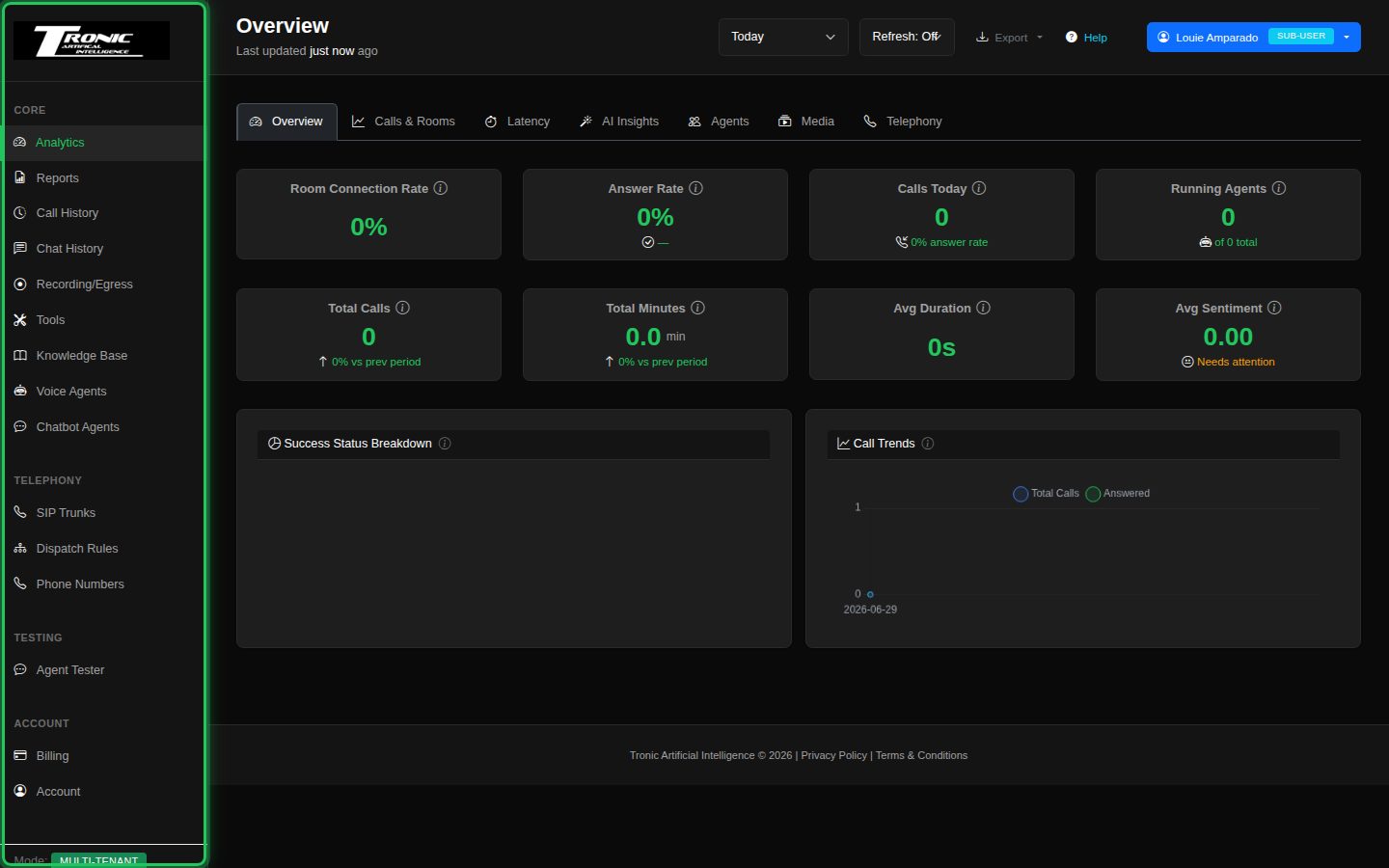
The menu on the left (highlighted) is how you move around the dashboard. The main area shows your call activity, usage and costs at a glance. Don’t worry if your numbers are all zero to start — they fill in once calls come through.
What’s in the menu
- Core — Analytics (this page), Reports, Call History, Chat History, Recording/Egress, Tools, Knowledge Base, Voice Agents and Chatbot Agents.
- Telephony — SIP Trunks, Dispatch Rules and Phone Numbers: the plumbing that connects real phone calls to your agents.
- Testing — the Agent Tester, for trying an agent in your browser.
- Account — Billing and your Account details.
Across the top you’ll find a date-range picker, an Export button, this User Guide, Help, and your account menu (with Log out) on the far right.
3. Your phone number
Where to find the phone number that was set up for you.
3 Open Phone Numbers to see your number
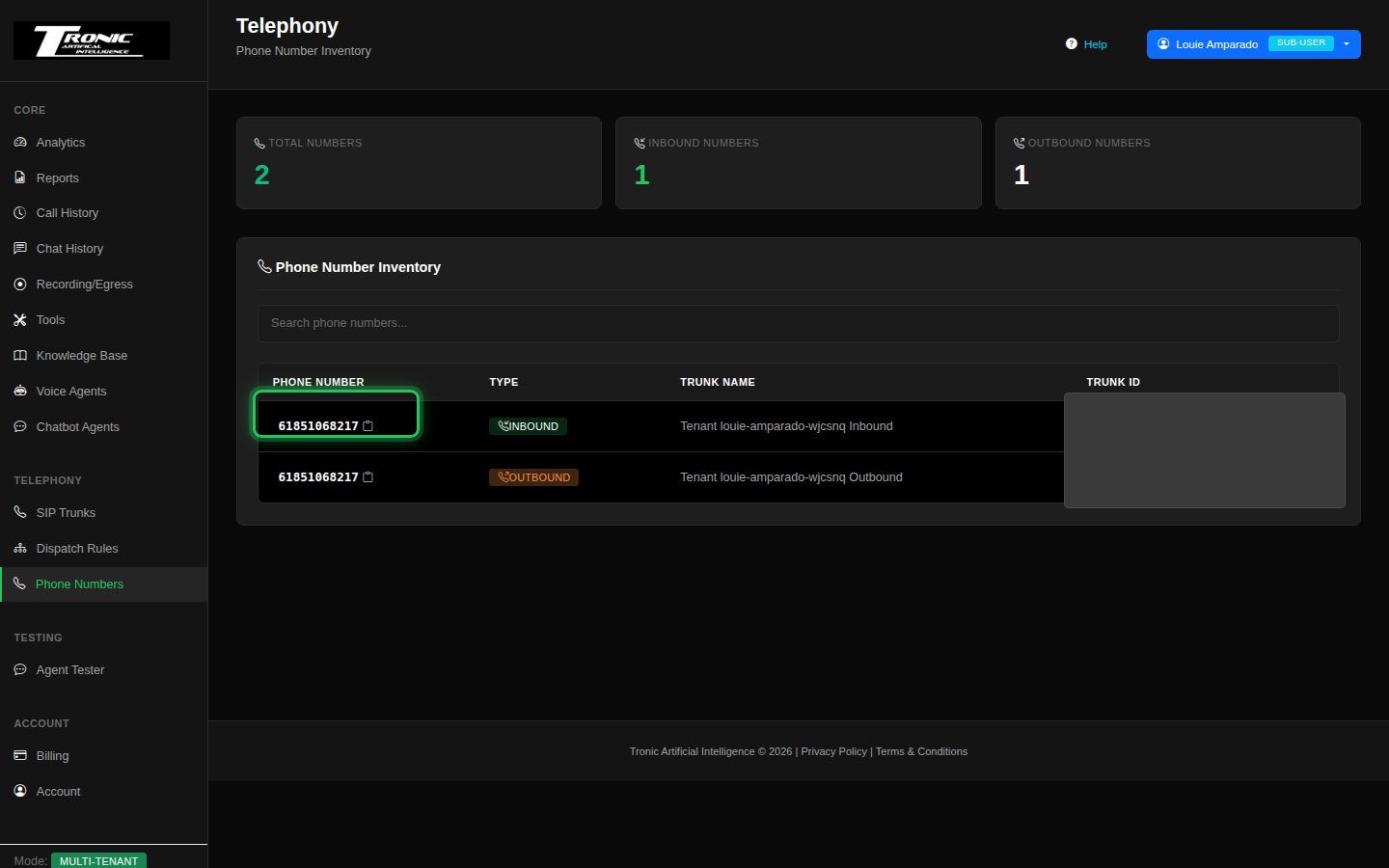
Click Phone Numbers in the menu (under Telephony). Your dedicated number is listed here — this is the number callers ring to reach your agent. The small icon beside it copies it to your clipboard. Your number was also included in your welcome email.
4. Create your first agent
Your “agent” is the AI that answers the phone and talks to callers.
4 Open Voice Agents and start a new agent
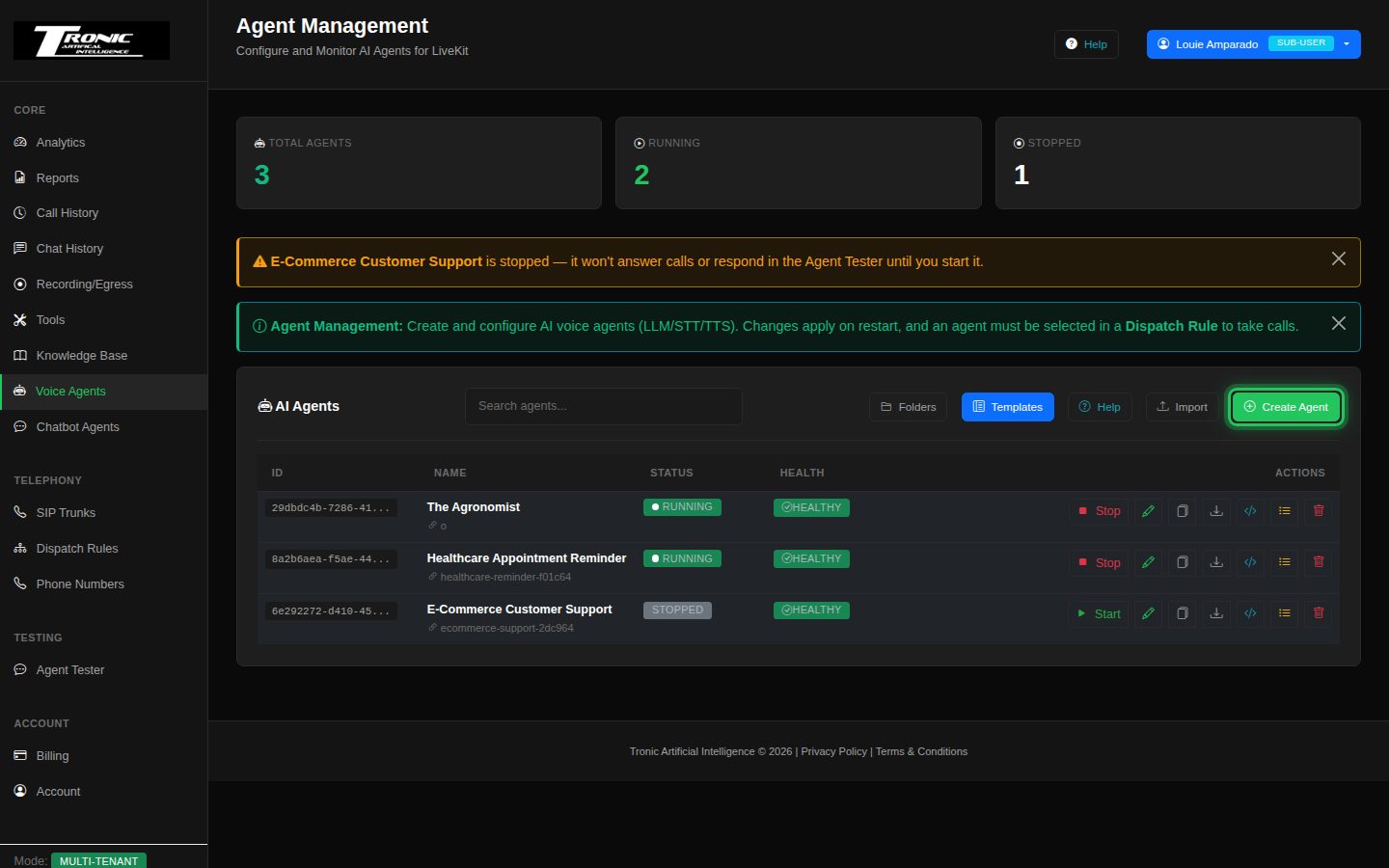
Click Voice Agents in the menu, then the green Create Agent button (top right).
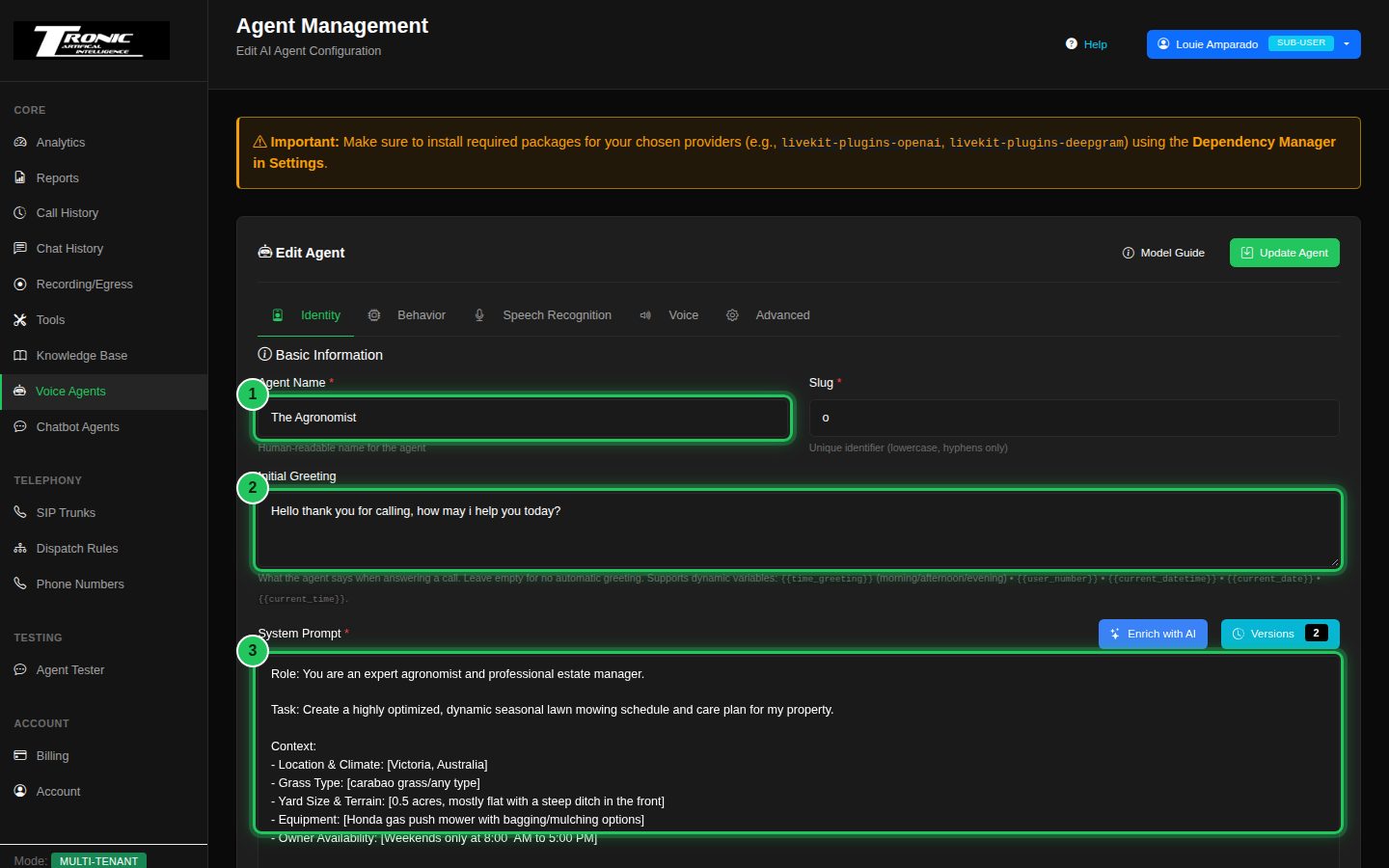
4b Give it a name, a greeting and instructions
Tell the agent who it is and how to behave:
- 1 — Agent Name: a name for your own reference.
- 2 — Initial Greeting: the first thing it says when it answers a call.
- 3 — System Prompt: its instructions — its role, what it should do, and any rules to follow.
The other tabs (Behavior, Speech Recognition, Voice, Advanced) let you choose the voice and AI models, but sensible defaults are already selected — you can leave them as-is to start. When you’re ready to tune them, see Voice Agents below.
5. Start the agent
5 Click the green Start button
On the Voice Agents list, find your agent and click the green Start button. Its status changes to RUNNING. If an agent is stopped, the dashboard shows a yellow reminder (top) — that’s your cue to start it.
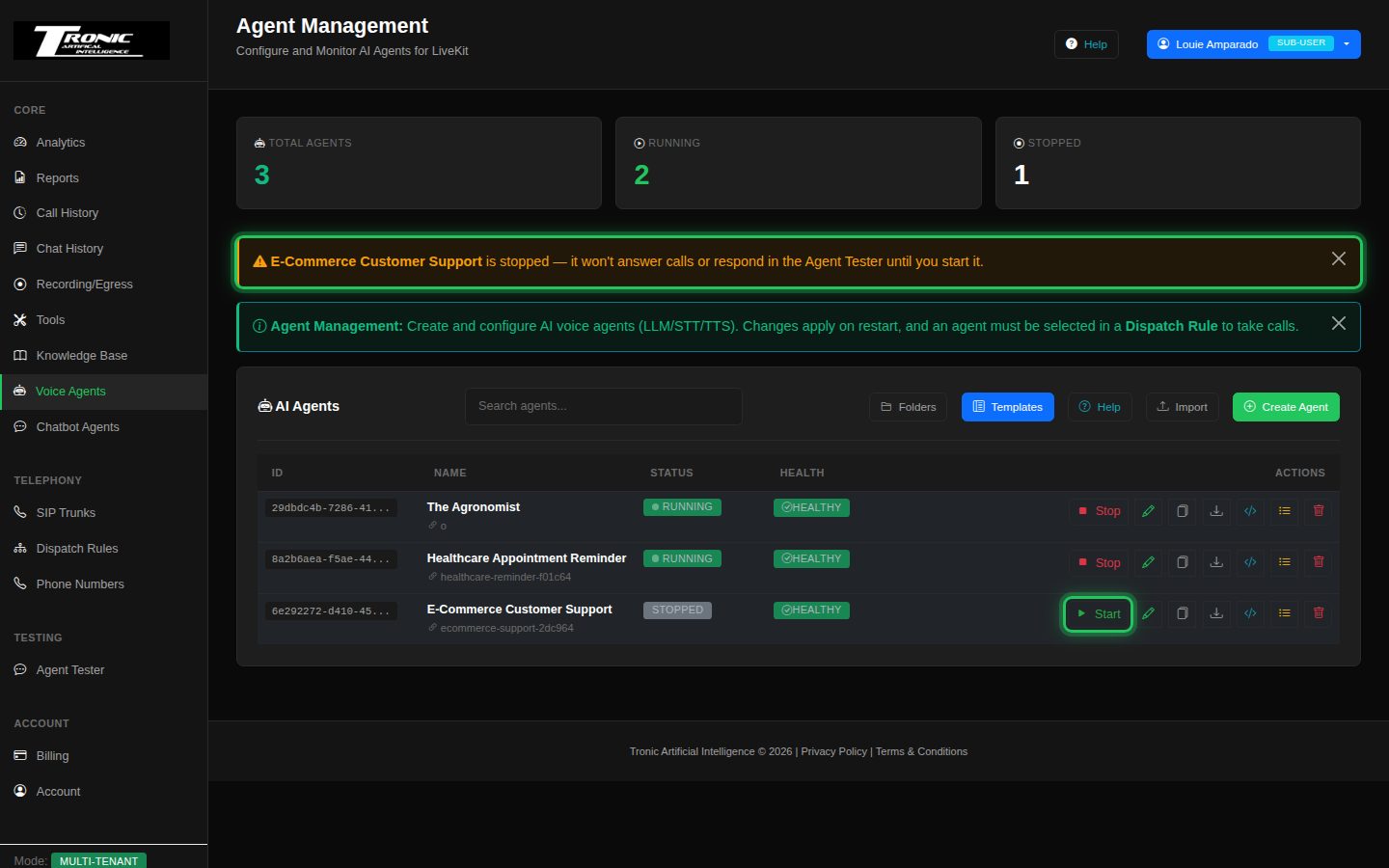
Running vs stopped. A running agent is standing by to answer calls. A stopped agent isn’t — callers will hear ringing with nothing answering. Running an agent costs nothing on its own; you’re only charged for the calls it actually handles, so there’s no reason to stop it between calls.
6. Point your number at it
Connect your phone number to the agent so incoming calls reach it.
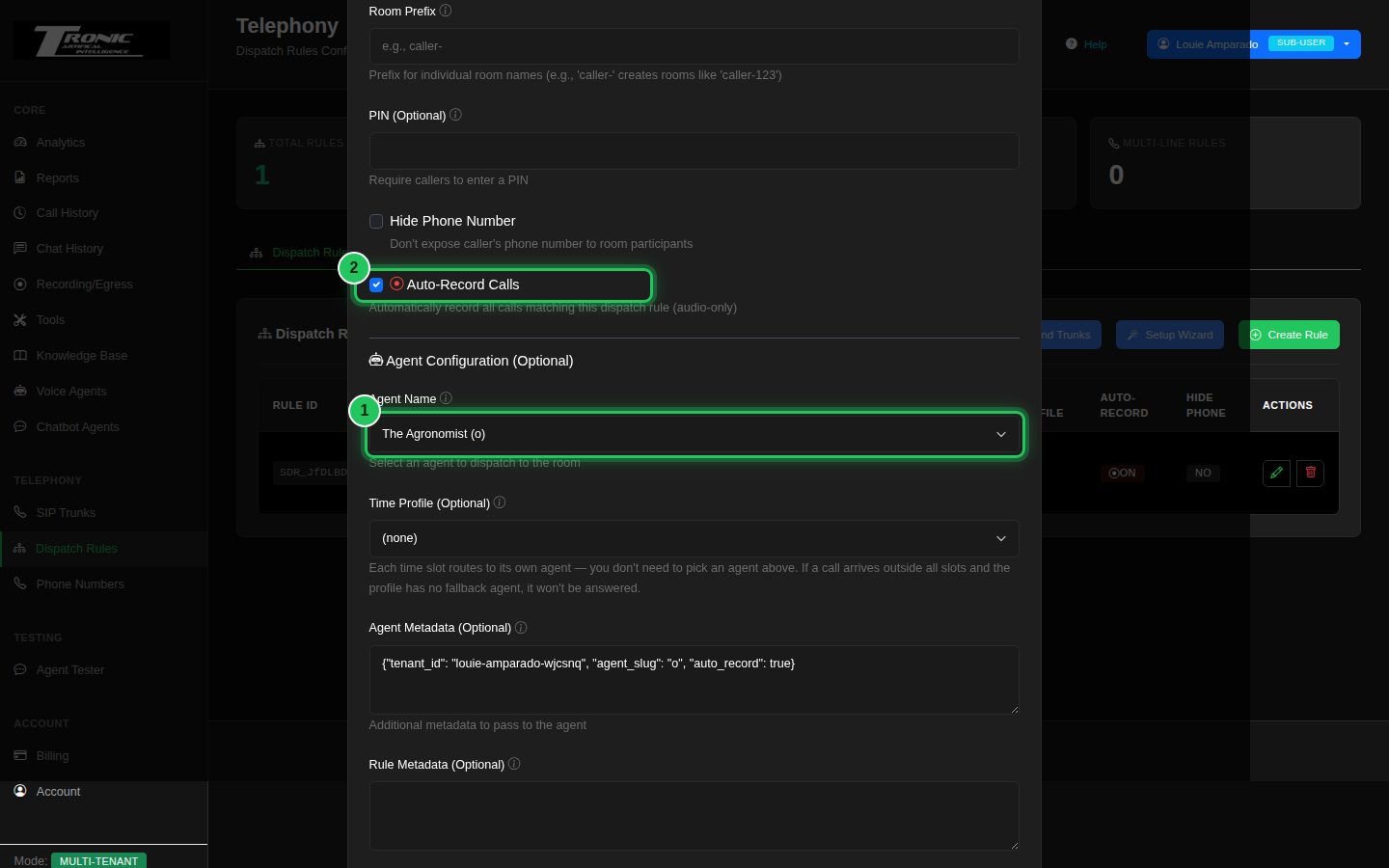
6 Open Dispatch Rules and choose your agent
Go to Dispatch Rules (under Telephony). A rule for your number is already set up for you — click the pencil to open it, then:
- 1 — Agent Name: choose the agent you just started.
- 2 — Auto-Record Calls: tick this if you want calls recorded (optional).
Click Save. Your number now sends calls to that agent.
7. Make a test call
Ring your number from any phone and talk to your agent.
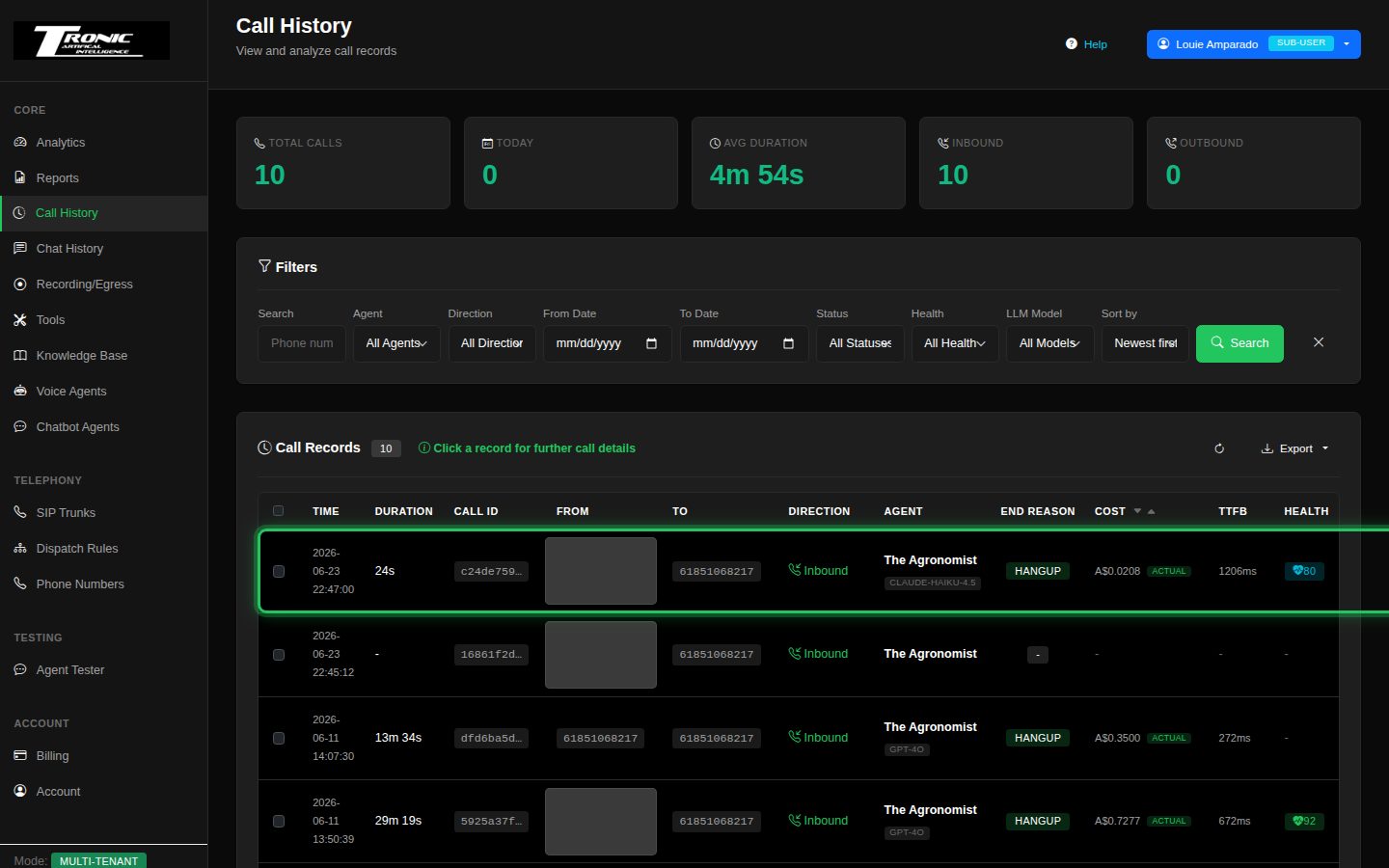
7 Call your number
Dial your Tronic Cloud number (the one on the Phone Numbers page) from your mobile. Your agent should answer within a few seconds with the greeting you set. Every call then appears in Call History with a transcript, summary and (if you turned on Auto-Record) a recording.
Nothing answered? Work through these in order: is the agent RUNNING (Step 5)? Does the dispatch rule point at that agent (Step 6)? Is your credit above the minimum (see Billing Overview)? There’s a fuller checklist in Troubleshooting.
8. Try it in the browser
Prefer not to use a phone? Test the agent right inside the dashboard.
8 Use the Agent Tester
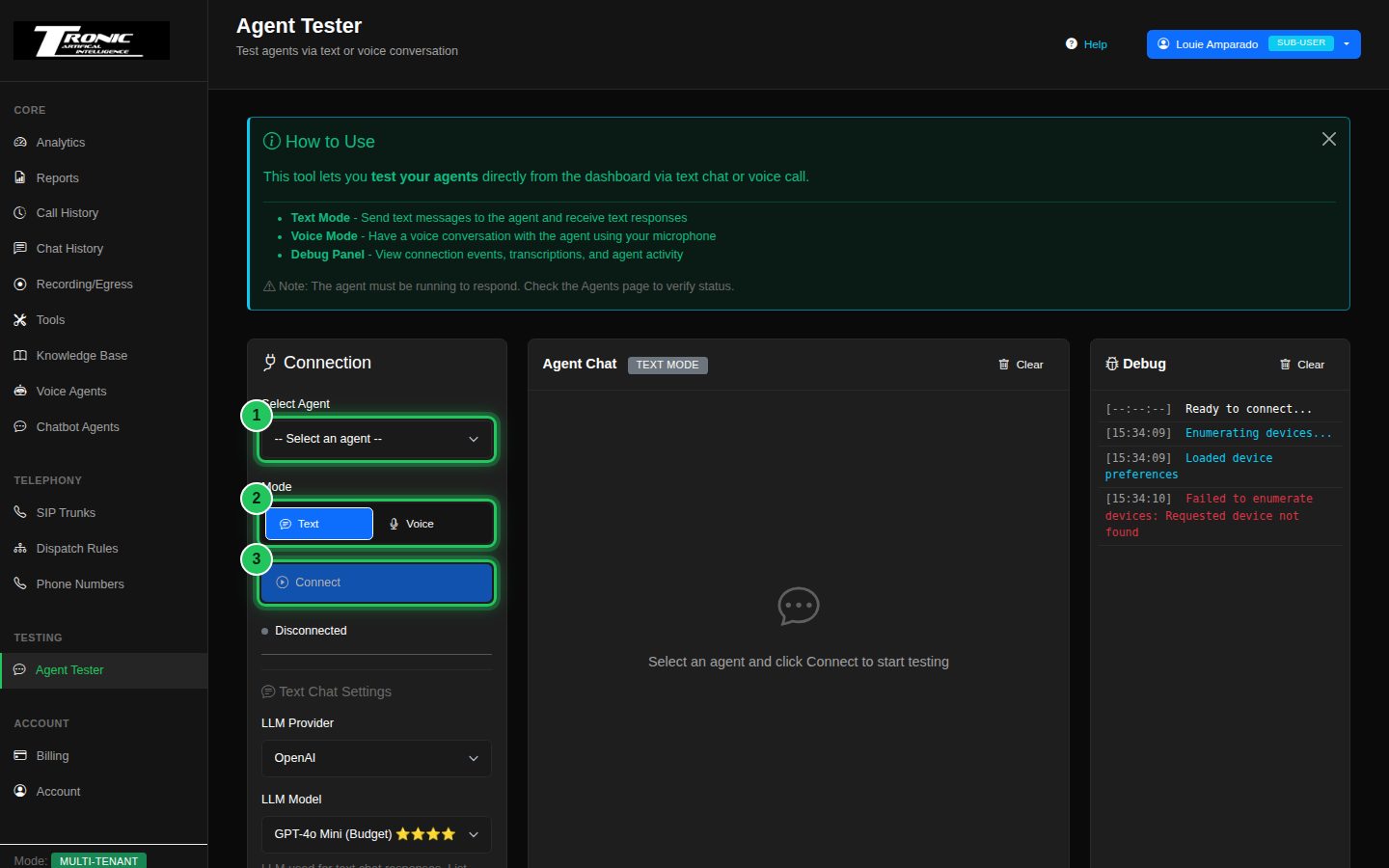
Open Agent Tester (under Testing) to chat or talk to your agent right in the browser — handy for trying changes before they go live:
- 1 — Select Agent: choose the agent to test.
- 2 — Mode: pick Text (type) or Voice (use your microphone).
- 3 — Connect: start the test session.
The agent must be started (Step 5) to respond.
Voice Agents
A closer look at the agent editor and the settings you’ll use most.
The agent editor has five tabs. You only need the first one — everything else has a sensible default. Work left to right as your needs grow.
Start from a template
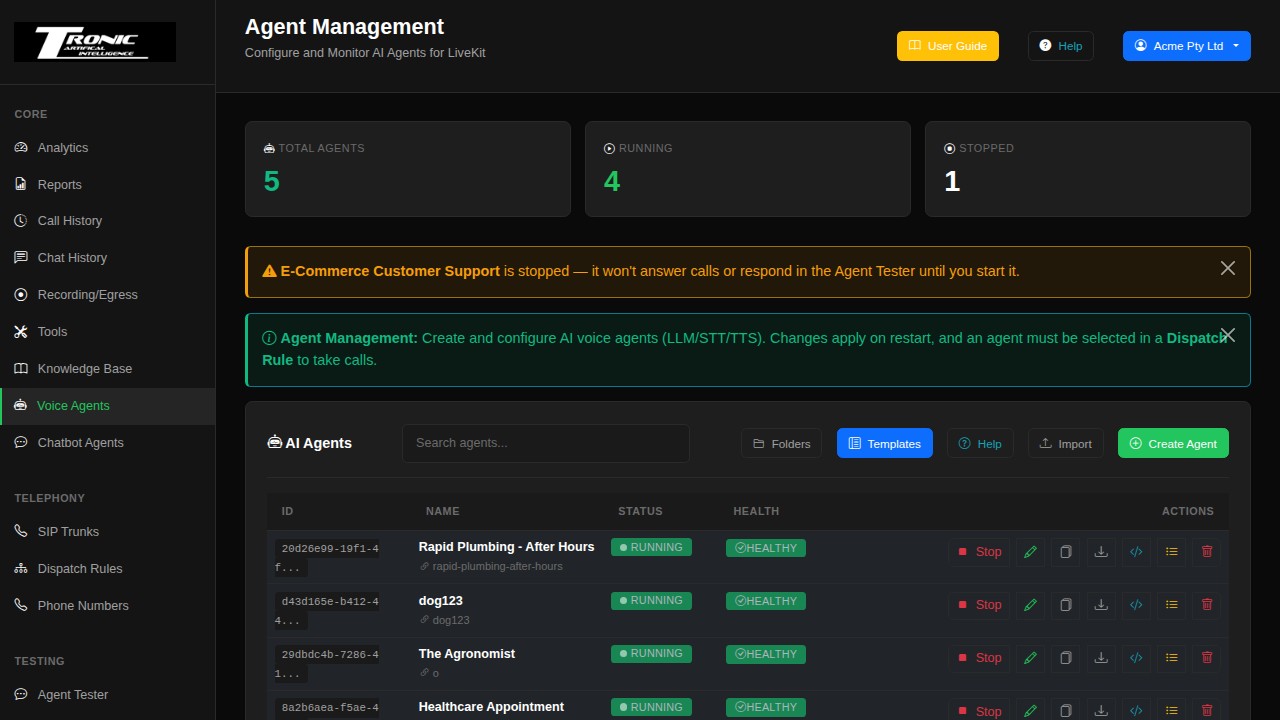
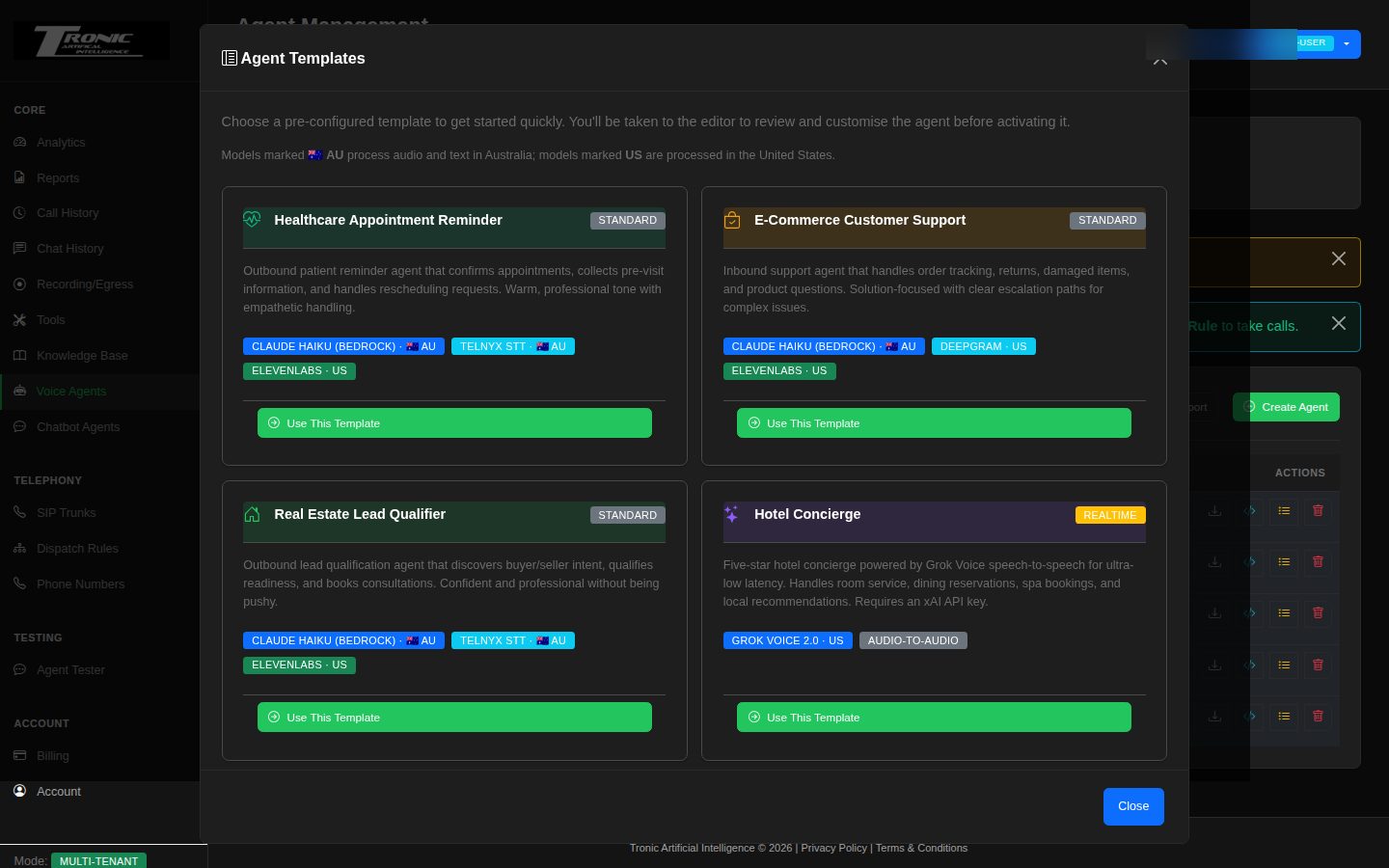
The Templates button on the Voice Agents page gives you a ready-made agent for a common job — a receptionist, an appointment booker, a lead qualifier and so on. It fills in the greeting, the instructions and sensible settings; you then change the business name and the details and you’re most of the way there.
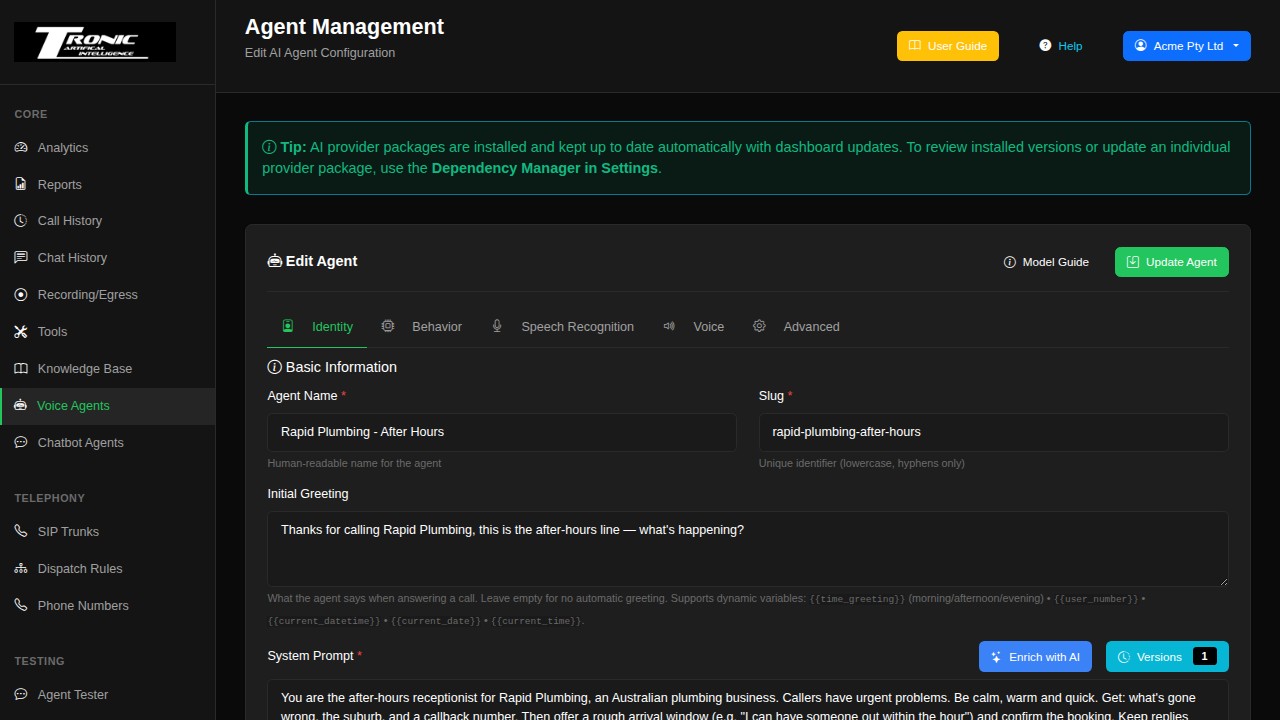
Identity tab — who the agent is
Three fields do most of the work:
- Agent Name — for your reference only; callers never hear it.
- Initial Greeting — the exact words the agent opens with. Keep it short and say who you are: “Good morning, you’ve reached Acme Plumbing, how can I help?”
- System Prompt — the agent’s standing instructions. This is where most of your effort goes.
Writing a good System Prompt
Think of it as briefing a new receptionist on their first morning. Cover:
- Who they are — “You are the after-hours receptionist for Acme Plumbing.”
- What they’re for — the two or three things a caller usually wants.
- What to collect — name, callback number, suburb, nature of the job.
- The rules — what they must never promise (prices, arrival times), and when to take a message instead of guessing.
- How to sound — brief and warm; one question at a time.
Dynamic variables let the greeting and the prompt change per call. Type them anywhere in either field and they’re filled in the moment the call starts:
{{time_greeting}}— “Good morning”, “Good afternoon” or “Good evening”, matched to the time of the call.{{user_number}}— the caller’s phone number on an incoming call, or the number dialled on an outgoing one. Handy for “Can I call you back on this number?”{{current_date}},{{current_time}},{{current_datetime}}— today’s date and the current time, so the agent doesn’t guess when someone says “tomorrow”.
A greeting of “{{time_greeting}}, you’ve reached Acme Plumbing” opens with the right words at 8am and at 7pm, with nothing for you to change.
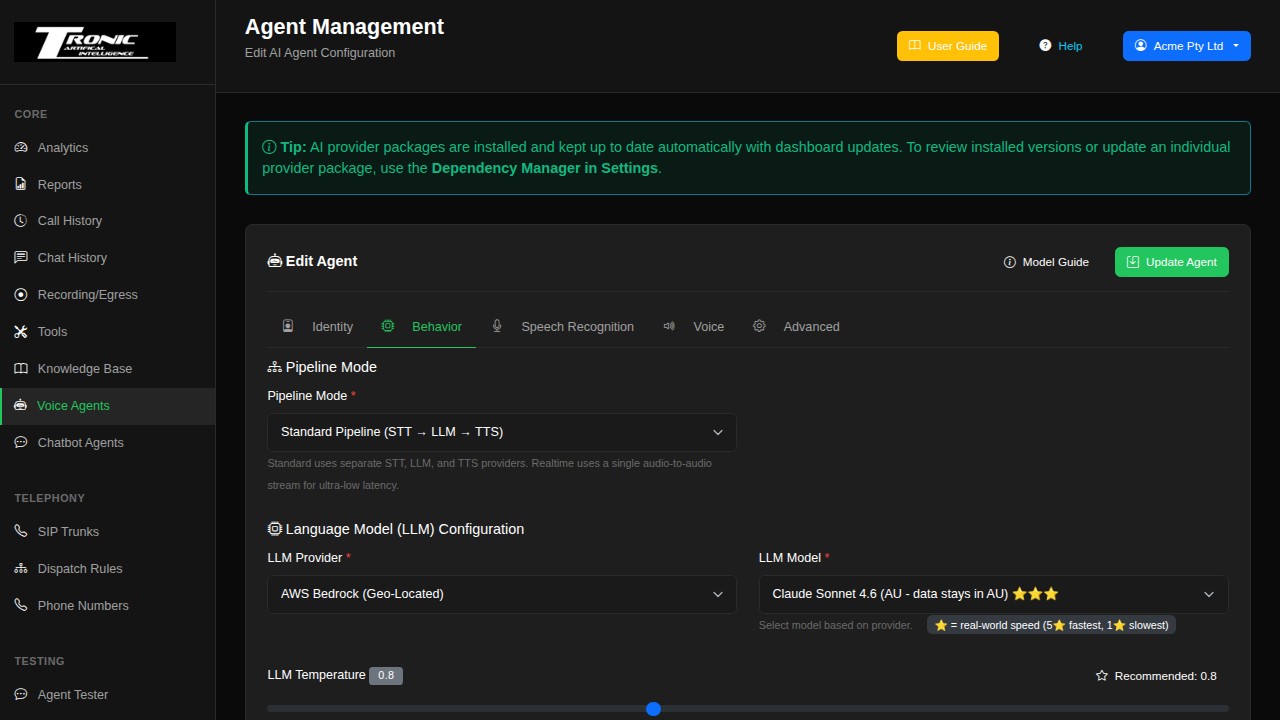
Behavior tab — the agent’s brain
This is where you choose the AI model that does the thinking, and how it behaves mid-conversation.
- Provider and model — the default is chosen for speed, because on a phone call a slow answer feels worse than a slightly less clever one. Only change it if you have a reason to.
- Fallback models — you can nominate up to two backups. If the main AI provider has an outage, calls automatically continue on a backup instead of failing.
- Conversation dynamics — how quickly the agent decides you’ve finished speaking, and whether a caller can interrupt it mid-sentence. Allowing interruptions feels much more natural on the phone.
Speech Recognition tab — how the agent hears
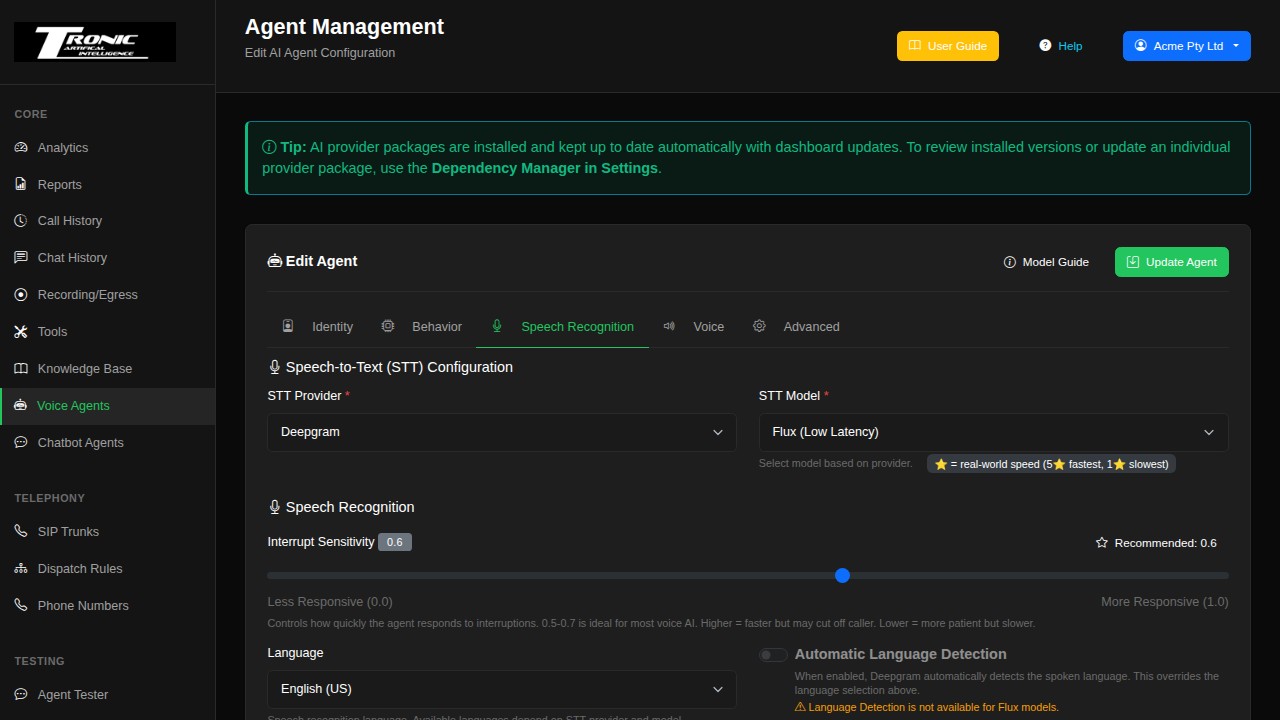
Controls how the caller’s speech is turned into text.
- Provider and model — the transcription engine.
- Language — set this to the language your callers actually speak; it makes a bigger difference to accuracy than any other setting here.
- Audio input settings — how the agent detects speech versus silence and background noise.
- Backup provider and stall recovery — if the transcription service stops responding mid-call, the agent switches to a backup and recovers the words it missed rather than going silent. Leave it on.
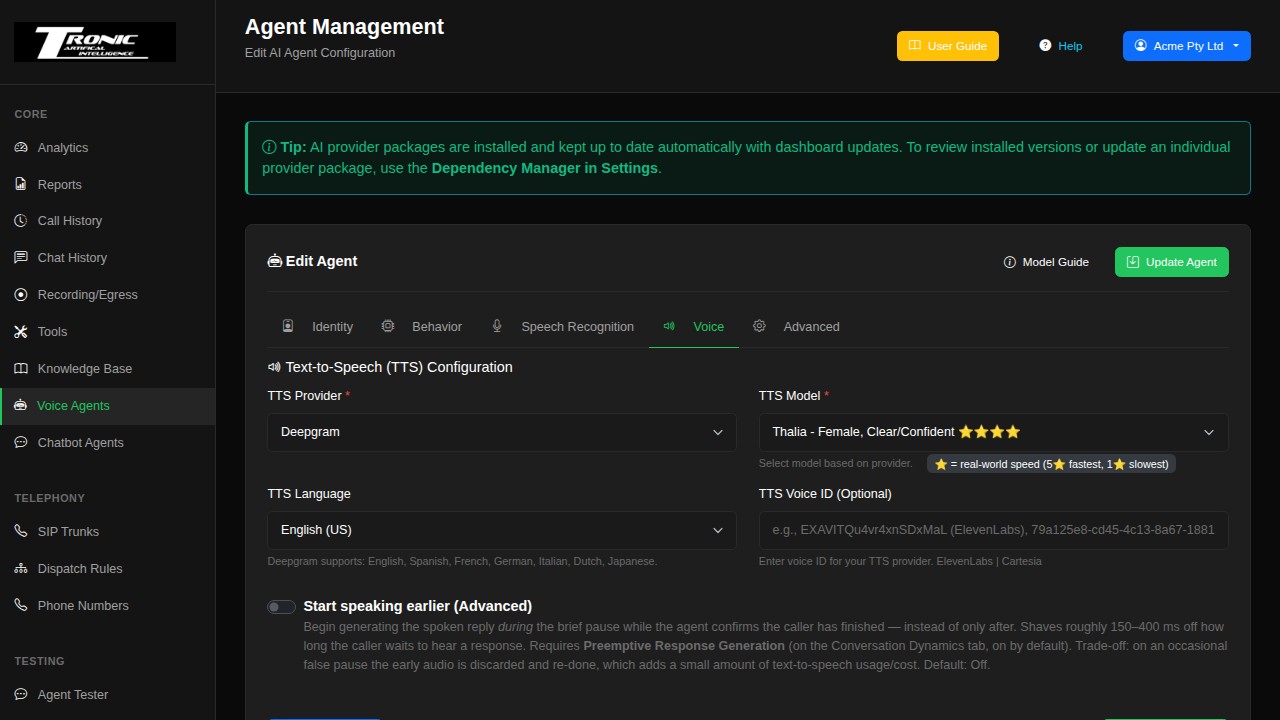
Voice tab — how the agent sounds
Pick the speaking voice. Providers offer different voices with different accents and energy levels. Australian callers generally respond best to an Australian or neutral English voice. Preview a few before settling — this is the single most noticeable thing about your agent.
Advanced tab — conversation feel and safety valves
Optional, but this is where several genuinely useful controls live. Working down the tab:
- Resource limits — caps such as Max Call Duration. Worth setting: it stops a stuck call quietly running up charges.
- Silence behaviour — what the agent does when nobody is talking. You set how long to wait, whether it nudges the caller (“Are you still there?”), how many times it tries, and when it gives up and ends the call politely rather than holding an empty line open.
- Outbound call detection — recognises voicemail and phone menus on calls your agent places, so it doesn’t hold a conversation with an answering machine. This matters most on Campaigns, where the agent is the one doing the ringing.
- Agent handoffs — passing a caller to another agent. See below.
- Data extraction fields — pulling specific details out of every call. See below.
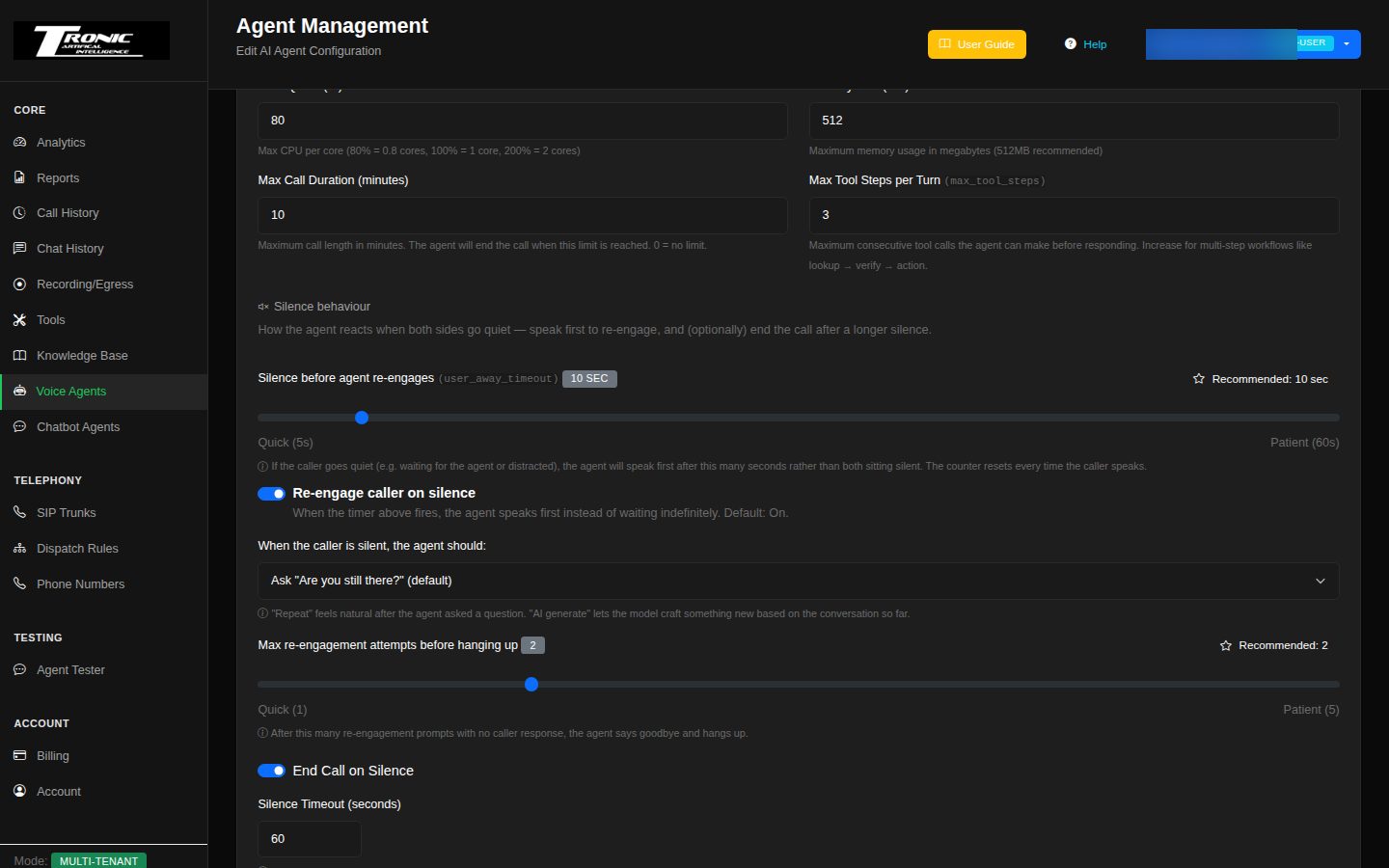
Passing a caller to another agent
One agent answers, another takes over — either openly or invisibly.
You don’t have to cram everything into one agent. A receptionist agent can greet the caller, work out what they want, and pass them to an agent that only does bookings, or only does accounts. Each one then has a short, focused set of instructions instead of one enormous prompt that tries to cover every situation — which is the single biggest reason agents start giving vague answers.
Tick Enable agent handoffs on the Advanced tab, then add one entry per destination agent. There are two styles, and the difference is entirely about what the caller experiences:
- Transfer — the caller knows. The agent says a short sign-off (“I’ll put you through to our bookings team now”) and then hands over. Use it when the caller should understand they’re now talking to a different part of your business.
- Transition — the caller doesn’t notice. The conversation simply carries on in the same voice, with different instructions behind it. Use it to move between phases of one conversation — greeting, then qualifying, then booking.
For each handoff you give a description of when to use it. That sentence is what the agent reads to decide, so write it as a plain instruction: “Use this when the caller wants to book, reschedule or cancel an appointment.” Vague descriptions produce handoffs at the wrong moment.
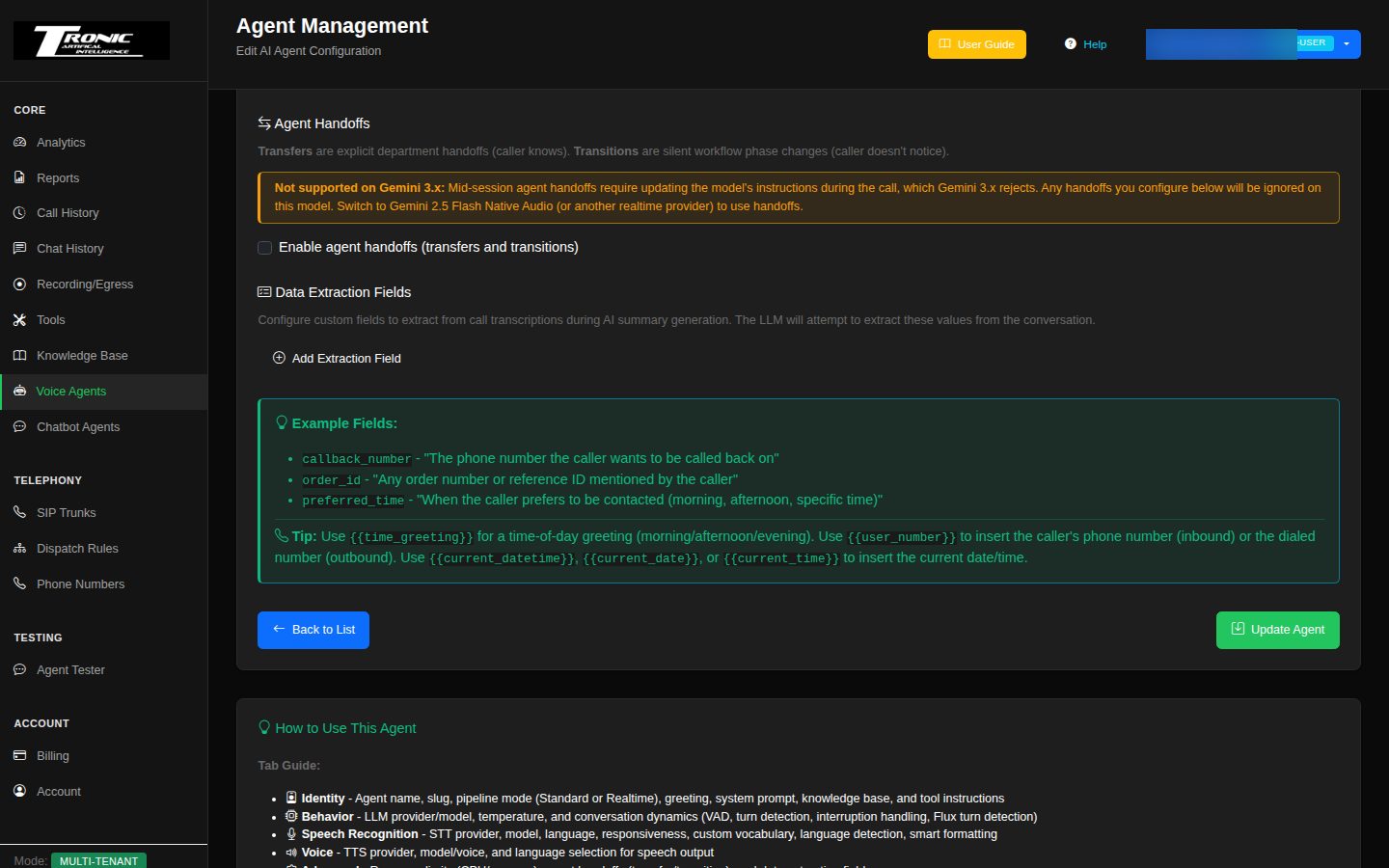
Data extraction — pulling the details out of every call
Stop reading transcripts to find a callback number.
Tell the agent which specific pieces of information to pick out of each conversation, and they appear on the call record as their own fields — ready to read at a glance, and included when you export or send calls to another system.
Click Add Extraction Field and give each one a short name and a plain-English description of what it is:
callback_number— “The phone number the caller wants to be called back on.”job_type— “What kind of work the caller is asking about — e.g. blocked drain, hot water, leak.”suburb— “The suburb the job is in.”urgency— “Whether the caller says it is an emergency.”
Chatbot Agents
Text-based AI chat agents for your website.
A chatbot agent is the same idea as a voice agent, answering typed questions on your website instead of the phone. It can use the same knowledge base and the same tools.
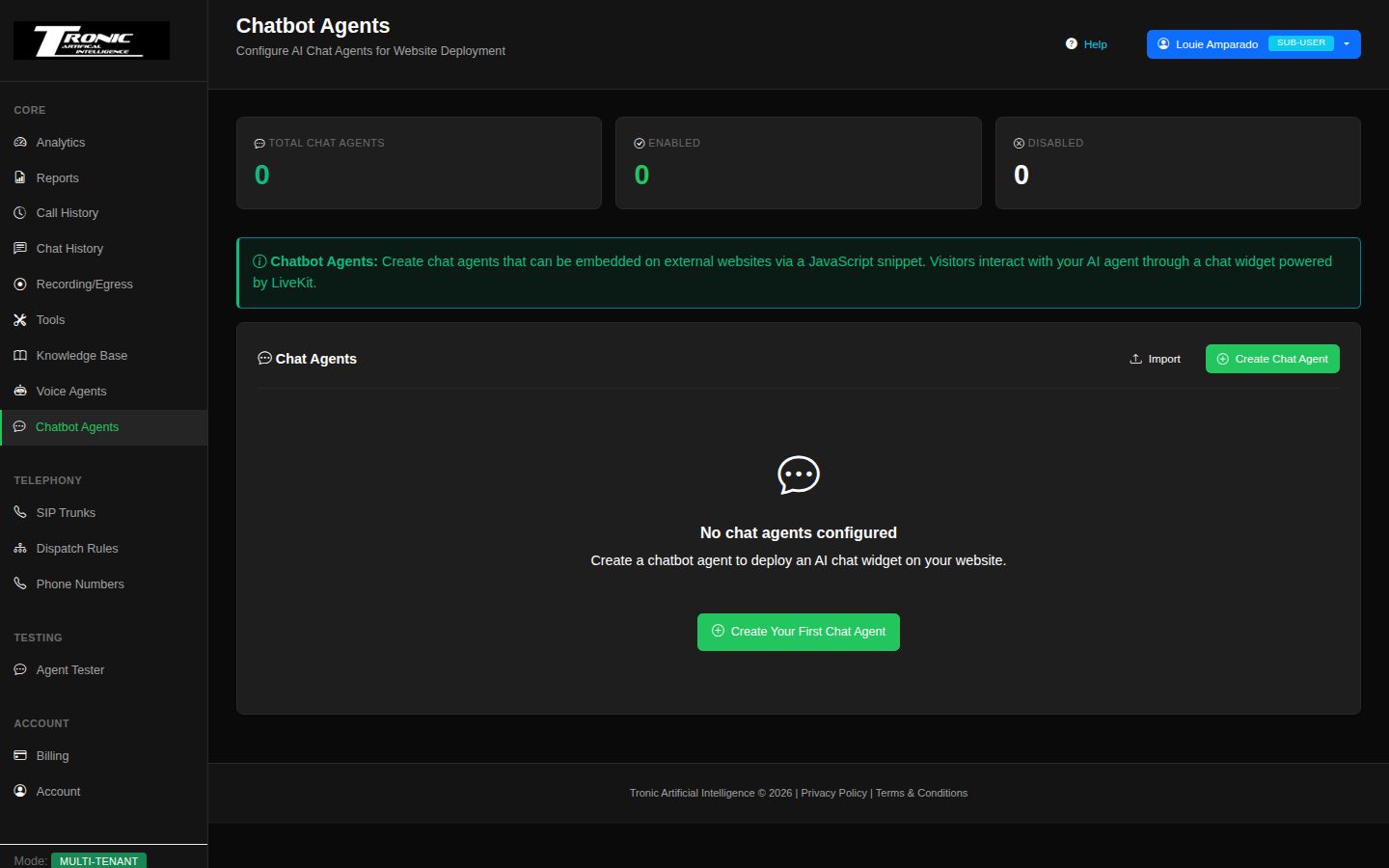
The editor tabs
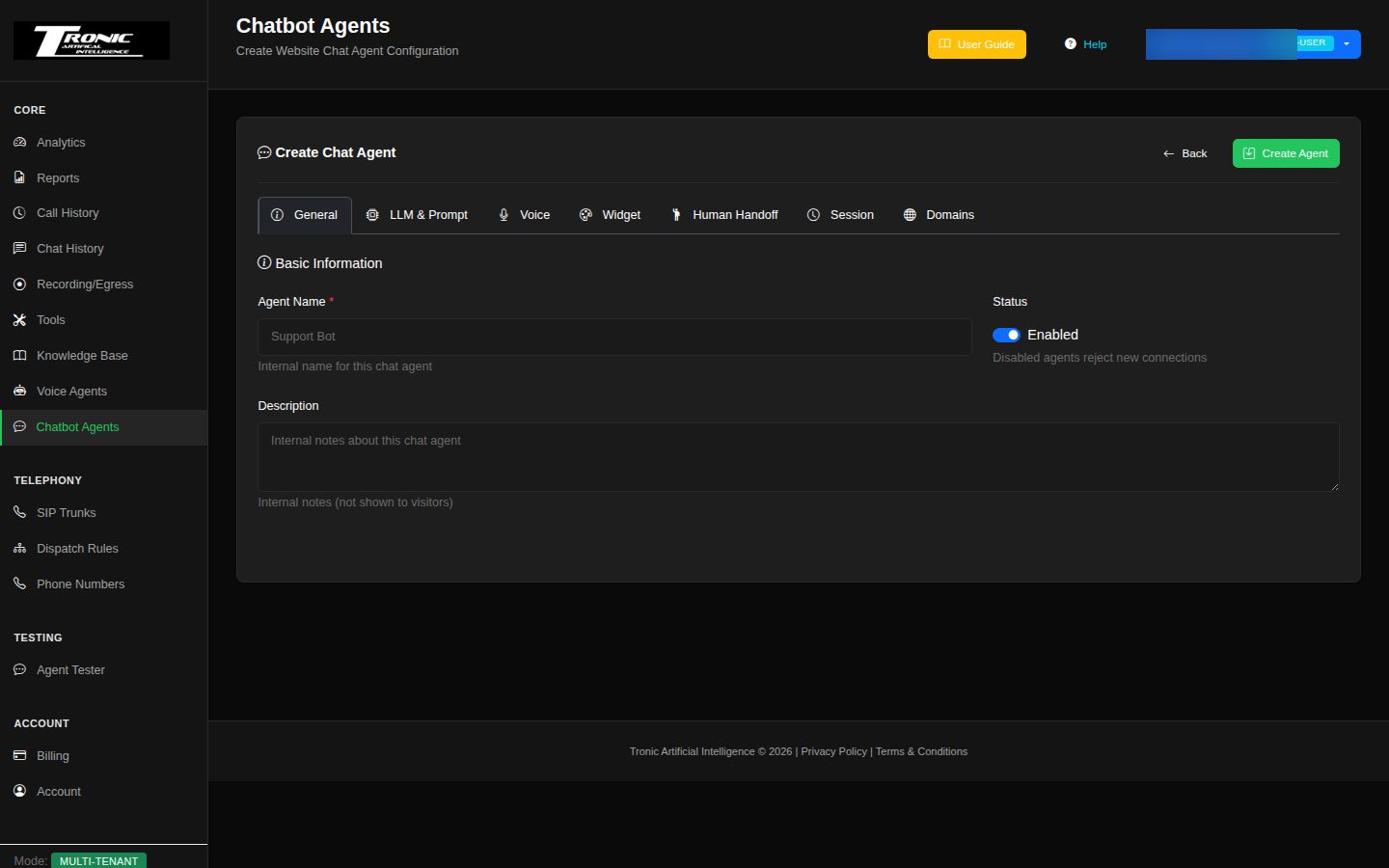
There are eight tabs once your agent is saved. You only need the first two to get going.
- General — name and basic details.
- LLM & Prompt — the AI model and the system prompt, exactly like a voice agent’s Identity and Behavior tabs combined.
- Voice — lets the chatbot talk, so a visitor can speak to it instead of typing. See Letting your chatbot talk below.
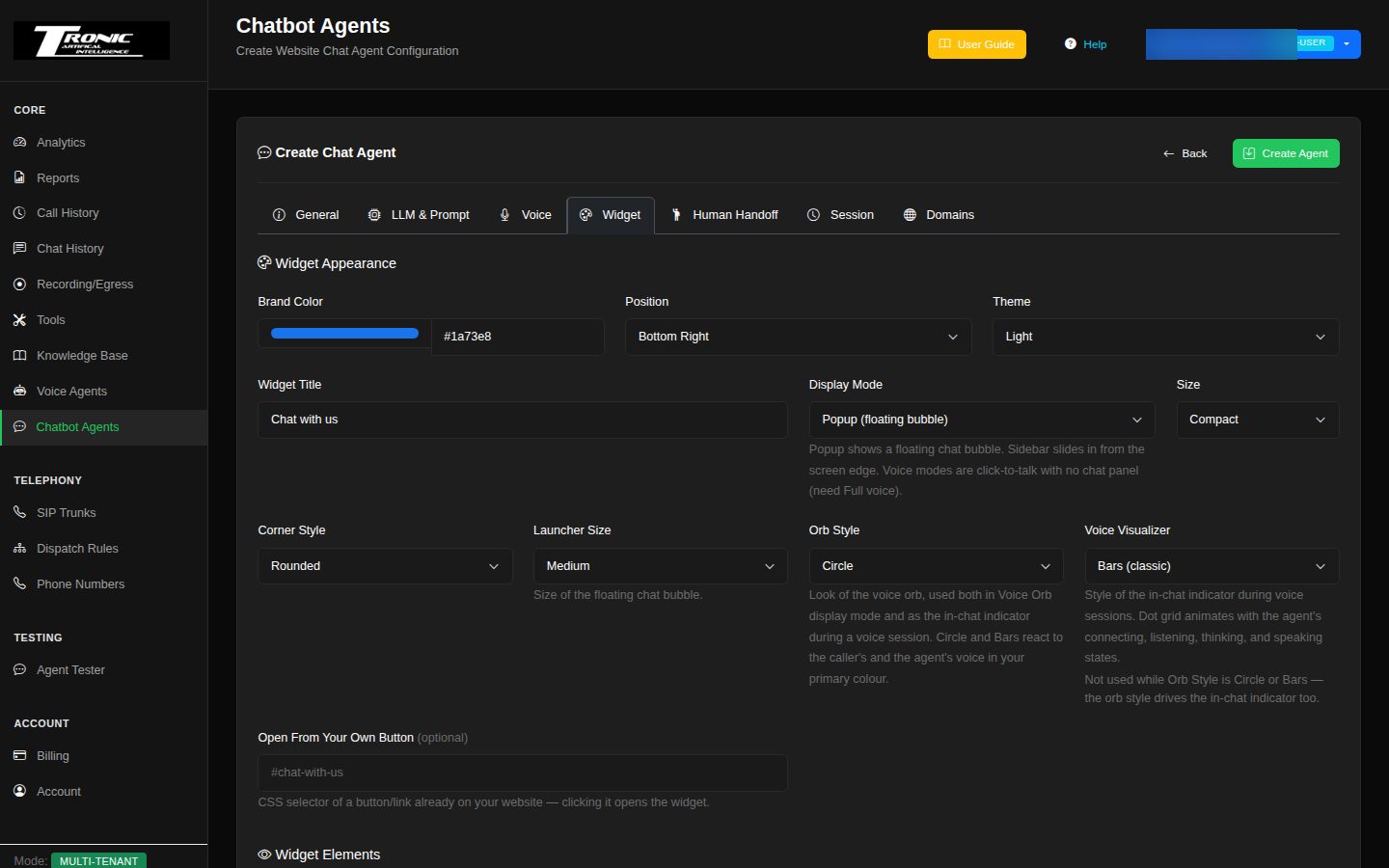
- Widget — how the chat bubble looks on your site: brand colour, corner, light or dark, the title, the launcher size, and which parts show (transcript, microphone button, text box). If the chatbot talks, Orb Style picks the animation visitors watch while it speaks — Classic, Circle or Bars. There’s a live preview on the tab, so try them.
- Human Handoff — lets a real person take over a conversation from the chatbot. See Handing a chat to a real person below.
- Session — how long a visitor’s conversation is remembered.
- Domains — which websites are allowed to show this widget. Set this; it stops anyone else embedding your agent on their own site.
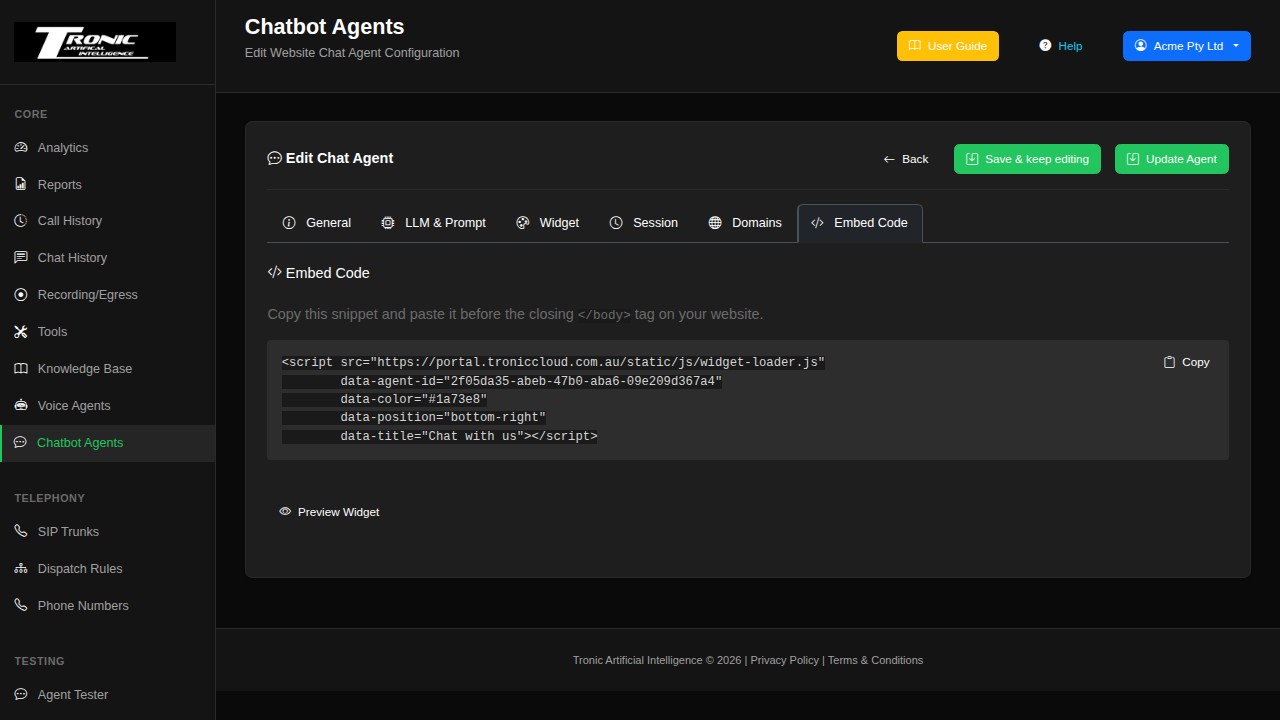
- Embed Code — the snippet you paste into your website.
Letting your chatbot talk
A website chatbot doesn’t have to be typing-only.
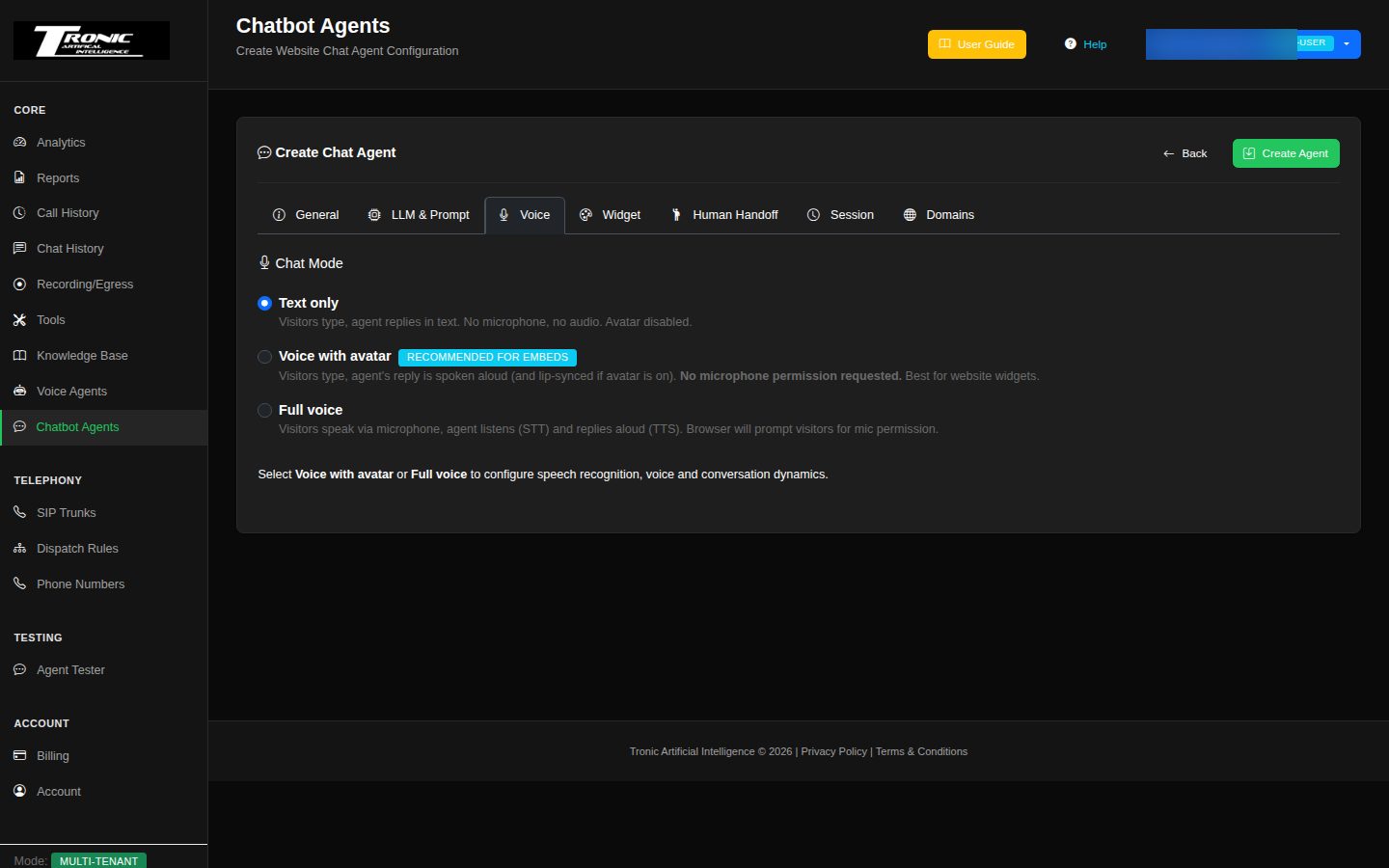
The Voice tab has one decision at the top — Chat Mode — and everything else follows from it:
- Text only — visitors type, the agent types back. No sound, no microphone. This is the default and it suits most websites.
- Voice with avatar — visitors still type, but the agent’s answers are spoken aloud. The browser never asks for microphone permission, which is why it’s the recommended choice for a website widget: it feels alive without a scary permission pop-up. Ignore the word “avatar” — there is no on-screen character to set up, it simply means talking without a microphone.
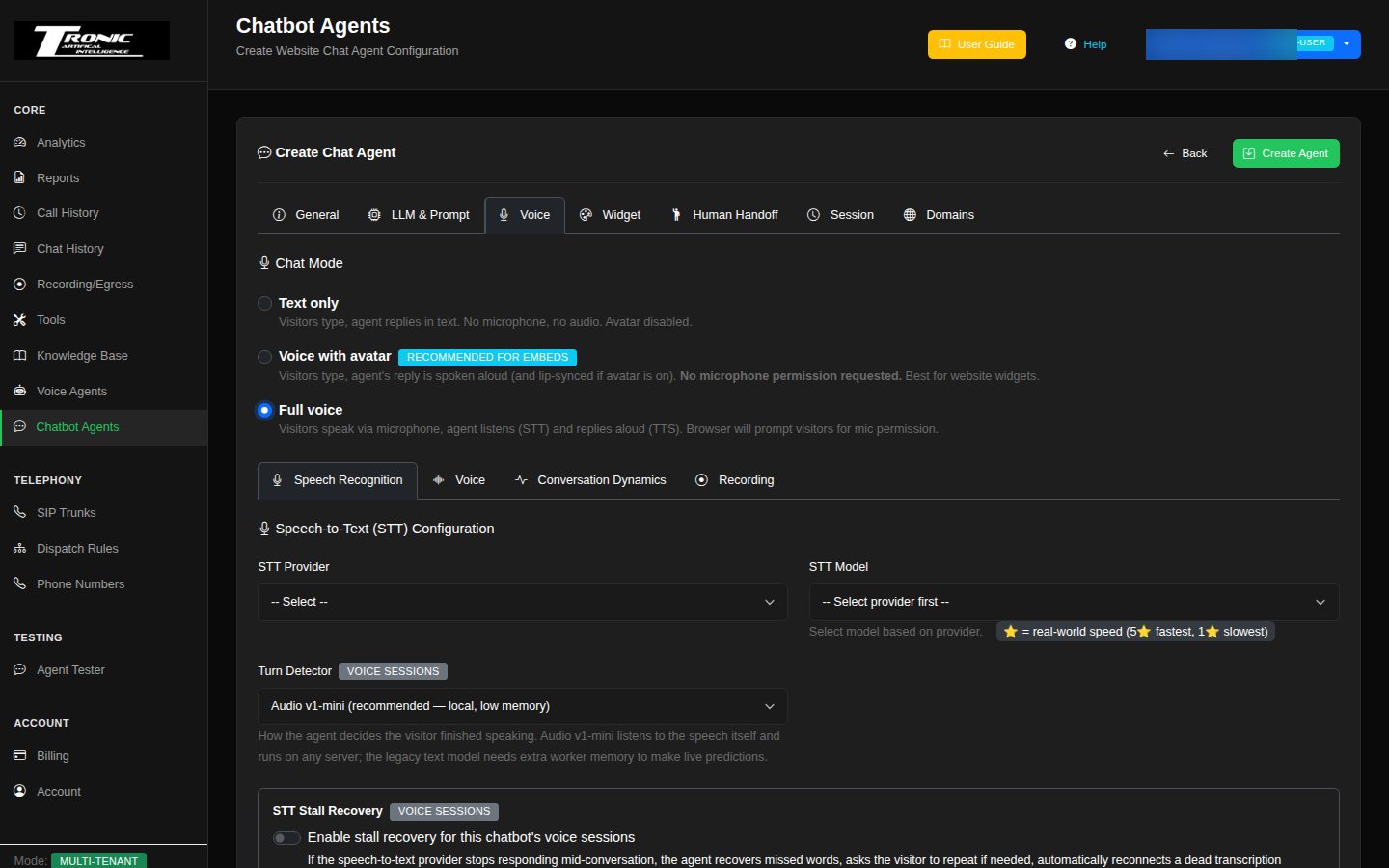
- Full voice — visitors speak and the agent listens and replies aloud, like a phone call in the browser. The browser will ask each visitor for microphone permission.
Choose either of the talking modes and the rest of the tab appears: which service turns speech into text, which voice the agent speaks in, how long a pause means the visitor has finished, and whether background noise is filtered out. The defaults are sensible — the one worth setting yourself is the voice, because it’s the thing every visitor notices.
Handing a chat to a real person
When the visitor wants a human, they get one — without leaving the chat.
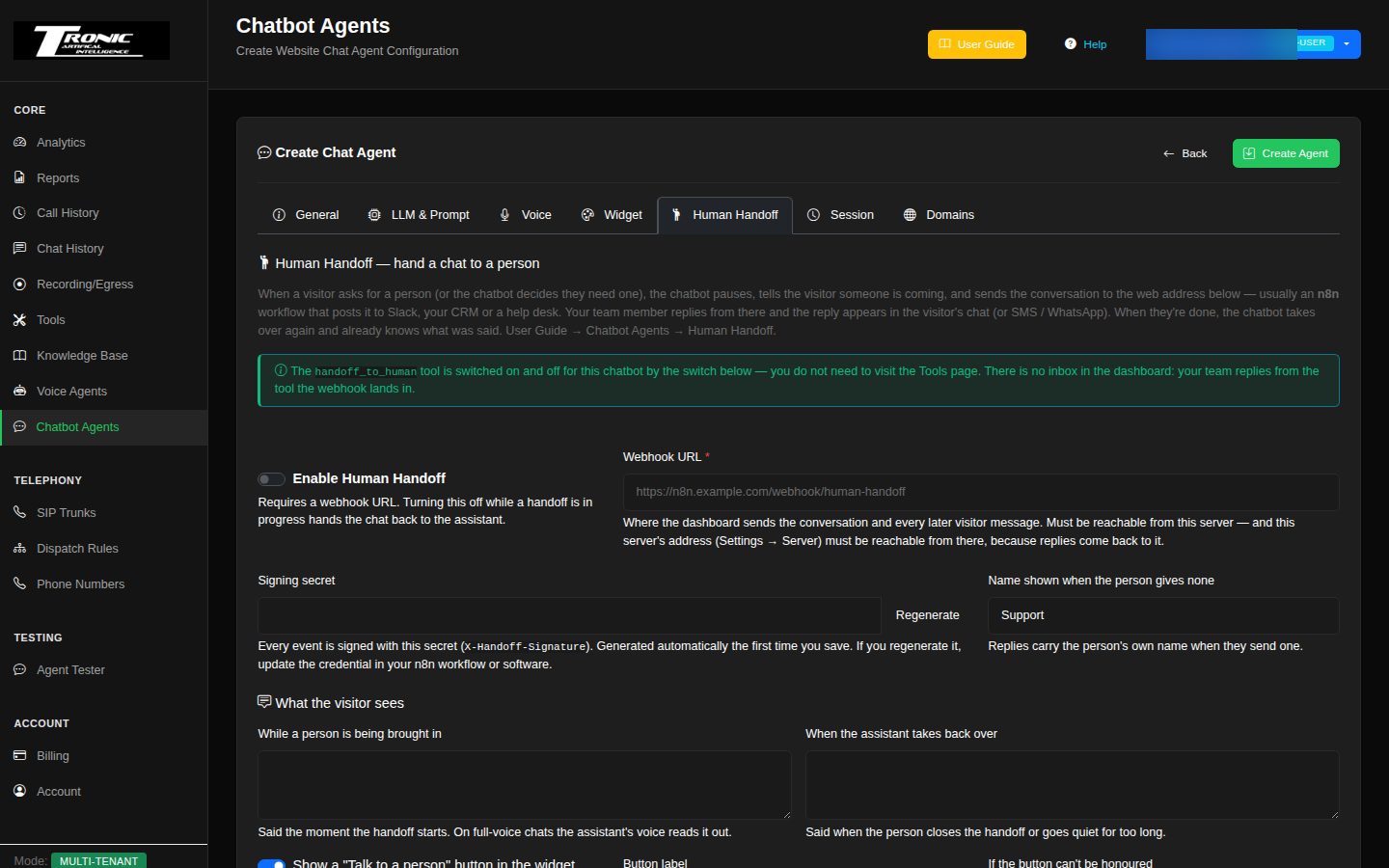
Sometimes the chatbot isn’t enough: the visitor asks for a person, they’re upset, or the question is outside what the bot knows. Human Handoff pauses the chatbot, brings one of your team into the same conversation, and hands control back when they’re done. The visitor stays in the same chat window the whole time.
On the Human Handoff tab you set:
- The switch and a web address — where the conversation gets sent. Turning the switch on also gives the chatbot the ability to ask for a human; you never need to visit the Tools page for it.
- A signing secret — created for you, so the receiving end can prove the message really came from your dashboard.
- What the visitor sees — the message while someone is being found, and the message when the chatbot takes back over. Write these in your own voice.
- A button label — the “Talk to a person” button in the widget, and what happens if nobody can be found.
- If nobody picks up — how long to wait, what to say while waiting, and whether the chatbot carries on or keeps waiting. Set this: an unanswered handoff that just sits there is worse than no handoff.
- Email me when a handoff starts — so a request doesn’t sit unnoticed.
https:// and be a real internet address. An address on
your own office network — anything like 192.168.x.x or
localhost — is refused when you save, because our servers can’t reach
it. Free and paid n8n cloud accounts work out of the box.
Putting it on your website
Open the Embed Code tab, copy the snippet, and paste it into your
website’s HTML just before the closing </body> tag. If you use
WordPress, Squarespace, Wix or similar, look for a “custom code” or
“footer scripts” box in the site settings and paste it there. Save, then reload
your site — the chat bubble appears in the corner.
Greeting visitors by name
If your website already knows who the visitor is — because they’re logged in —
you can pass that through so the chatbot greets them personally. Add a
data-variables attribute to the snippet you pasted, listing the details as
pairs:
<script src="..." data-agent-id="..."
        data-variables='{"name": "Priya", "account_number": "1253566"}'></script>
Each one becomes a placeholder you can use in the chatbot’s welcome message and instructions, written in double curly brackets. A welcome message of “Hello {{name}}, your account {{account_number}} is due for renewal.” greets that visitor by name. If a detail isn’t supplied the placeholder is quietly removed, so nobody sees an empty gap. You can pass up to ten.
Knowledge Base
Give your agent documents to answer from (prices, policies, FAQs).
Without a knowledge base, your agent only knows what’s in its system prompt. With one, it can answer from your actual documents — and say “I don’t know” instead of making something up.
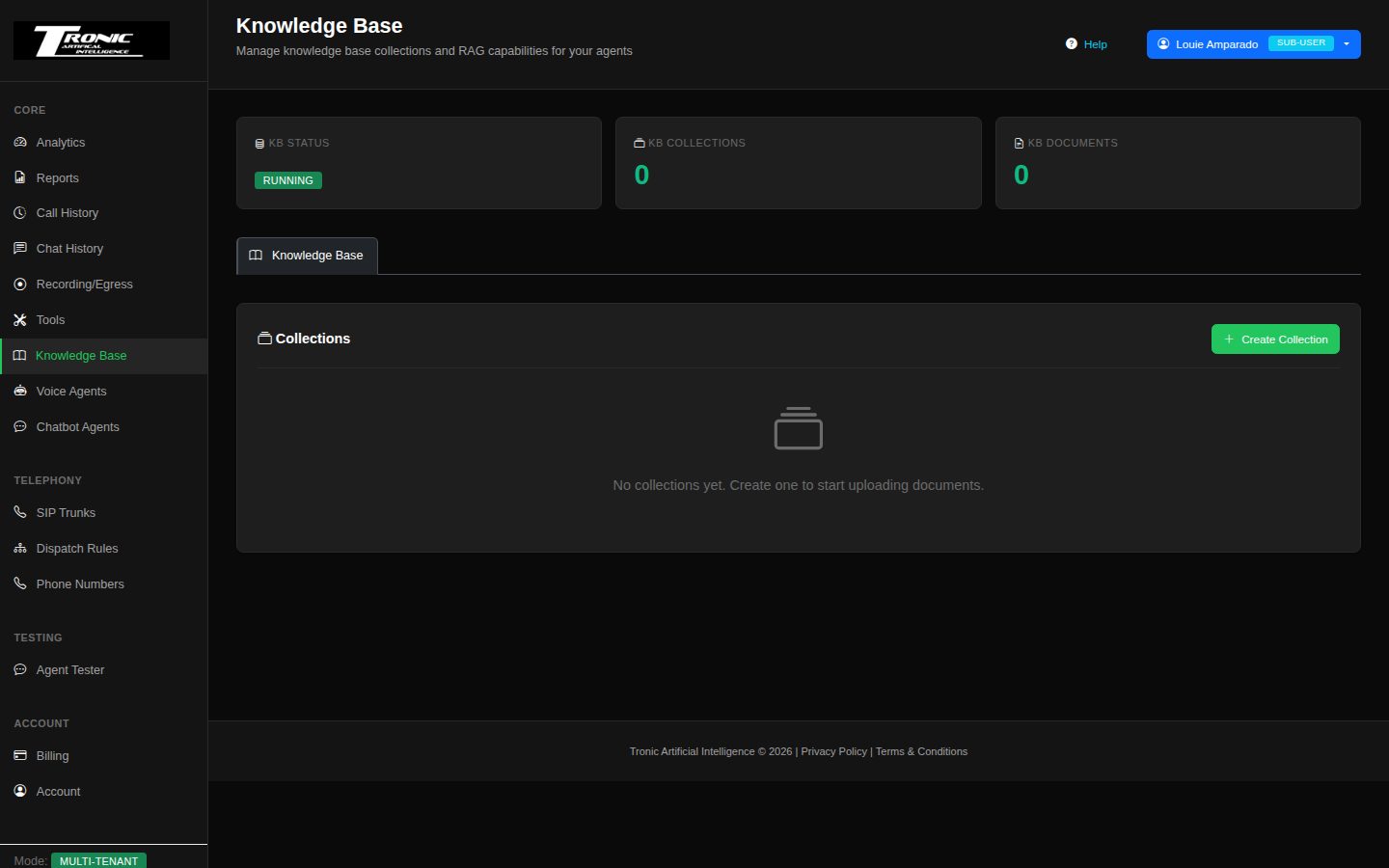
How to set one up
- Create a collection — a folder for one topic, e.g. “Service pricing” or “Warranty policy”.
- Upload your documents into it.
- Attach the collection to your agent in the agent editor. This step is the one people forget — uploading alone doesn’t change the agent’s answers.
- Test it in the Agent Tester by asking a question the document answers.
What to upload
Documents and plain text work best — price lists, service descriptions, warranty terms, a list of frequently asked questions with their answers. Two things to avoid: scanned images of text (there are no words in a picture for the agent to read), and spreadsheets full of numbers with no labels.
Write it the way you’d explain it to a new staff member. A heading followed by a short, direct answer beats a paragraph of marketing copy every time — the agent reads what you give it, so a vague document produces a vague answer.
Your chatbot can use it too
A collection isn’t only for phone agents. Attach the same collection to a website chatbot and it answers from the same documents, so your phone and your website never disagree about a price.
Tools
Let your agent do things — transfer a call, hang up, or send details to your systems.
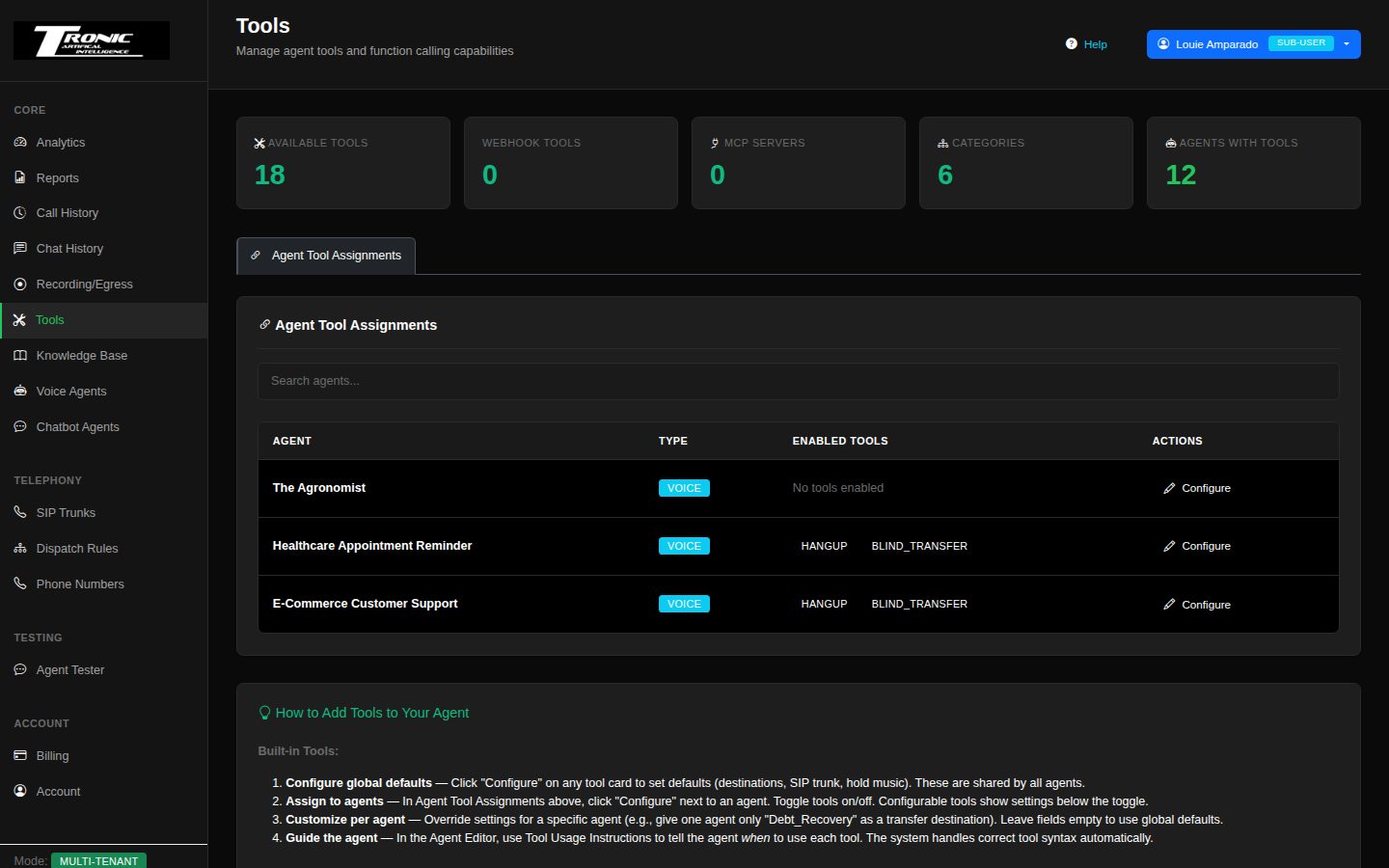
The Tools page has two tabs. Agent Tool Assignments decides which tools each agent may use and holds their per-agent settings; Webhooks is where you build connections to your own systems.
1 Assign tools to an agent
The Agent Tool Assignments section at the top lists your agents. Click Configure next to an agent to open its assignment panel, then flip the toggle for each tool you want that agent to have. Configurable tools (like transfers) show a settings panel under their toggle where you can override the defaults just for this agent.
Sometimes an agent has a tool assigned that this page can’t offer right now — for example the tool was renamed. The Configure window then shows a yellow warning box at the top (“1 tool on this agent isn’t available right now”) listing it with the reason, and the agent table shows its badge in yellow with a warning sign.
- “Not found”: the tool was deleted or renamed, or couldn’t be loaded. If it was renamed, switch the new name on in the list above and tick Remove on the old one.
- Remove: tick it and click Save to take the tool off this agent. Its per-agent settings are deleted too.
Let the agent finish speaking before a tool runs
When the agent says something and then uses a tool — “I’ll put you through to Sales now” followed by a transfer, or a goodbye followed by a hang-up — the tool waits for the sentence to finish before it starts. Most sentences take 2–4 seconds. If the agent is still talking after 8 seconds (for example because it repeated the caller’s request back first), this setting decides how much longer it may keep waiting, so the caller hears the whole sentence instead of being cut off mid-word.
- Before a tool runs, let this agent finish speaking (top of a voice
agent’s Configure window):
- Use default: follows the dashboard’s default — up to 15 seconds unless it has been changed. Right for almost everyone.
- Up to 12 / 15 / 20 seconds: a shorter or longer limit for this agent. A sentence longer than the limit is still cut off when the limit is reached.
- Off — stop waiting at 8 seconds: the old behaviour. The tool starts at 8 seconds even if the agent is mid-sentence.
collect_dtmf) is never delayed, and speech-to-speech
(realtime) agents always stop at 8 seconds. One setting covers the whole call: after a
handoff, the agent that answered the call still decides. The setting travels with the
agent when you export, import or duplicate it.
2 Tell the agent when to use its tools
Giving an agent a tool isn’t quite enough — it also needs to know when to reach for it. That happens in the agent editor, in the Tool Usage Instructions box on the Identity tab. Example: “If the caller asks to speak to a person, use the transfer tool and send them to Reception. If nobody answers, offer to take a message.” You describe the when in plain English; the system automatically supplies the technical details and the list of available destinations.
Switching a tool on adds its default instruction to that box for you. Switching it off takes that default text out again — unless you had edited it, in which case your wording is left alone and a notice asks you to open the agent editor and remove what no longer applies.
Setting up Cal.com for your agents
Your agents can work with a Cal.com calendar through four built-in tools. Together they cover the whole appointment conversation:
- cal_check: finds the free times on a day or range of days.
- cal_book: books a new appointment in one of those free times.
- cal_reschedule: moves an appointment the caller already has to a new free time. Cal.com keeps it as one appointment and sends a single “rescheduled” email.
- cal_cancel: cancels an appointment the caller already has.
This works with a Cal.com cloud account (cal.com). Everything below is done once; after that you just switch the tools on for each agent that should take bookings.
Step 1 — Your Cal.com account and calendar
- Sign in to Cal.com (or create a free account) with the business account whose calendar the agent should book into.
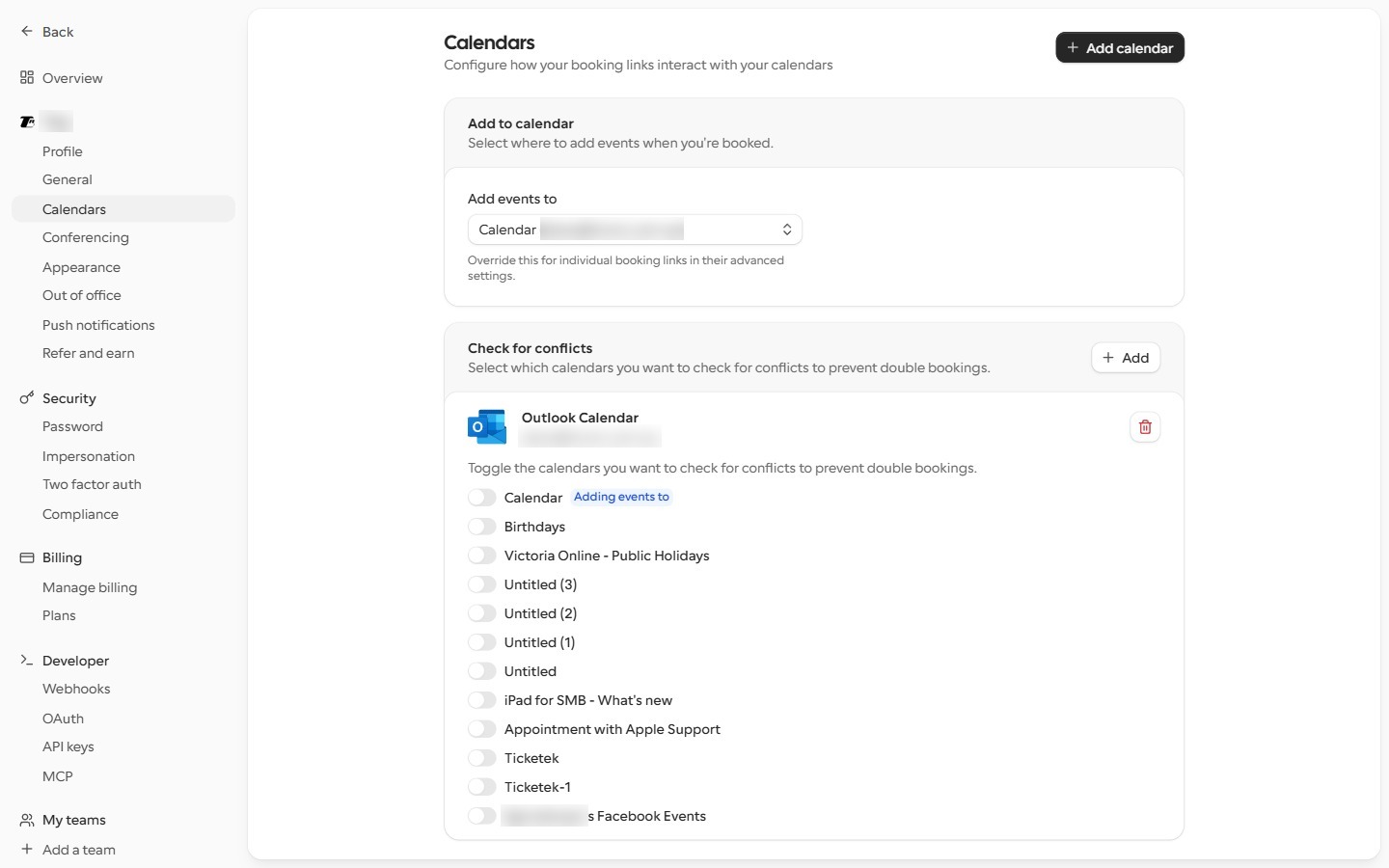
- Connect your real calendar (Google, Outlook or Apple) in Cal.com under Settings → Calendars, then switch on each calendar under Check for conflicts that holds your real appointments. Cal.com treats anything in those calendars as busy, so the agent never offers a time you’re not free — a connected calendar with its switch off is ignored. Add events to chooses which calendar the agent’s bookings appear in.
- Set your working hours in Cal.com under Availability. The agent can only offer times inside them.
Step 2 — The event type the agent books
In Cal.com an event type is a kind of appointment — for example “30 minute consultation”. The agent books, moves and cancels appointments of one event type. Create one (or pick an existing one) under Event Types, and set its length, buffers and minimum notice the way you want them — the agent follows the same rules as your online booking page.
A few event-type settings decide whether the tools can work at all. Open the event type and check them before you go live (the tab names below are the ones in the event type’s left-hand menu):
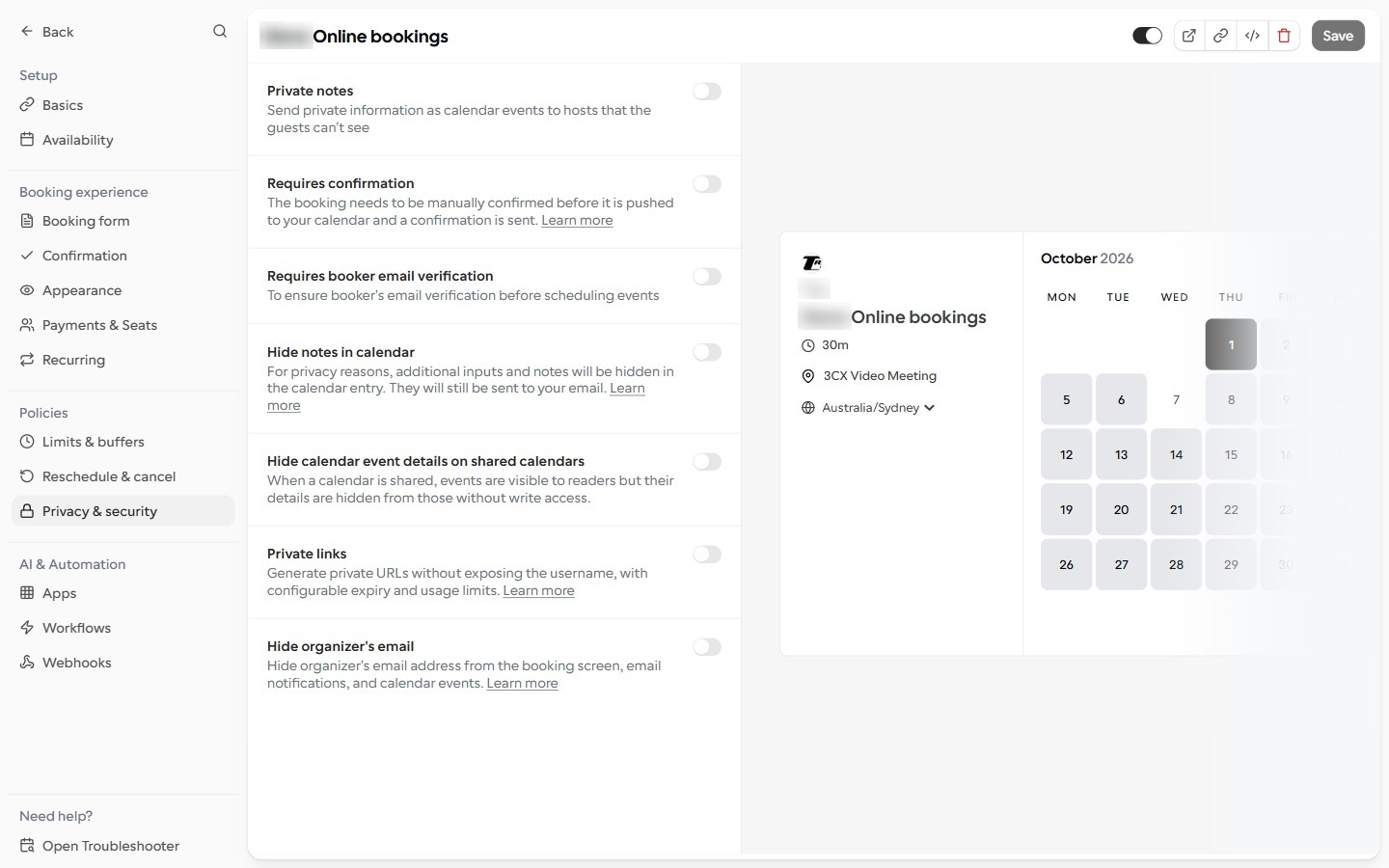
- Privacy & security → Requires booker email verification — turn OFF. With it on, Cal.com emails a code the caller would have to read out, which they can’t do on a call. Booking and moving appointments then fail.
- Privacy & security → Requires confirmation — your choice. If it’s on, new and moved appointments wait as “pending” until you confirm them in Cal.com. The agent tells the caller the business still has to confirm the new time.
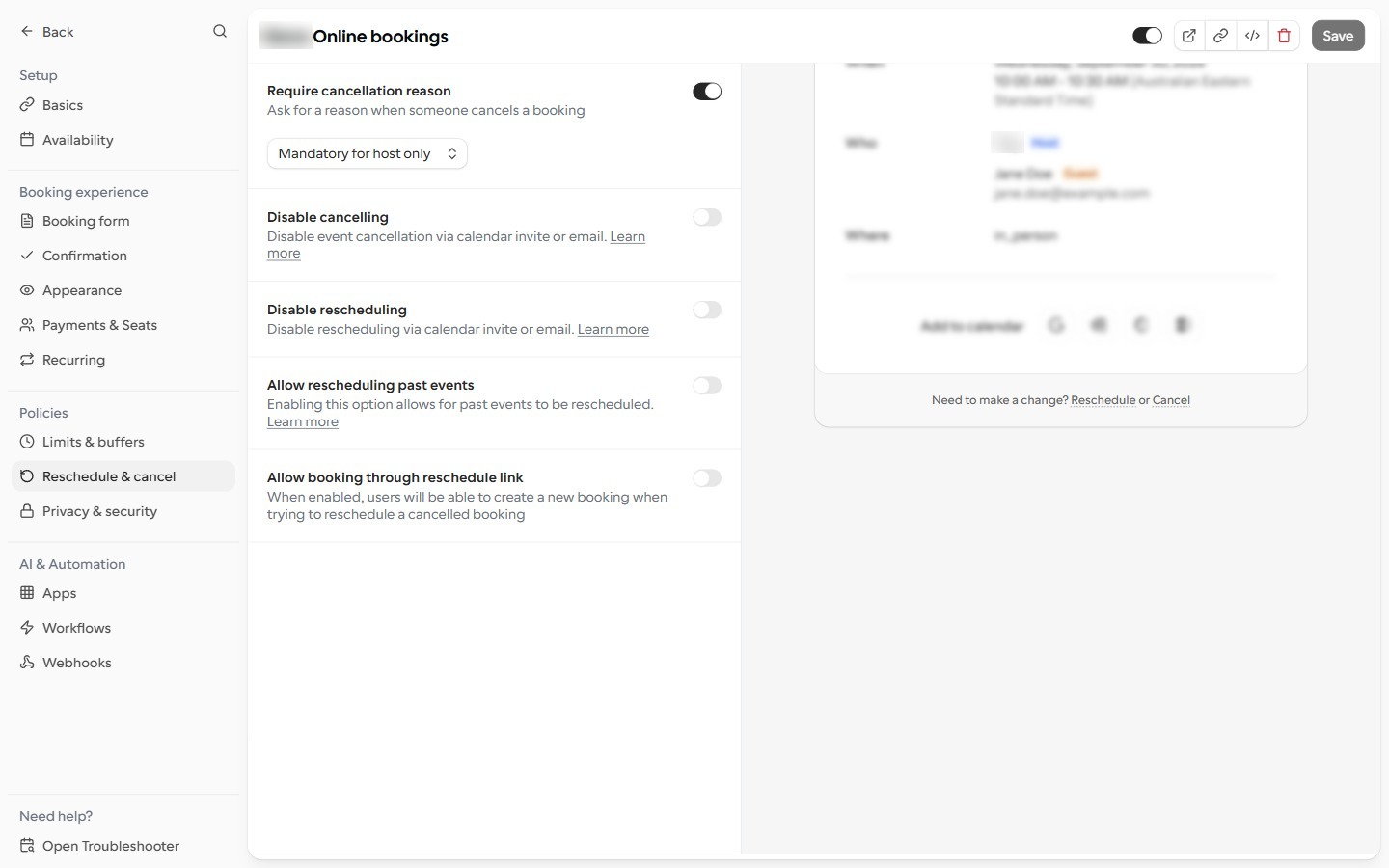
- Reschedule & cancel → Disable cancelling / Disable rescheduling — leave OFF. If either is on, Cal.com refuses the matching tool and the agent tells the caller it couldn’t make the change. (Require cancellation reason doesn’t get in the way — the agent always sends one.)
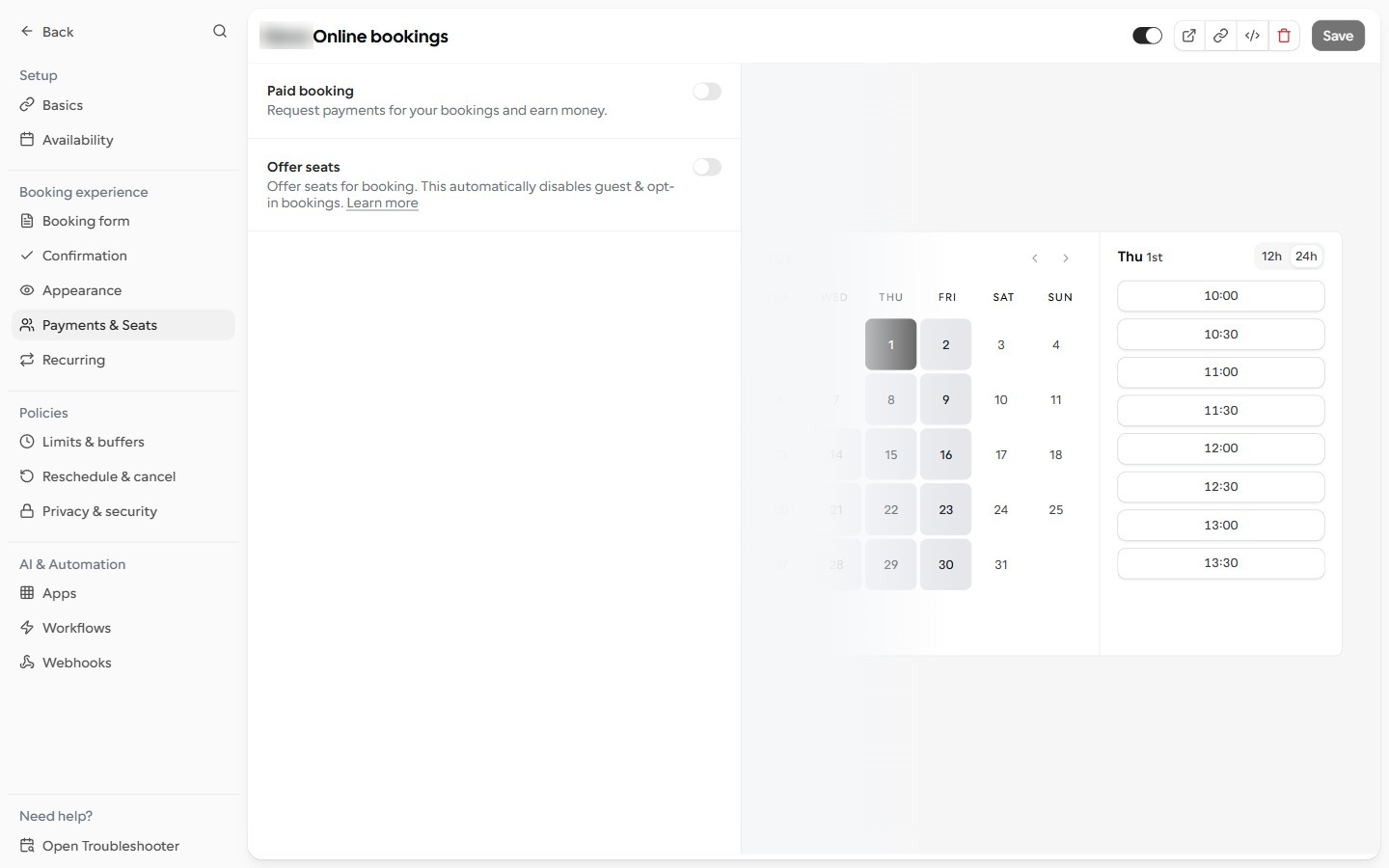
- Payments & Seats → Offer seats — leave OFF. The agent can’t move or cancel a seat in a group booking; it will tell the caller the team will help. Paid bookings aren’t supported by the agent either.
- Phone number question — only if you want phone matching. If you plan
to turn on Also require the caller’s phone number to match (see Step 5), the
booking has to store the caller’s number. Add a phone question under the event
type’s Booking form, and switch on Send caller’s phone number in
cal_book.
Step 3 — Copy the Event Type ID and create an API key
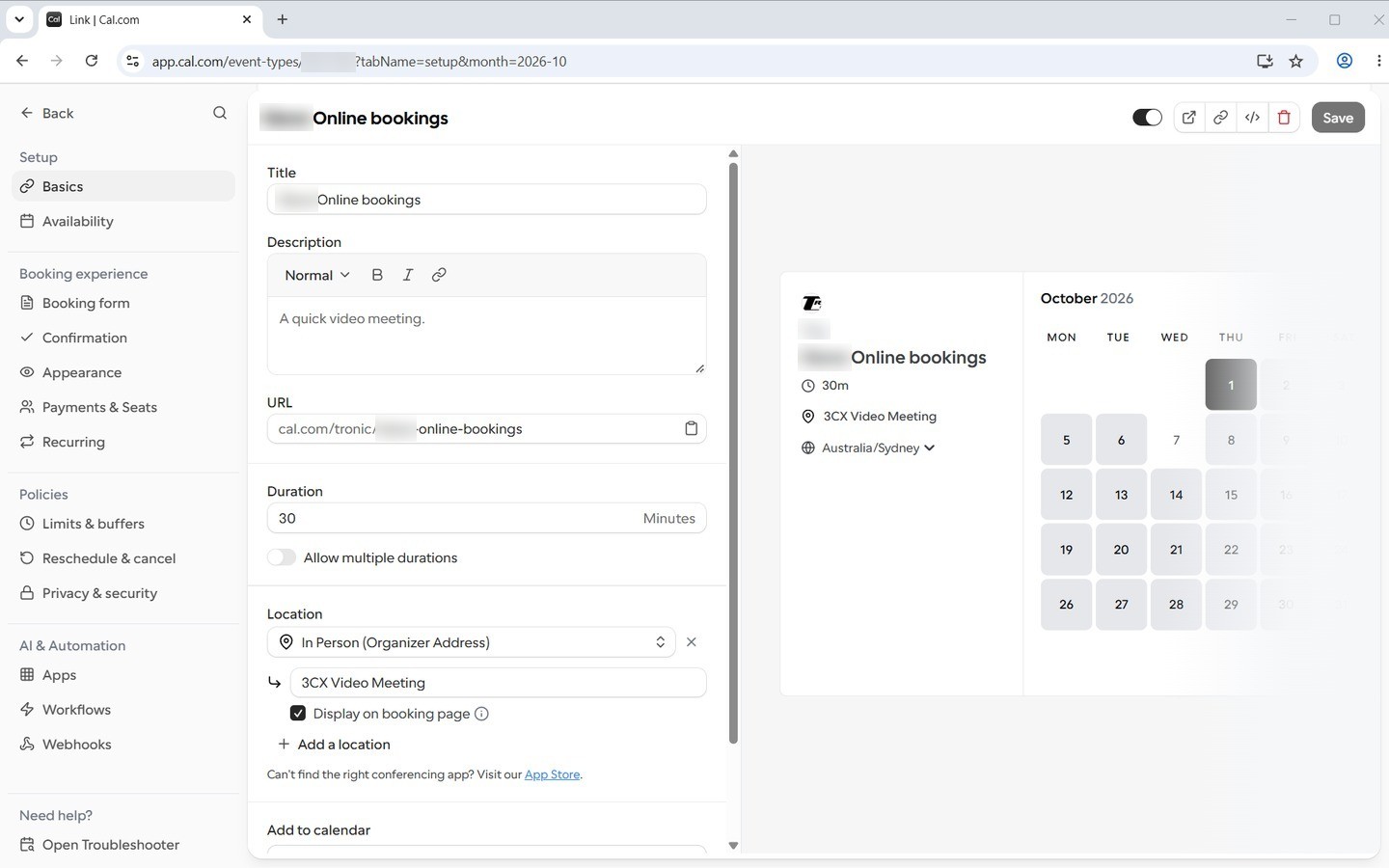
- Event Type ID: open the event type in Cal.com and look at the address
bar. The number straight after
/event-types/(for exampleapp.cal.com/event-types/1234567?tabName=setup) is the Event Type ID. Ignore everything from the?on.
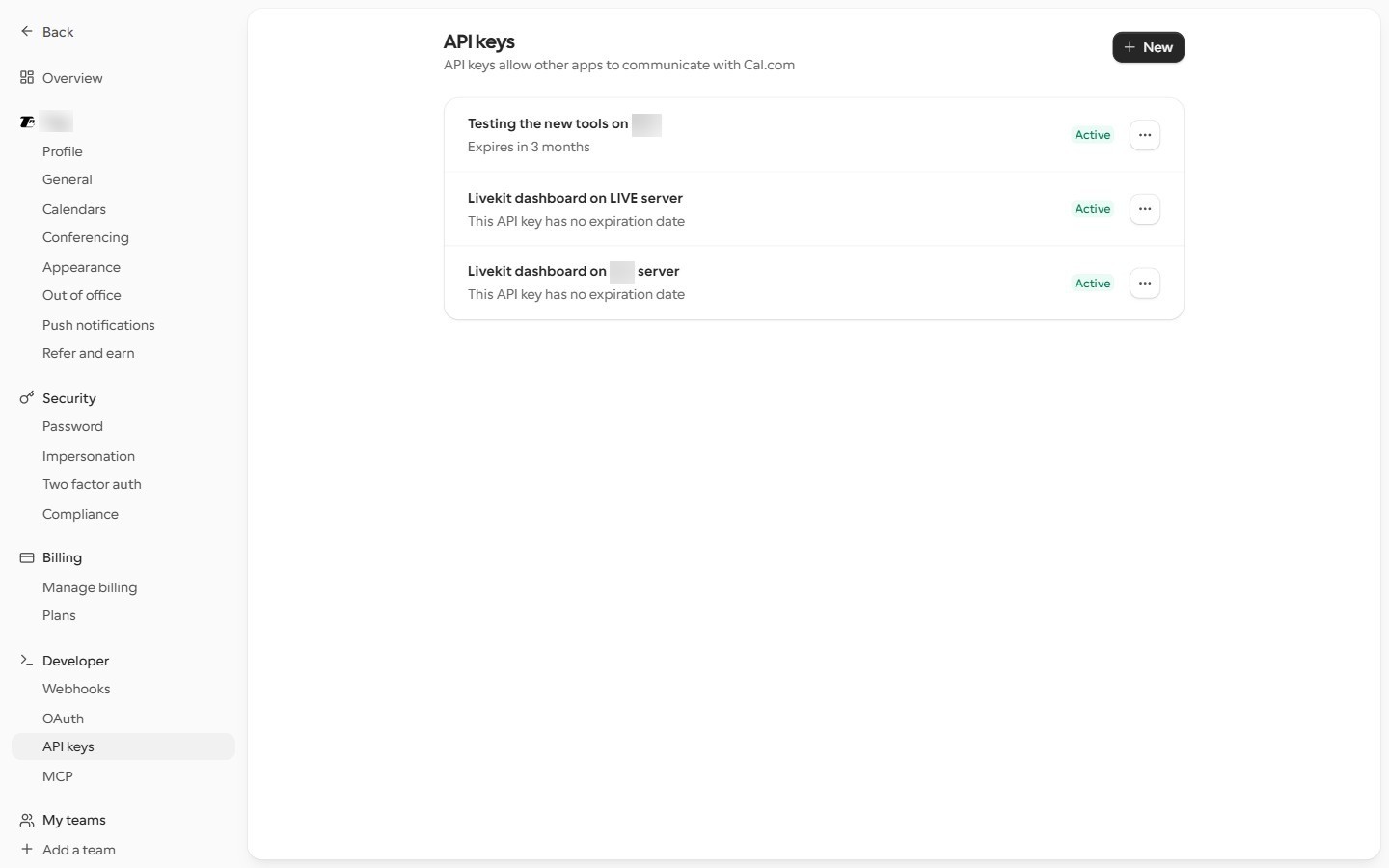
- API key: in Cal.com go to Settings → Developer → API
keys, click New, give it a name such as “Voice agent”, and copy the
key (it starts with
cal_live_). Cal.com shows it only once. If you set an expiry date, put a reminder in your diary: an expired key makes every Cal.com tool fail with “The calendar API key appears to be invalid”.
Step 4 — Put the key into the tools
Each of the four tools has its own copy of the settings, so fill in the same Cal.com API Key, Event Type ID and Timezone in every Cal.com tool the agent uses.
- For one agent: Tools page → Agent Tool Assignments → Configure next to the agent → switch the tool on and fill in its settings panel. Use this when different agents book into different calendars.
- Timezone: set it to the timezone your Cal.com working hours are in (for
example
Australia/Sydney). It is how the agent reads out times and understands “the appointment on Tuesday”. If you leave it blank the dashboard’s own timezone is used, which may not be yours — set it on every Cal.com tool.
Step 5 — Choose the tools and test them
- Book only:
cal_check+cal_book. - Book and change: add
cal_rescheduleand/orcal_cancel. If callers ever ring to change a time, switch oncal_reschedule— without it the agent can only book a second appointment and the old one stays in your calendar. - Also require the caller’s phone number to match (on
cal_rescheduleandcal_cancel): an extra check that the booking belongs to the person calling. Leave it off unless your bookings save the caller’s phone number (Step 2) — with it on, a booking that has no phone number can never be found. - Test: after saving, press Run Test in each tool’s settings. It only reads from Cal.com — it never books, moves or cancels anything.
Then try the whole conversation in the Agent Tester with a test booking under your own email: book one, ring back and move it, ring back and cancel it. Check Cal.com after each step.
If something goes wrong
What the agent (or the tool result in Call History) says, and what to do:
- “The calendar API key appears to be invalid”: the key was mistyped, deleted or has expired. Create a new key in Cal.com (Step 3) and paste it into every Cal.com tool.
- “The configured calendar event type was not found” or
“Event Type ID is not configured”: the Event Type ID is missing
or belongs to a different Cal.com account (the first message comes from
cal_checkandcal_book). Copy it again from the address bar. - “I couldn’t find an upcoming appointment under that email address on that date”: the caller gave a different email or date from the one on the booking, the booking is for a different event type, or it is in the past. The agent should check the spelling and the date with the caller.
- “I wasn’t able to find that appointment … the team will follow up”: three look-ups failed in the same conversation, so the tool stopped trying (this stops people guessing their way into someone else’s booking). Call the customer back.
- “That time slot is no longer available”: someone took the time between the agent offering it and the caller choosing it. The agent checks again and offers another time.
- “That appointment has already been cancelled”: nothing to do — it was cancelled earlier (by the caller online, or by you).
- “… can’t check the caller’s phone number in this conversation”: phone matching is on, but the conversation has no phone number (for example a website chat). Turn phone matching off for that agent, or handle changes from the website yourself.
- Every look-up fails although the details are right: phone matching is on and your bookings don’t store a phone number. Turn it off (Step 5).
Every tool and its settings
attended_transfer
Warm transfer. The agent rings the destination, speaks to them privately while your caller waits on hold, then connects the two. If nobody answers it comes back to the caller.
Settings
- Outbound SIP Trunk: SIP trunk to use for outbound consultation calls (pick one from a list)
- Transfer Destinations: Destinations the agent can warm-transfer to. Each entry has a name (shown to the agent), a type (PSTN phone number or SIP URI for 3CX/PBX queues), and the destination value. Optionally a per-destination trunk override. attended_transfer always uses bridged dial — SIP REFER mode (available on blind_transfer) does not apply here because the multi-step consult/merge flow needs the destination as a room participant. On a PBX-type trunk a phone-number entry must be an extension, queue or SIP user name (letters, digits, . _ -) and is dialled exactly as written; a number starting with + is refused, so give that entry a Trunk override pointing at a PSTN trunk. (a named list of destinations)
- Play Hold Music: Whether to play hold music while caller is on hold during transfer (on or off; default: True)
- Hold Music File: Audio file to play while caller is on hold during consultation. Leave on (None - use default) to play the built-in hold music. (pick one from a list)
- Hold Music Volume: How loud the hold music plays to the caller. The slider is perceptual (50% sounds about half as loud as 100%); values below ~10% are near-silent on phone calls. 80 is the recommended default. (a slider; default: 80)
- Consultation Timeout (seconds): How long the consultation can run before it auto-cancels and the caller is returned. The countdown starts when the transfer is initiated and INCLUDES the time spent dialling and ringing the destination (typically 5–15s), so set this comfortably higher than the conversation alone — 90 seconds or more is recommended. Default 120. Set to 0 to disable auto-cancel entirely. (a whole number; default: 120)
- Ring-out timeout (seconds): How long to wait for the destination to pick up before treating it as no-answer. Lower = faster pivot to taking a message, higher = more tolerance for slow mobiles. Typical range 15-25. (a whole number; default: 18)
- Detect voicemail and pivot automatically: When enabled, the agent listens briefly to the destination's first few seconds after pickup and pivots back to the caller if it hears a voicemail greeting. Disabled automatically in audio-to-audio (realtime) pipelines where no separate STT is available. (on or off; default: True)
- Voicemail detection window (seconds) — advanced: How long to listen to the destination before deciding voicemail vs human. Shorter = faster pivot, longer = more accurate. Typical range 4-10. (a whole number; default: 6)
- Voicemail confidence threshold — advanced: How confident the detector must be before auto-cancelling. Lower = more sensitive (more pivots, but more false positives on hands-free / flat-tone humans). 0.7 is a balanced default. (a slider; default: 0.7)
- When transfer fails (no-answer or voicemail), the agent should: Choose what happens when the destination doesn't pick up or voicemail is detected. Selecting 'Take a message' ALSO requires the take_a_message tool to be enabled on this agent — otherwise the LLM will be told to call a tool it doesn't have. (pick one from a list; options: {'value': 'return_to_caller', 'label': 'Apologise and continue talking with the caller (default)'}, {'value': 'take_message', 'label': 'Take a message from the caller (requires the take_a_message tool to be enabled)'}, {'value': 'hangup', 'label': 'Apologise briefly and end the call'}; default: return_to_caller)
- Auto-Hang-Up Recipient When Caller Leaves: When the original caller hangs up after the transfer completes, automatically end the recipient's leg too — so the recipient doesn't hear silence waiting for the call to drop. Default: enabled. Disable only if you have a specific reason to let the recipient leg stay alive after the caller leaves. (on or off; default: True)
- Minimum Consultation Time Before Merge (seconds): Prevents the LLM from merging the transfer immediately. Default 8 seconds. Set to 0 to disable the guard entirely (trust the LLM to merge whenever appropriate). Maximum 60 seconds. (a number; default: 8)
101 is
dialled exactly as typed. A destination starting with + is refused on a PBX
trunk; give that row its own Trunk override pointing at a PSTN trunk. Earlier versions
dialled PBX extensions as +<extension> and the transfer failed.
background_audio
Plays quiet background sound during the call, such as gentle office noise, so silence does not feel dead.
Settings
- Background Audio File: Select a built-in clip or uploaded file to loop during calls (pick one from a list)
- Audio Volume: Controls background audio volume. 0-100% is normal range, above 100% boosts quiet clips for phone calls. (a slider; default: 80)
- Audio Probability: Probability of the ambient sound playing at any given moment (0% = never, 100% = always) (a slider; default: 100)
blind_transfer
Straight transfer. The agent forwards the caller to a destination you set up in advance, chosen by name.
Settings
- Default Outbound SIP Trunk: SIP trunk used for transfers when a destination doesn't specify its own trunk override. (pick one from a list)
- Transfer Destinations: Destinations the agent can transfer to. Each entry has a name (shown to the agent), a type (PSTN phone number or SIP URI for 3CX/PBX queues), and the destination value. Optionally a per-destination trunk override. On a PBX-type trunk a phone-number entry must be an extension, queue or SIP user name (letters, digits, . _ -) and is dialled exactly as written; a number starting with + is refused, so give that entry a Trunk override pointing at a PSTN trunk. (a named list of destinations)
- Play Dial Tone: Whether to play a dial tone to the caller during transfer (on or off; default: False)
- Transfer Mode (Advanced): bridge (default, recommended) — dashboard dials the destination and bridges the caller in; if the destination doesn't answer, the agent stays on the call and can recover. refer (advanced) — sends a SIP REFER to your upstream provider so the call is handed off cleanly and the dashboard's room ends; requires a REFER-friendly provider (Telnyx, or 3CX-as-direct-trunk). Twilio rejects REFER for non-PSTN URIs. With REFER you lose the wait-for-answer safety net — if the destination is unreachable the caller lands on a dead leg. (pick one from a list; options: bridge, refer; default: bridge)
- Auto-Hang-Up Transfer Target When Caller Leaves: When the caller hangs up after being transferred (Bridge mode only), automatically end the destination leg too — so a 3CX queue agent doesn't pick up to silence. Default: enabled. Disable only if you have a specific reason to let the destination leg stay alive after the caller leaves. Not relevant in REFER mode (the destination is on a separate carrier-owned call the dashboard can't control). (on or off; default: True)
cal_book
Books an appointment in Cal.com during the call. To move an appointment the caller
already has, use cal_reschedule instead —
booking again leaves the old appointment in your calendar. Setup:
Setting up Cal.com for your agents.
Settings
- Cal.com API Key: Your Cal.com cloud API key (starts with cal_live_…). In multi-tenant mode set this per-agent, not in the global card. (a secret, stored hidden; required)
- Event Type ID: Numeric Event Type ID from your Cal.com event type URL. (a whole number; required)
- Timezone: IANA timezone recorded on the booking (e.g. Australia/Sydney). Leave blank to use the dashboard timezone (Settings → General).
- Attendee Language: Locale code for the booking confirmation (e.g. en). (default: en)
- Send caller's phone number: Attach the caller's phone number to the booking (for Cal.com SMS reminders). Only sent when it is in E.164 format. (on or off; default: False)
- Bookings API Version (advanced): Cal.com cal-api-version for the bookings endpoint. Leave default unless Cal.com changes it. (default: 2024-08-13)
- Usage Instruction: Guidance appended to the agent's prompt for when/how to use this tool. (a longer block of text; default: To book an appointment, call cal_book with the caller's full name, their email address, and start_time. CRITICAL: start_time must be copied VERBATIM from a cal_check slot — never invent or reformat a timestamp. Confirm the spelled-out email with the caller before booking. If a slot is no longer available, call cal_check again once and offer another time; do not retry more than twice.)
cal_cancel
Cancels an appointment the caller already has in Cal.com. The agent finds the booking from the email address it was booked under and the date of the appointment, reads it back, and only cancels once the caller says yes. First set up Cal.com as described in Setting up Cal.com for your agents.
How a cancellation sounds
- Caller: “I need to cancel my appointment.”
- Agent: “Sure — what email address is it booked under, and what day is it?”
- Caller: “jo@example.com, it’s on Tuesday the 1st.” (the agent looks it up — nothing is changed yet)
- Agent: “I’ve found your appointment on Tuesday 1 December at 11:00am. Would you like me to cancel it?”
- Caller: “Yes please.” (only now is it cancelled)
- Agent: “Done — your appointment on Tuesday 1 December at 11:00am has been cancelled.”
Settings
- Cal.com API Key: Your Cal.com cloud API key (starts with cal_live_…). Use the same key as your other Cal.com tools. (a secret, stored hidden; required)
- Event Type ID: Numeric Event Type ID from your Cal.com event type URL. The agent can only change bookings of this event type — use the same ID as
cal_checkandcal_book. (a whole number; required) - Timezone: IANA timezone the caller’s appointment date is in (e.g. Australia/Sydney) — also the timezone the agent reads times out in. Leave blank to use the dashboard timezone (Settings → General), but setting it is strongly recommended.
- Also require the caller’s phone number to match: Only find bookings whose phone number matches the number the caller is ringing or texting from. Bookings saved without a phone number can then never be found, and website chats (which have no number) can’t use the tool at all — only turn this on if your bookings record the caller’s phone. (on or off; default: off)
- Bookings Lookup API Version (advanced): Cal.com cal-api-version for finding bookings. Leave default unless Cal.com changes it. (default: 2024-08-13)
- Cancel/Reschedule API Version (advanced): Cal.com cal-api-version for cancelling and rescheduling. Leave default unless Cal.com changes it. (default: 2026-02-25)
- Usage Instruction: Guidance appended to the agent's prompt. The default tells the agent to ask for the email and date, read the appointment back, and only cancel after a clear yes; and to use
cal_rescheduleinstead if the caller wants a different time. (a longer block of text)
- Existing agents don’t change: the tool does nothing until you switch it on for an agent.
- Repeating (recurring) appointments: only the one occurrence the caller named is cancelled; the rest of the series stays.
- Group (seated) bookings: can’t be cancelled by the agent — it tells the caller the team will help.
- Simulations and test runs never cancel real bookings: the tool is recorded as used but not actually run.
cal_check
Checks what appointment times are free in Cal.com so the agent can offer them — for a
new booking (cal_book) or a new time for an existing one
(cal_reschedule). Setup: Setting up Cal.com for
your agents.
Settings
- Cal.com API Key: Your Cal.com cloud API key (starts with cal_live_…). In multi-tenant mode set this per-agent, not in the global card. (a secret, stored hidden; required)
- Event Type ID: Numeric Event Type ID from your Cal.com event type URL. (a whole number; required)
- Timezone: IANA timezone for availability (e.g. Australia/Sydney). Leave blank to use the dashboard timezone (Settings → General).
- Slot Duration (minutes, optional): Only for variable-length event types. Leave blank to use the event type's own duration. (a whole number)
- Slots API Version (advanced): Cal.com cal-api-version for the slots endpoint. Leave default unless Cal.com changes it. (default: 2024-09-04)
- Usage Instruction: Guidance appended to the agent's prompt for when/how to use this tool. (a longer block of text; default: When the caller asks about availability or wants to book, call cal_check with the requested date range (start_date and end_date, ISO dates like 2026-07-01). State the timezone you are quoting and confirm it with the caller. Read back a few of the returned slot times. Do NOT invent times — only offer slots cal_check returned. When the caller picks one, pass that slot's exact value to cal_book without reformatting it.)
cal_reschedule
Moves an appointment the caller already has to a new free time. It uses Cal.com’s own
“reschedule”, so there is still one appointment afterwards (Cal.com
marks the old time as rescheduled) and the caller gets one “rescheduled” email.
Without this tool an agent can only book a second appointment and the old one stays in your
calendar. Needs cal_check switched on too, to find the new time. Set up Cal.com
first: Setting up Cal.com for your agents.
How a reschedule sounds
- Caller: “I need to move my appointment.”
- Agent: “No problem — what email is it booked under, and which day is it on?”
- Caller: “jo@example.com, Monday the 30th. Could I do Tuesday
morning instead?” (the agent checks Tuesday’s free times with
cal_check) - Agent: “I have 11:00 or 11:30 on Tuesday.” Caller: “11 is great.” (the agent looks up the booking — nothing is changed yet)
- Agent: “So that’s moving your appointment from Monday 30 November at 11:30am to Tuesday 1 December at 11:00am — shall I go ahead?”
- Caller: “Yes.” (only now is it moved) Agent: “Done — you’re now booked for Tuesday 1 December at 11:00am.”
Settings
- Cal.com API Key: Your Cal.com cloud API key (starts with cal_live_…). Use the same key as your other Cal.com tools. (a secret, stored hidden; required)
- Event Type ID: Numeric Event Type ID from your Cal.com event type URL. The agent can only change bookings of this event type — use the same ID as
cal_checkandcal_book. (a whole number; required) - Timezone: IANA timezone the caller’s appointment date is in (e.g. Australia/Sydney) — also the timezone the agent reads times out in. Leave blank to use the dashboard timezone (Settings → General), but setting it is strongly recommended.
- Also require the caller’s phone number to match: Only find bookings whose phone number matches the number the caller is ringing or texting from. Bookings saved without a phone number can then never be found, and website chats (which have no number) can’t use the tool at all — only turn this on if your bookings record the caller’s phone. (on or off; default: off)
- Bookings Lookup API Version (advanced): Cal.com cal-api-version for finding bookings. Leave default unless Cal.com changes it. (default: 2024-08-13)
- Cancel/Reschedule API Version (advanced): Cal.com cal-api-version for cancelling and rescheduling. Leave default unless Cal.com changes it. (default: 2026-02-25)
- Usage Instruction: Guidance appended to the agent's prompt. The default tells the agent never to use
cal_bookto move an appointment, to find the new time withcal_check, read back both the old and the new time, and only move it after a clear yes. (a longer block of text)
cal_cancel — a look-up that changes nothing and gives the agent a
one-time code, then the move itself with that code. If someone takes the new time in between,
the agent hears “That time slot is no longer available” and offers another. If the
event type requires confirmation, the new time waits as “pending” in Cal.com
and the agent tells the caller the business still has to confirm it. The move is recorded in
Cal.com as made by the caller (their email), not by you.
- Existing agents don’t change: switch the tool on for each agent that should move appointments. Once it’s on, the agent is told to use it instead of booking a second appointment.
- Repeating (recurring) appointments and group (seated) bookings can’t be moved by the agent — it tells the caller the team will help.
- Who can move a booking and simulations: the same as
cal_cancelabove.
collect_dtmf
Lets the agent collect numbers the caller types on their keypad, such as an account or reference number.
Settings
- Number of Digits: How many digits to collect (a whole number; default: 10)
- Input Timeout (seconds): How long to wait between digit inputs (a number; default: 4.0)
- Terminator Key: Key to end input early (pick one from a list; options: #, *; default: #)
- Confirm with Caller: Read back digits and ask caller to confirm (on or off; default: True)
get_datetime
Tells the agent the current date and time, so it can answer 'are you open now' and talk about days correctly.
Settings
- Timezone: Select your timezone (pick one from a list; options: Australia/Melbourne, Australia/Sydney, Australia/Brisbane, Australia/Perth, Australia/Adelaide, America/New_York, America/Chicago, America/Denver, America/Los_Angeles, Europe/London, Europe/Paris, Europe/Berlin, Asia/Tokyo, Asia/Singapore, Asia/Hong_Kong, Pacific/Auckland, UTC; default: Australia/Melbourne)
- Date Format: How dates should be formatted (pick one from a list; options: Tuesday, 14 January 2025, 14 January 2025, January 14, 2025, 14/01/2025, 01/14/2025, 2025-01-14; default: Tuesday, 14 January 2025)
- Time Format: How times should be formatted (pick one from a list; options: 2:30 PM, 14:30, 2:30:45 PM, 14:30:45; default: 2:30 PM)
handoff_to_human
Chat only. Hands the conversation to a real person on your team.
Settings
- Usage Instruction: When the chatbot should hand a conversation to a person. Switch the feature on and set the webhook in the chatbot's Human Handoff tab — this tool is managed from there. (a longer block of text; default: Use the handoff_to_human tool when the visitor asks to speak to a person, is clearly upset, or you have been unable to help after two attempts. Call it with a short reason. Do NOT announce the handoff yourself and do NOT add anything after calling it — the tool tells the visitor exactly what happens next.)
hangup
Lets the agent end the call politely when the conversation is finished.
Settings
- Usage Instruction: Instructions appended to the agent's system prompt for when and how to use the hangup tool (a longer block of text; default: Use this tool to end the call when the conversation is complete, when you have achieved your goal, or when the caller requests to hang up. Before calling this tool, always deliver your closing words — if the caller has already said goodbye or asked to end the call immediately, a single brief acknowledgment is enough. Do not call this tool mid-sentence or without any spoken closing. After calling this tool the call disconnects immediately — do not generate any further text or response.)
hold
Puts the caller on hold with music while the agent does something, then brings them back.
Settings
- Play Hold Music: Whether to play hold music while on hold (on or off; default: True)
- Hold Music File: Audio file to play while on hold. Leave on (None - use default) for a silent hold. (pick one from a list)
- Hold Music Volume: How loud the hold music plays to the caller. The slider is perceptual (50% sounds about half as loud as 100%); values below ~10% are near-silent on phone calls. 80 is the recommended default. (a slider; default: 80)
- Max Hold Time (seconds): Maximum time a caller can be on hold (a whole number; default: 300)
play_audio
Plays a recorded audio file to the caller, for disclaimers or announcements.
Settings
- Default Audio File: Default audio file to play if none specified (pick one from a list)
- Audio Volume: Controls how loud the audio plays to the caller (0% = silent, 100% = full volume) (a slider; default: 80)
search_knowledge_base
Lets the agent look up answers in your Knowledge Base instead of guessing. It switches on and off by itself when you tick or untick Knowledge Base collections for an agent (see Knowledge Base). The search starts while the agent is still saying “let me check”, so the caller waits less.
Settings
- Max results: Maximum number of search results to return (a whole number; default: 5)
- Say a filler line on slow lookups: if the search is still running a couple of seconds after the agent finishes its own “let me check”, say the filler line so the caller isn’t left in silence. Standard (non-realtime) voice agents only (on or off; default: on)
- Filler line: what the agent says while a slow lookup finishes (default: One moment, let me check that.)
- Filler delay (seconds): how long after the agent stops talking to wait before the filler line (default: 2)
send_email
Sends an email during the call, for example a confirmation or a link.
Settings
- Email Provider: Choose your email sending method (pick one from a list; options: smtp, ses; required; default: smtp)
- SMTP Host: SMTP server address (e.g., smtp.gmail.com)
- SMTP Port: SMTP port (587 for TLS, 465 for SSL) (a whole number; default: 587)
- SMTP Username: —
- SMTP Password: — (a secret, stored hidden)
- Use TLS: Enable TLS encryption (on or off; default: True)
- AWS Region: AWS SES region (pick one from a list; options: us-east-1, us-east-2, us-west-1, us-west-2, eu-west-1, eu-west-2, eu-central-1, ap-south-1, ap-southeast-1, ap-southeast-2, ap-northeast-1; default: ap-southeast-2)
- AWS Access Key ID: —
- AWS Secret Access Key: — (a secret, stored hidden)
- From Email Address: — (required)
- From Name: —
- Reply-To Address: —
send_sms
Sends a text message to the caller during the call.
Settings
- SMS Provider: Preset providers are configured automatically from Settings → Integrations — you only enter the From number. Custom (n8n) sends through your own n8n workflow. (pick one from a list; options: {'value': 'tronic', 'label': 'Tronic Cloud'}, {'value': 'twilio', 'label': 'Twilio'}, {'value': 'telnyx', 'label': 'Telnyx'}, {'value': 'sentdm', 'label': 'Sent.dm (SMS/WhatsApp)'}, {'value': 'custom', 'label': 'Custom (n8n)'}; required; default: custom)
- From Number / Sender ID: Sender phone number (E.164, e.g. +61412345678). Tronic Cloud: AU number without + or an alphanumeric sender ID.
- Sent.dm Channel: SMS is reliable for any message. WhatsApp business-initiated messages only deliver when the recipient messaged your business in the last 24 hours OR Meta approved the passthrough template — arbitrary text may be undeliverable cold. 'WhatsApp, fall back to SMS' tries WhatsApp first and sends SMS if it fails. (pick one from a list; options: {'value': 'sms', 'label': 'SMS'}, {'value': 'whatsapp', 'label': 'WhatsApp (requires Meta setup — not yet verified)'}, {'value': 'whatsapp_sms', 'label': 'WhatsApp, fall back to SMS'}; default: sms)
- Sent.dm Template ID: Passthrough template for business-initiated sends. Auto-created on save when the API key is set — only paste an ID if auto-create fails (create a template whose whole body is {{0:message}} in the Sent.dm dashboard).
- n8n Send-webhook URL: Production URL of the imported Send-SMS n8n workflow (download it below, import into n8n, activate, paste the URL here)
- Shared Secret (send_sms tool): Sent as the X-SMS-Secret header so your n8n workflow can verify the request came from this dashboard. Baked into the downloaded workflow — regenerate = re-download + re-import. (a secret, stored hidden)
- SMS API URL (legacy direct HTTP): Direct SMS gateway HTTP endpoint — only used when the n8n Send-webhook URL above is empty
- HTTP Method: HTTP method for API requests (pick one from a list; options: POST, GET; default: POST)
- Request Body Template: JSON template with placeholders: {{to}}, {{from}}, {{message}} (JSON; default: {"to": "{{to}}", "from": "{{from}}", "message": "{{message}}"})
- Authentication Type: How to authenticate with your SMS API (pick one from a list; options: none, bearer, token, basic, api_key_header, api_key_query; default: none)
- Auth Token/Key: API key, bearer token, or basic auth credentials (a secret, stored hidden)
- Auth Header Name: Header name for API key (e.g., X-API-Key) (default: Authorization)
- Success Check Path: JSONPath to check success (e.g., $.status or $.success) (default: $.success)
- Success Value: Expected value for success (e.g., 'sent', 'true', '200') (default: true)
take_a_message
Takes a message when the person the caller wants is not available, and sends it on.
Settings
- How to deliver captured messages: Captured messages can be sent by email only, SMS only, or both. SMS requires the agent's SMS provider to be configured under the Messaging tab. Email requires the dashboard's email provider to be configured in Settings. (pick one from a list; options: {'value': 'email', 'label': 'Email only'}, {'value': 'sms', 'label': 'SMS only'}, {'value': 'both', 'label': 'Email and SMS'}; default: email)
- Default recipient email: Email used when no per-destination override is configured on the matching attended_transfer destination. Leave blank to require per-destination overrides.
- Default recipient SMS number: SMS number (E.164 format, e.g. +61412345678) used when no per-destination override is configured. Leave blank to require per-destination overrides.
- Include call recording link: If call recording is enabled for this agent, include a link to the recording in the message email/SMS so the recipient has full context. (on or off; default: True)
- Usage Instruction (advanced): Instructions appended to the agent's system prompt for when and how to use take_a_message. Leave default unless you have a specific reason to override. (a longer block of text)
threecx_messaging
Sends a message INTO your 3CX system so it lands in a named user's chat. Not for texting customers.
Settings
- 3CX Webhook URL: Full 3CX Generic SMS webhook URL including the token path (e.g. https://yourtenant.3cx.ph/sms/generic/ABC123...). Find this in 3CX Admin → SIP Trunks → your trunk → Generic SMS tab. (a line of text; required)
- 3CX DID (fallback): The 3CX DID registered for SMS, in E.164 format with leading + (e.g. +61488883111). Used as the 'to' number only when no destinations are configured below. Must match the DID in 3CX EXACTLY. (a line of text)
- Default Country Code: E.164 country prefix (e.g. +61) used to normalize numbers entered in national format (e.g. 0412000001 → +61412000001). Must include the leading +. (a line of text; default: +61)
- Recipients (3CX Users): Named list of 3CX user DIDs the agent can message. Each entry has a Name (what the agent picks by, e.g. 'Sales', 'Support') and a Number (the 3CX DID that routes to that user, in E.164 with leading +). (a named list of destinations)
- Sender Identities: Named list of sender identities the message can appear to come from. Each entry has a Name (what the agent picks) and a Number (mobile in E.164, OR an alphanumeric sender ID up to 11 characters, e.g. 'Tronic'). (a named list of destinations)
- Default Sender Name: Name of the sender identity to use when the agent doesn't specify one. Must match an entry in the Sender Identities list above. (a line of text)
- Webhook Timeout (seconds): Maximum time to wait for 3CX to respond before giving up. Default 15s. Voice calls hear silence during this, so keep it short. (a whole number; default: 15)
threecx_receptionist — 3CX Receptionist
Turns the agent into a receptionist for your 3CX phone system: it finds people, queues, ring groups and menus in the live 3CX directory, sees who is available right now, puts callers through, offers voicemail when someone is busy, can screen callers first, only ever reaches the entries you tick, and can hang up on spam or abusive callers. Each agent connects to 3CX one of three ways: over a phone line with transfers dialled over a PBX trunk, over a phone line with transfers made through the agent’s own 3CX extension (no PBX trunk), or as an extension inside 3CX. Needs 3CX AI Edition (V20 Update 9 or later) and a Service Principal login.
Webhooks
Connect your agents to anything with a web address — your CRM, booking system, spreadsheets or an automation platform like n8n.
Build a webhook tool by hand
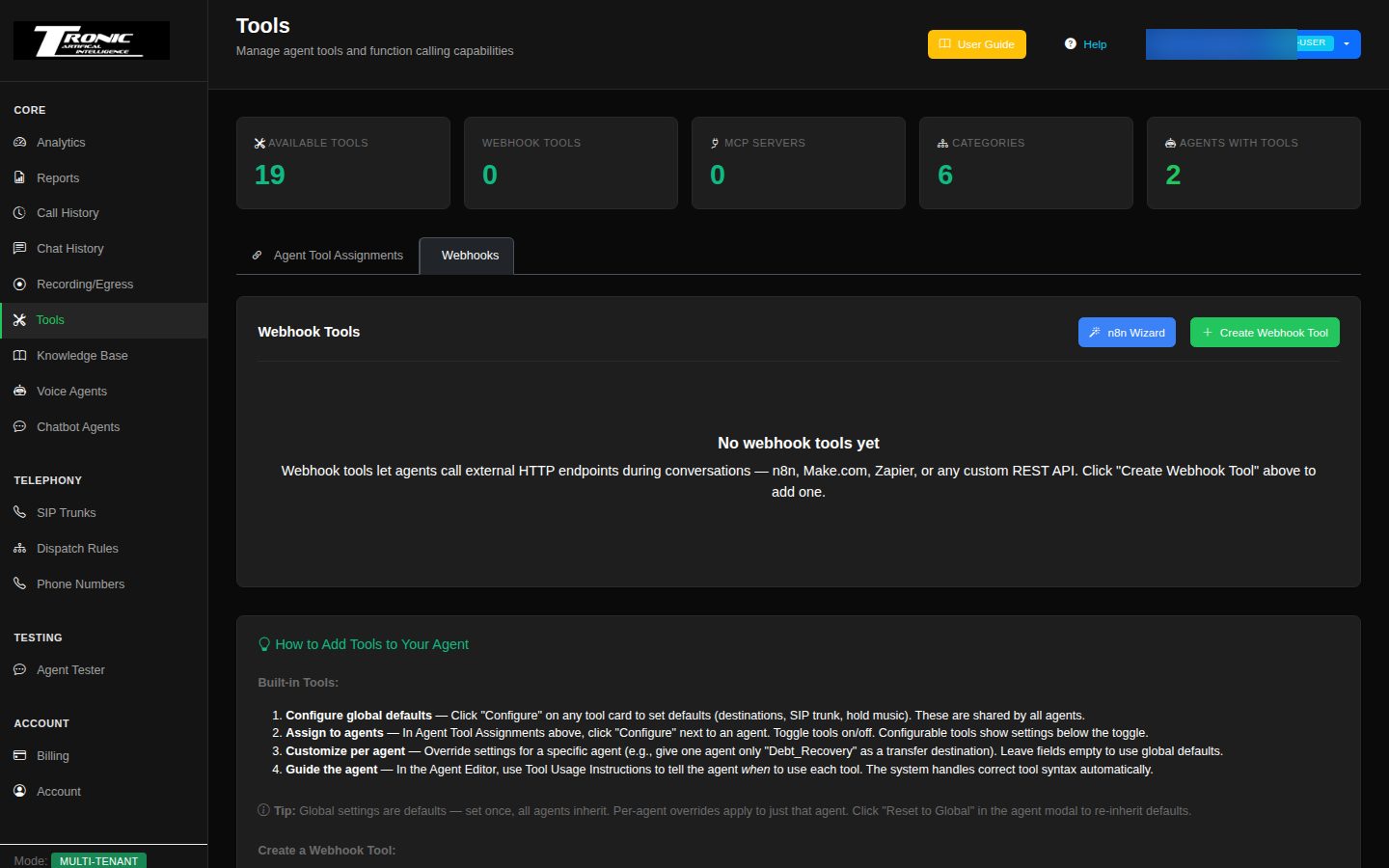
Webhook tools are custom tools you create that call an external system — your CRM, your booking system, or an automation platform like n8n, Make, or Zapier. During a call, the agent gathers what it needs from the caller and fires the request; the answer comes back into the conversation.
The easy way — the n8n Wizard. If your automation lives in n8n, the blue n8n Wizard button on the Webhooks tab does the whole job in four steps: pick a recipe (capture a lead into your CRM, look up live information the agent speaks back, send the caller a follow-up message, log a support ticket and read back its reference, silently ping your team on Slack or Teams, append call details to a Google Sheet, a Cal.com calendar pair that checks availability and books appointments, a GoHighLevel pair that books appointments and manages your sales pipeline, or a custom one with your own fields), enter your n8n address, tick the agents that should use it, and click Create. The wizard builds the webhook tool and hands you a matching n8n workflow file to import — the address, security key, and field names are baked into both sides so they always fit. In n8n you just activate the imported workflow and swap the red REPLACE ME node for your real action (your CRM, your email sender, your database). You can re-download the file any time from the n8n button on the tool’s card. The manual form below is still there for everything else.
- Function Name: what the agent calls the tool (e.g.
lookup_order) — lowercase letters, numbers, and underscores. Keep it short and descriptive. - Description: a plain-English sentence about what the tool does — this is how the AI decides when to use it, so make it clear.
- Webhook URL: the web address to call (an n8n, Make, or Zapier webhook, or your own API endpoint).
- HTTP Method: POST, GET, PUT, PATCH, or DELETE — whichever your endpoint expects (your integration platform will tell you).
- Custom Headers: extra request headers, typically for authentication keys.
- Parameters: the pieces of information the agent should collect and pass along — each with a name, a type (String for text, Number, Boolean for yes/no, Array for a list, or Object for structured data), a description, and whether it’s required. The description is read by the AI every time it fills the tool in, so say exactly what you want and in what format (e.g. “Appointment date in YYYY-MM-DD format”) — good descriptions are the biggest single fix for wrongly filled tools. Required is enforced, not just a hint: if a required field is still blank, the tool won’t fire at all — the agent is coached to ask the caller for it and only sends once it has an answer. Leave fields the call can proceed without as not required, or the agent will hold the conversation until it collects them. Example: a required
order_numberguarantees the agent gets the caller’s order number before the request ever fires. - System Parameters: toggles that automatically attach call context to every request — the caller’s number (
caller_phone), the number they dialled, call direction and duration, the agent’s name, the conversation transcript or just the last message, and the date/time. Turn on only what your endpoint actually needs. - Timeout (seconds) & the “Allow agent to speak while waiting for response” option: how long to wait for the endpoint before giving up (default 30), and whether the agent may keep talking naturally while it waits instead of going silent.
Webhook tools — the advanced sections
The rest of the webhook popup is optional polish. The defaults are fine to start with; come back when you want tighter control:
- Response Handling: Response Path picks out just the useful part of the endpoint’s reply (e.g.
$.data.message) instead of dumping the whole response on the agent; Error Message Path does the same for error replies; Success Condition defines what counts as success (e.g.$.status == 'success') so the agent knows whether the action worked. - Error Handling: Speak On Error is the exact sentence the agent says if the tool fails; Speak On Delay plus Delay Threshold (seconds) give the caller a “bear with me…” line when the endpoint is slow; Retry Count, Retry Delay (ms), and Retry On Status Codes quietly retry temporary failures before giving up.
- Rate Limiting: Max Calls Per Minute (across all calls) and Max Calls Per Session (per call) stop a confused agent — or a malicious caller — from hammering your endpoint. Empty means no limit.
- Authentication: the Auth Type dropdown handles the common login styles — Bearer Token, Basic Auth, or an API key in a header or query parameter — without you hand-crafting headers.
- Availability: restrict when the tool exists at all — Available From / Until (Time) with a Timezone makes a tool office-hours-only (outside those hours the agent simply doesn’t have it), and Available When (Condition) can gate it on call context.
- Testing / Mock Mode: tick Enable Mock Mode and fill in Mock Response (JSON) to have the tool return a canned answer instead of calling the real endpoint — perfect for testing the conversation before the real system is ready. The Test button at the bottom of the popup fires a real (or mock) request immediately so you can check the plumbing.
Walkthrough: your first webhook tool (order lookup)
- Step 1: in your automation platform (n8n, Make, Zapier) create a workflow that starts with a webhook and looks up an order in your system. Copy its webhook URL.
- Step 2: Tools page → create a webhook tool: Function Name
lookup_order, Description “Looks up the status of a customer’s order by order number”, paste the URL, method POST. - Step 3: add one Parameter:
order_number, type String, required, description “the customer’s order number”. Turn on thecaller_phonesystem parameter if your workflow wants it. - Step 4: set Speak On Error (“I’m having trouble reaching our order system…”) and click Test — fix any plumbing now, not during a live call.
- Step 5: assign the tool to your agent, and add a line to its Tool Usage Instructions: “When a caller asks about an order, ask for their order number and use lookup_order.”
- Step 6: prove it in the Agent Tester — ask about an order and watch the tool call and its response appear in the transcript.
The n8n Wizard
The n8n Wizard (blue button on the Webhooks tab) builds both halves of a connection in four steps: 1. Use case (pick one of the options below), 2. Details (the tool’s name, one sentence saying when the agent should use it, and your n8n address), 3. Agents (tick the agents that should get the tool — you can also do this later on the Agent Tool Assignments tab) and 4. Finish (click Create). The finished screen shows the address your workflow will answer at, a Download n8n workflow button and a Test connection button.
- Tool name: lowercase letters, numbers and underscores, e.g.
save_lead. The AI refers to the tool by this name. - What is it for, and when should the agent use it?: one sentence. This matters more than anything else in the wizard — the AI reads it to decide when to use the tool. The wizard turns it into a usage instruction and adds it to the Tool Usage Instructions of every agent you tick.
- Your n8n address: the address you open n8n at, not a workflow URL. For n8n Cloud it looks like
https://yourname.app.n8n.cloud.
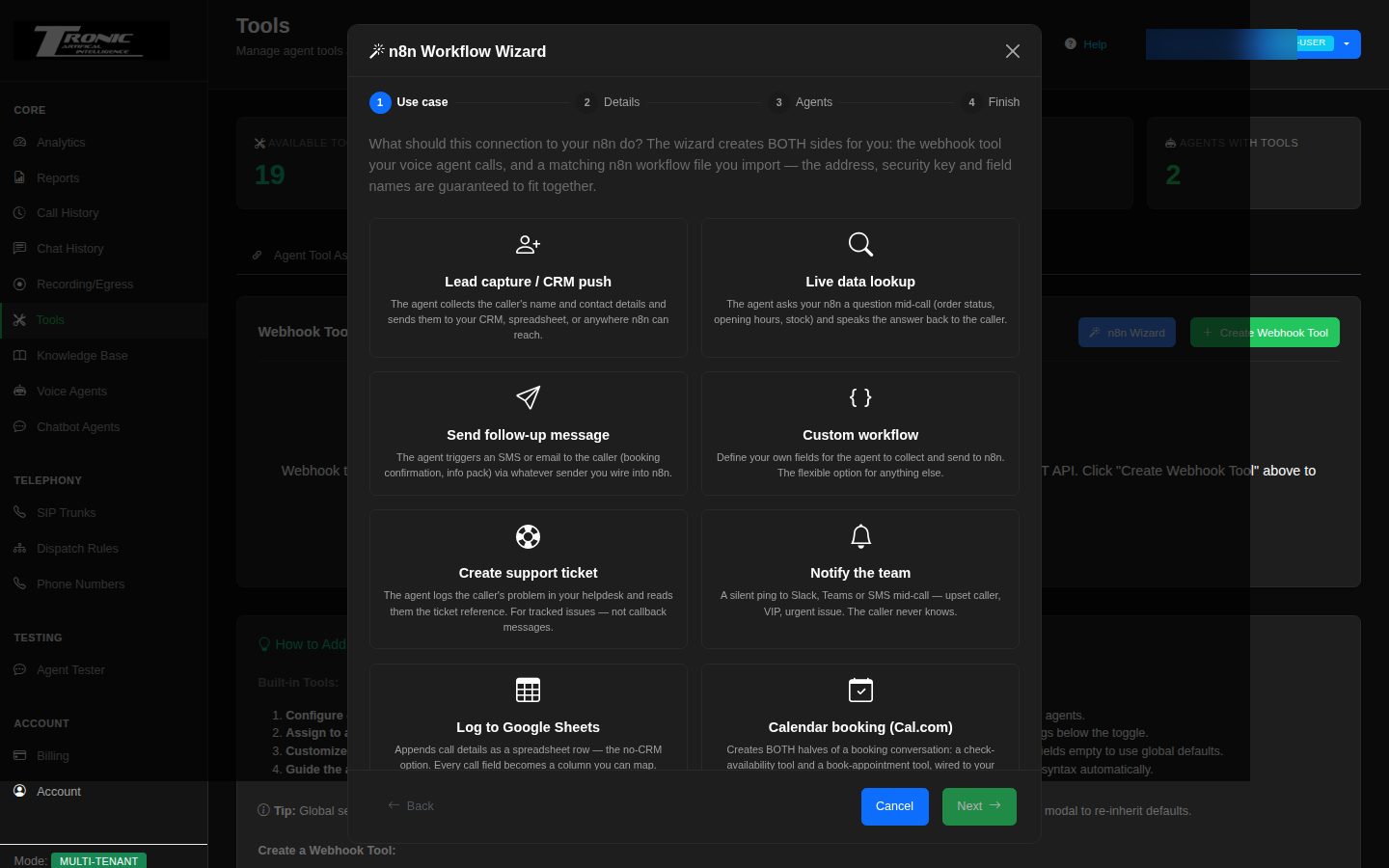
Lead capture / CRM push
The agent collects the caller’s name and contact details and sends them to your CRM, a spreadsheet, or anywhere n8n can reach. Use it for callback requests, quote requests and new enquiries.
- What the agent collects:
name(required — the agent always asks for it first),phone,emailandnotes(one or two short sentences on what the caller wants), all optional. It reads phone numbers back digit by digit and confirms the spelling of email addresses, and never invents a detail the caller didn’t give. - What the agent says: “Just a moment while I save your details…” while it runs. If it fails: “I wasn’t able to save your details just now, but I’ve made a note to have someone follow up with you.” It never tells the caller the details are saved until the tool has succeeded.
- In n8n: replace the red REPLACE ME node with your CRM node (HubSpot, Pipedrive, Google Sheets, an HTTP Request…).
Live data lookup
The agent asks your n8n a question mid-call — order status, opening hours, stock levels — and speaks the answer back to the caller.
- What the agent sends:
query(required) — what the caller wants to know, in plain words. - What comes back: your workflow returns a
result; the agent speaks it as a natural sentence (never raw data or internal IDs). If the lookup fails it apologises and offers a follow-up — it never guesses an answer. - What the agent says: “One moment while I look that up for you…” while it runs. If it fails: “I’m sorry, I couldn’t look that up right now. Is there anything else I can help with?”
- In n8n: replace REPLACE ME with your data source (a database node, an HTTP Request to your API, a Google Sheets lookup…) and return the answer as
result.
Send follow-up message
The agent triggers an SMS or email to the caller — a booking confirmation, a price list, an information pack — through whichever sender you connect in n8n.
- What the agent sends:
info_requested(optional) — what the caller asked to be sent. The caller’s number comes with the call details automatically. The agent confirms what the caller wants before sending, and sends it once per call unless asked again. - Chatbots: not offered for chatbot agents in step 3 — it sends to the caller’s phone number, which website visitors don’t have.
- What the agent says: “One moment while I arrange that for you…” while it runs. If it fails: “I couldn’t send that just now — I’ll make sure someone follows up with you instead.”
- In n8n: replace REPLACE ME with your SMS or email node (Twilio, SendGrid, Gmail, an HTTP Request to your sender…).
Custom workflow
Define your own fields for the agent to collect and send to n8n — the flexible option for anything the other recipes don’t cover.
- Fields the agent should collect: one row per field — a name (e.g.
attendee_name), a type (text, number, yes/no) and a short description of what the AI should put there (this helps accuracy). Tick required only when the tool genuinely can’t run without it — a required field the caller won’t give stops the tool firing. Add field adds another row. - My workflow sends information back for the agent to speak: switch on if your workflow returns an answer (like a lookup); leave off for fire-and-forget actions (saving a record, sending a message).
- What the agent says: “One moment please…” while it runs. If it fails: “I’m sorry, I couldn’t complete that just now.” Both can be reworded on the tool card → Edit.
- In n8n: replace REPLACE ME with whatever node does the work (an HTTP Request, a database node, your app’s node…).
Create support ticket
The agent logs the caller’s problem in your help desk and reads them the ticket reference. For tracked issues that need follow-up — not for simple callback messages.
- What the agent collects:
issue_summary(required — one or two sentences on the problem),customer_nameandurgency(one of low, normal, high, urgent — normal if unsure), both optional. It logs at most one ticket per call unless the caller reports a clearly separate second issue, then reads back the reference your help desk returns. - What the agent says: “One moment while I log that for you…” while it runs. If it fails: “I couldn’t log the ticket just now — I’ll make sure the team hears about this another way.”
- In n8n: replace REPLACE ME with your ticketing node (Zendesk, Freshdesk, Jira, HubSpot Tickets, or an HTTP Request to your help desk) and return the ticket reference.
Notify the team
A silent ping to Slack, Teams or SMS mid-call — an upset caller, an important customer, an urgent problem. The caller never knows.
- What the agent sends:
message(required) — a one-sentence heads-up for your team about this call. - How it behaves: the agent says nothing before or after using it, never tells the caller it’s alerting anyone, and uses it at most once per call.
- What the agent says: nothing — there’s no waiting line, so the conversation carries on uninterrupted. If the alert fails the agent simply continues and doesn’t mention it.
- In n8n: replace REPLACE ME with your Slack, Microsoft Teams or SMS node.
Log to Google Sheets
Appends call details to a spreadsheet as a new row — the no-CRM option. Every field the tool sends becomes a column you can map.
- What the agent sends:
details(required — one short sentence in the caller’s own words) andcategory(optional — one of enquiry, order, complaint, feedback, other). It logs once per topic, not once per sentence, and doesn’t read the entry back unless asked. - What the agent says: “One moment…” while it runs. If it fails: “I couldn’t save that just now, but I’ve made a note of it.”
- In n8n: replace REPLACE ME with a Google Sheets Append Row node and map each field to a column.
Calendar booking (Cal.com)
Creates two tools from one name — a check-availability tool (<name>_check) and a book-appointment tool (<name>_book) — wired to your Cal.com account through n8n, plus two matching workflow files.
- Check availability: the agent sends
booking_date(required, YYYY-MM-DD) andbooking_time(optional, as the caller said it, e.g. “2pm”), and speaks the free times that come back. - Book: the agent sends
name,email(spelling confirmed),booking_dateandbooking_time, all required — only after checking availability and after the caller has confirmed the exact date and time. - Built-in guard: the book tool refuses to book until the check tool has actually run in the same call.
- What the agent says: “One moment while I check the calendar for you…” and “One moment while I book that in for you…”. If either fails, the agent offers to take the caller’s details and have the team confirm.
- In n8n: import both files as two separate workflows and paste the same Cal.com API key and event type ID into each one’s Config node — if the event type IDs differ, the agent checks one calendar and books another. Then activate both.
GoHighLevel appointments & sales
The GoHighLevel appointments & sales tile creates two tools from one name
prefix (e.g. ghl_check and ghl_book) and hands you two matching
n8n workflow files. The check tool tells the caller which times are free in your GHL calendar;
the book tool creates the contact, books the appointment, and creates a new sales opportunity in
your pipeline — or advances an existing one to your “booked” stage.
- Step 1 — run the wizard: Tools → Webhooks → n8n Wizard →
GoHighLevel appointments & sales. Enter a name prefix (e.g.
ghl), your n8n address, tick your agents, click Create, and download both workflow files. - Step 2 — import into n8n: import each file as its own workflow (three dots → Import from File…).
- Step 3 — connect your GHL account: in each workflow, open the GoHighLevel nodes and pick (or create once) your HighLevel account credential. n8n’s HighLevel credential uses a GHL Marketplace app — n8n’s credential screen links to the exact setup steps.
- Step 4 — paste your IDs: each workflow’s sticky note lists exactly which placeholders to replace and where to find each value in GHL — the Calendar ID (use the SAME calendar in both workflows), and in the booking workflow the Location ID (Settings → Business Profile), Pipeline ID and booked Stage ID (Opportunities → Pipelines).
- Step 5 — activate both workflows (top-right toggle in n8n), then use the wizard’s Test connection buttons and make a test call: ask for a time, hear the real availability, and book it. Check the appointment and the opportunity appeared in GHL.
What happens automatically: appointments are booked for 30 minutes (the sticky note shows the one line to change for longer slots); every booking creates the opportunity under your pipeline’s booked stage, or advances an existing opportunity for that phone number; and the agent only ever says “booked” when GHL really returned an appointment — if anything is mis-configured the caller hears an honest “let me take your details and have the team finalise it” instead. The optional Customize Opportunity Fields node can also stamp your GHL custom fields on each opportunity; until you configure it (field IDs + a Private Integration Token credential) it is simply skipped and bookings still work.
SIP Trunks
The carrier connection your calls travel over.
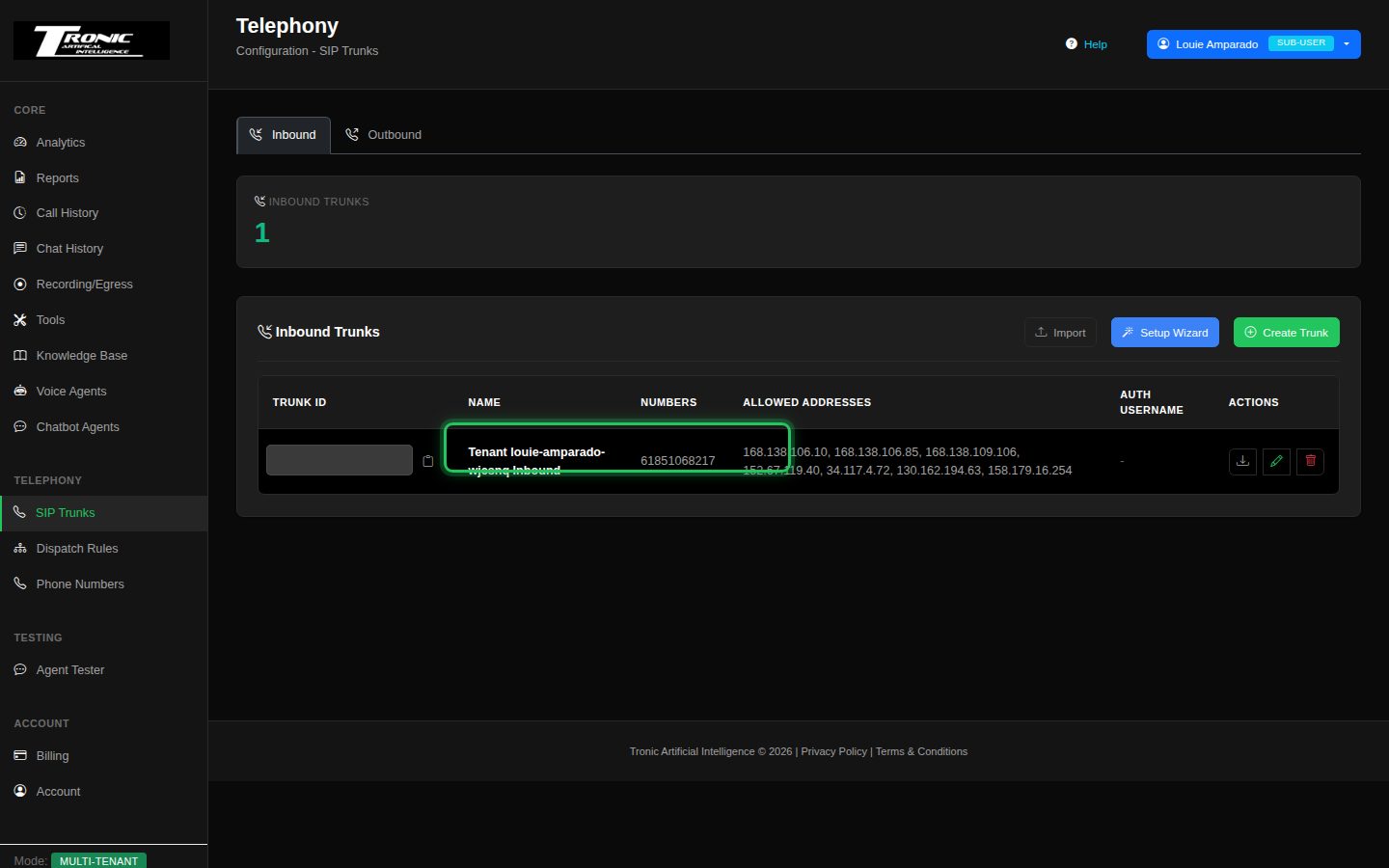
A SIP trunk is the link between the phone network and your agents. Yours is already set up — it was created with your account, along with your phone number and dispatch rule. For most clients this page is just somewhere to confirm the connection exists.
Setup Wizard — bringing your own carrier
If you already have phone numbers with another provider and want to use them with your agents, you don’t have to move them. The Setup Wizard button walks you through connecting your existing carrier instead. It creates the inbound trunk, the outbound trunk and the dispatch rule for you in one go.
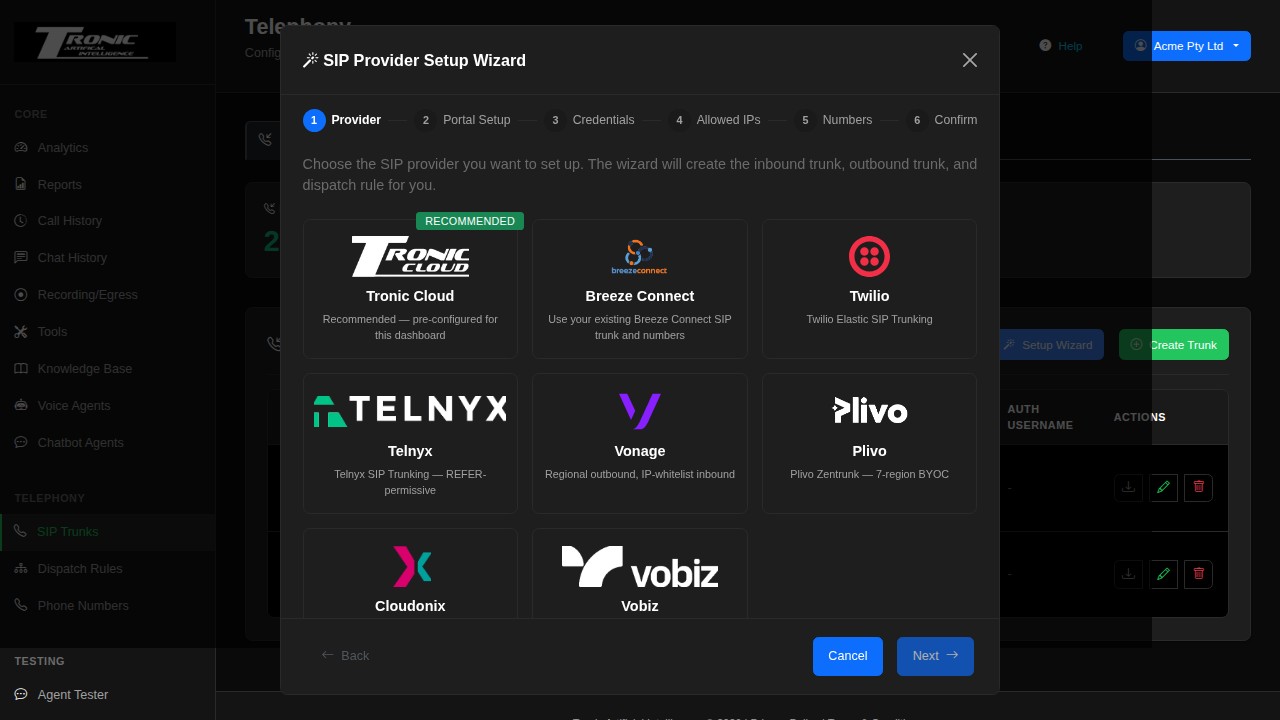
The wizard has six steps:
- Provider — choose from Tronic Cloud, Breeze Connect, Twilio, Telnyx, Vonage, Plivo, Cloudonix or Vobiz, and give your trunks a name.
- Portal Setup — what to collect from your provider before continuing, with a link straight to their portal and a full setup guide.
- Credentials — the username and password your provider issued you.
- Allowed IPs — which addresses may send calls to you.
- Numbers — the phone numbers you want to bring across.
- Confirm — review, then create.
Breeze Connect
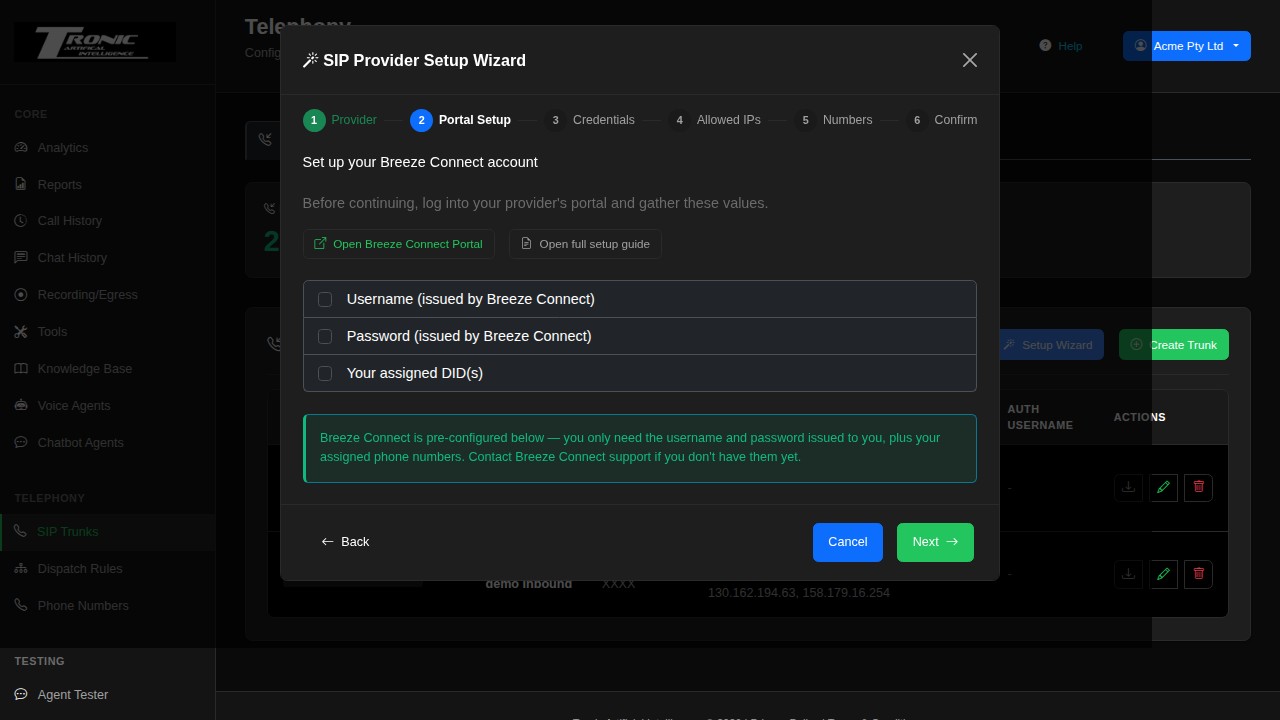
If you’re a Breeze Connect customer, choose Breeze Connect at step 1 to use your existing trunk and numbers. Most of the configuration is filled in for you — you only need the username and password Breeze Connect issued you, plus your assigned numbers. Step 2 gives you two links: Open Breeze Connect Portal to fetch those details, and Open full setup guide for the complete walkthrough.
Dispatch Rules
The routing that decides which agent answers which number.
A dispatch rule is the link between a phone number and an agent: “calls to this number are answered by that agent.” One was created for you when your account was set up — you just need to point it at the agent you want (see Step 6).
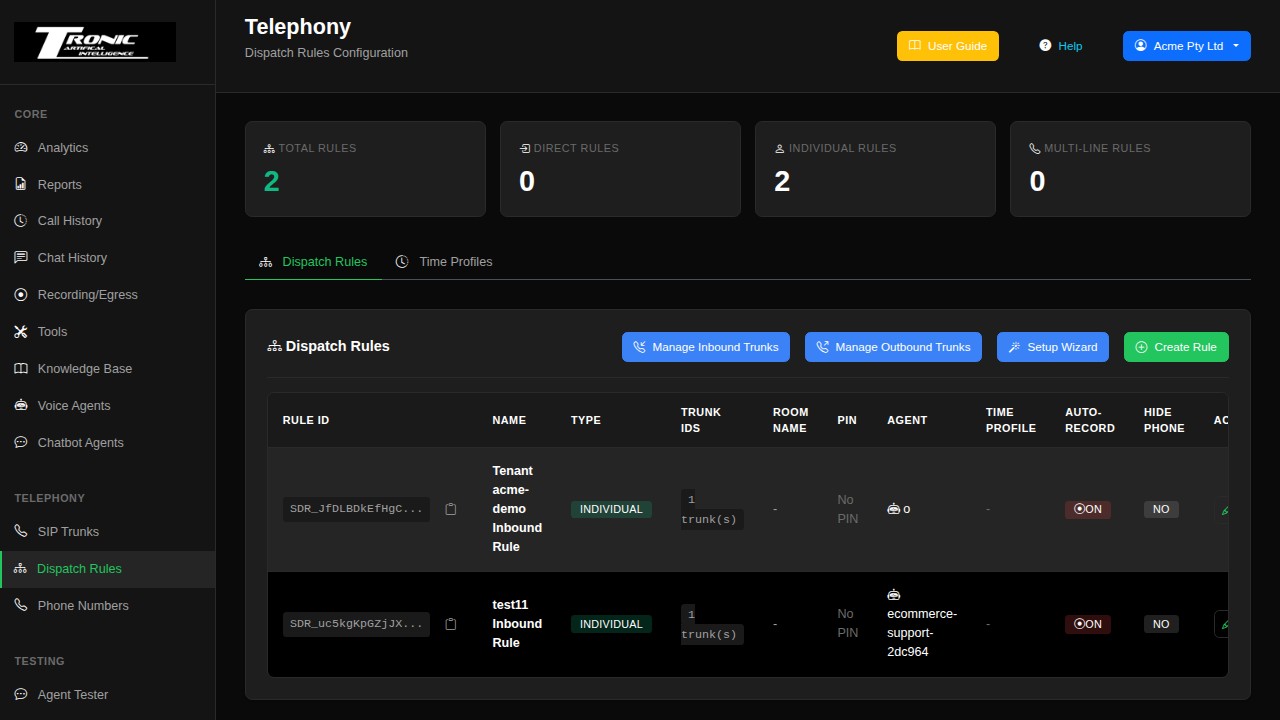
In the edit dialog you’ll find:
- Agent Name — which agent answers calls on this number.
- Auto-Record Calls — whether calls on this number are recorded.
Changes take effect on the next call — there’s nothing to restart.
Phone Numbers
The number (or numbers) connected to your account.
Your Australian number was assigned when your account was created and appeared in your welcome email. This page is where to find it again, and the copy icon beside it puts it on your clipboard.
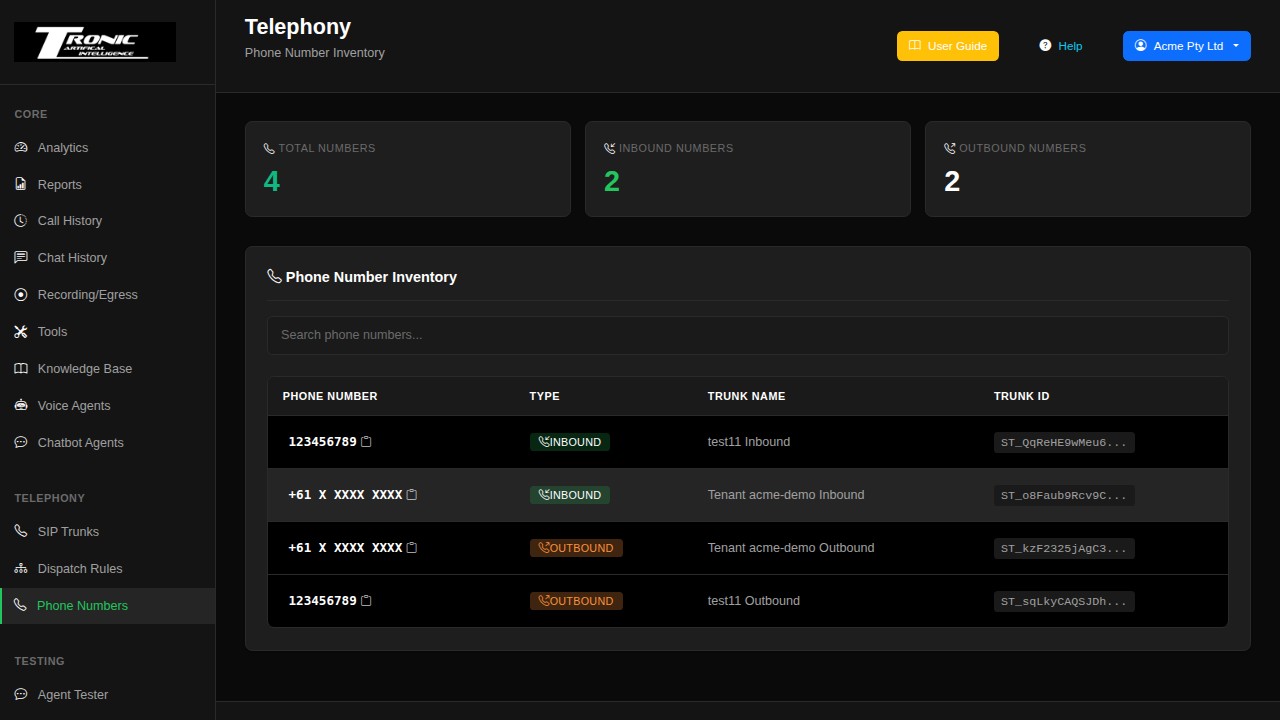
Need another number, or one in a different area code? Email support@tronic.com.au and we’ll add it to your account. If you already own numbers with another carrier, the Setup Wizard can bring those across instead.
Campaigns
Hand your agent a list of people to ring, instead of waiting for them to ring you.
Everything else in this guide is about calls coming in. A campaign goes the other way: you give your agent a list of phone numbers, and it works through them one at a time, calling each person and having the same conversation you set up. Appointment reminders, following up quotes, checking in after a job, short surveys — that sort of thing.
You’ll find it under Telephony → Campaigns. The top of the page counts how many campaigns you have and how many are running right now.
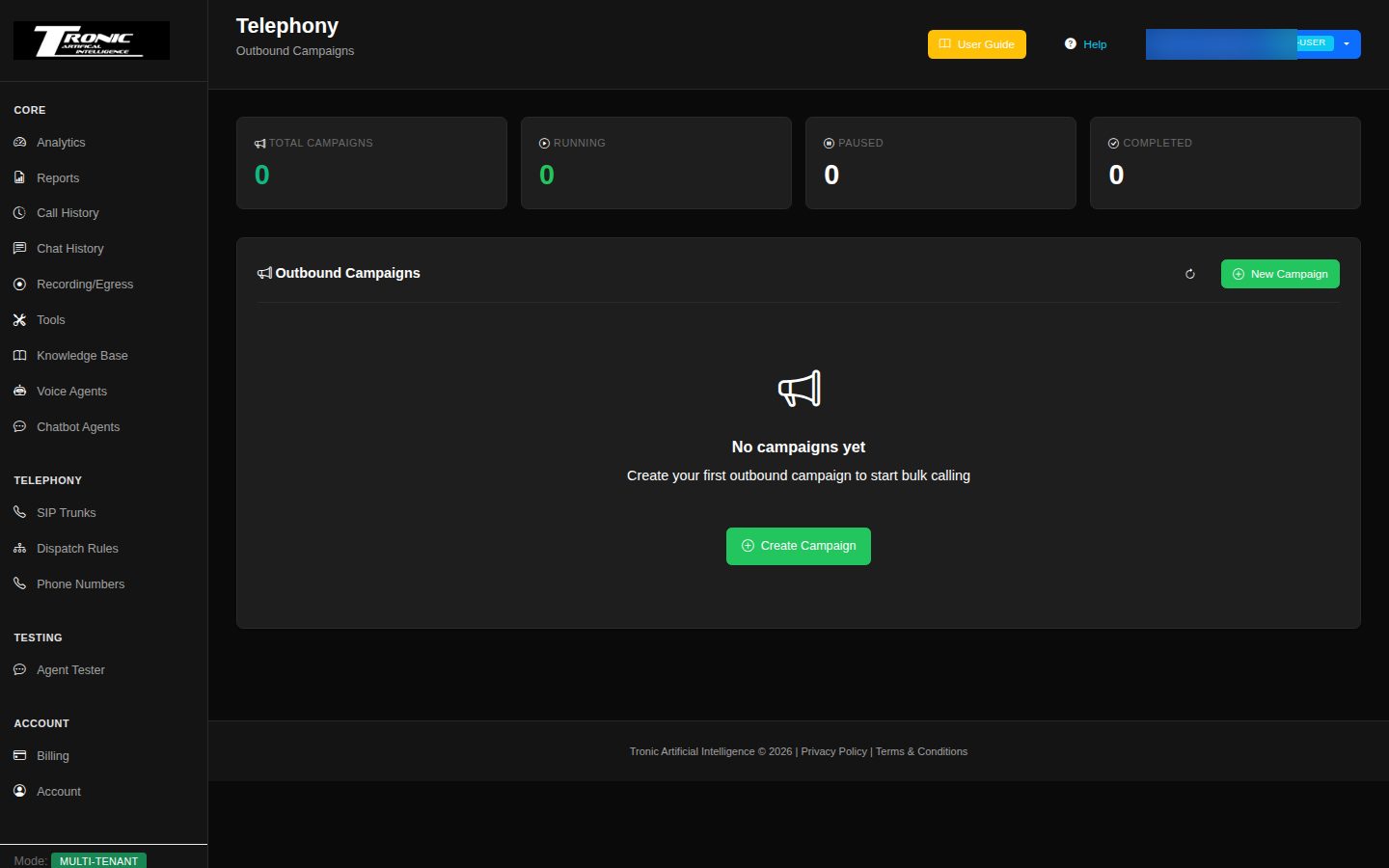
Setting one up
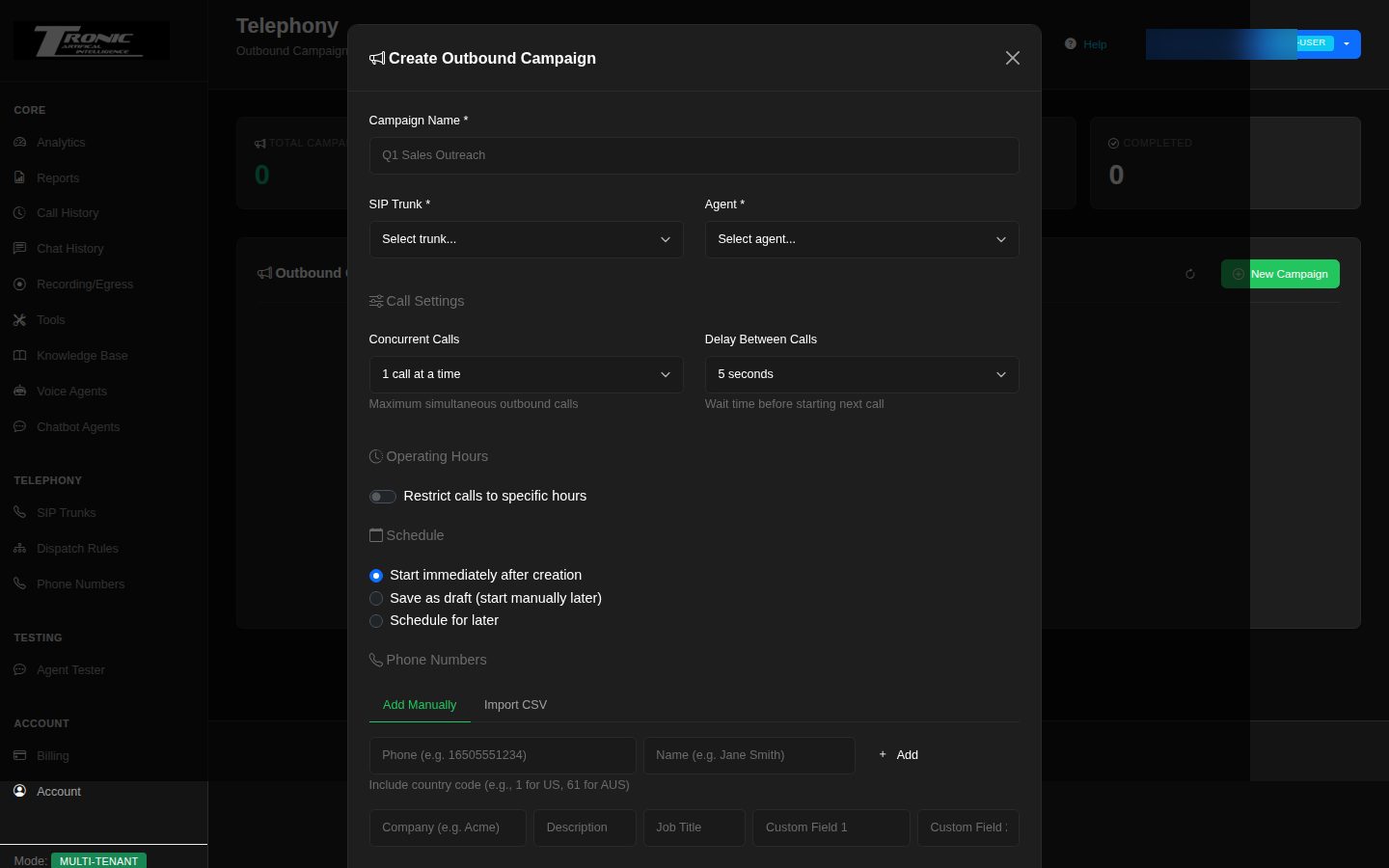
- Campaign Name — just a label for you, like “March service reminders”. Make it something you’ll recognise in a month.
- SIP Trunk — the connection the calls go out through. Yours is named after your account, and most clients only have the one, so pick that.
- Agent — which of your agents does the talking. Every call in the campaign uses the same one.
- Concurrent Calls — how many calls happen at the same time. Start at 1. Higher numbers finish a big list faster, but you have less chance to stop it if something is wrong.
- Delay Between Calls — the pause before the next call starts, from three seconds up to fifteen minutes.
- Restrict calls to specific hours — tick this and set a start time, an end time and a timezone. The campaign then pauses itself outside those hours and picks up again the next day until the list is done. Set the timezone to where the people you’re calling are, not where you are. This is the setting that stops a long list ringing someone at nine at night, and it is the single most useful one on the page.
Adding the people to call
At the bottom of the form there are two tabs. Add Manually is for a handful of numbers typed in one at a time. Import CSV is for a real list.
Only the phone number is required. Write it with the country code and no plus
sign — an Australian mobile looks like 61412345678. Everything
else — name, company, job title and two spare fields — is optional, and is only
worth filling in if you want the agent to use it (see below).
For a CSV, save it as a .csv file, not an Excel .xlsx. If you put a
header row at the top, the columns can be in any order as long as they are named exactly:
phone,name,company_name,company_description,job_title,custom_field_1,custom_field_2With no header row, your columns have to be in that same left-to-right order.
Using each person’s details in the call
If you filled in those extra columns, the agent can use them. Put any of these in the agent’s prompt and each call swaps in that person’s own details:
{{Name}}— “Hi {{Name}}, it’s Sarah from…”{{CompanyName}}and{{CompanyDescription}}— their business.{{JobTitle}}— their role.{{CustomField1}}and{{CustomField2}}— anything you like: an appointment date, an invoice number, what they bought last time.{{user_number}}— the number being dialled.
Starting it, watching it, and doing it again
When you save, you choose one of three things: start immediately, save as a draft and press Start yourself later, or schedule it for a date and time and let it start on its own.
Once it’s going, a badge tells you where it’s up to — Idle (made but not started), Scheduled, Running, Paused (you can resume it), Completed, or Cancelled (stopped for good). A progress bar colours each number green when the call was answered, yellow when nobody picked up and red when it failed, and the eye icon opens the detail for every individual number.
When it finishes you can Retry Failed, which redials only the ones that didn’t answer or failed, or Export Results for a spreadsheet with every person, what happened, when, and how long the call lasted. Delete removes a finished campaign and its results.
Every campaign call also appears in Call History like any other call, with its recording, transcript and summary.
Agent Tester
Talk or type to your agent in the browser before it goes live.
The fastest way to iterate. Change the system prompt, test it here, change it again — no phone required.
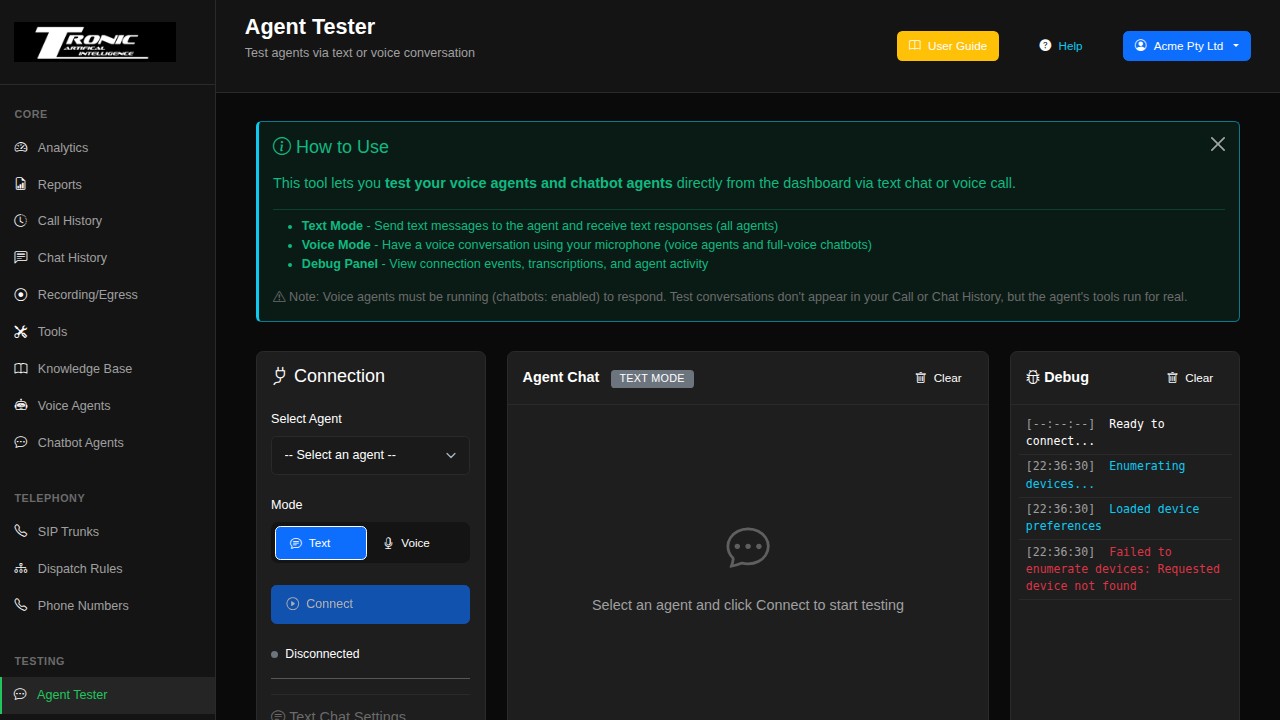
- Text mode — type and read replies. Best for checking what the agent knows and how it words things.
- Voice mode — speak through your computer’s microphone. Best for checking how it sounds and how it handles interruptions. Your browser will ask for microphone permission the first time.
The agent must be running to respond — if it isn’t, start it on the Voice Agents page first.
Your Overview page
The landing page, and the tabs across the top of it.
At the top you’ll find a date-range picker (Today, this week, and so on) and a Refresh control. Everything below responds to the range you pick, so if the page looks empty, widen the range first.
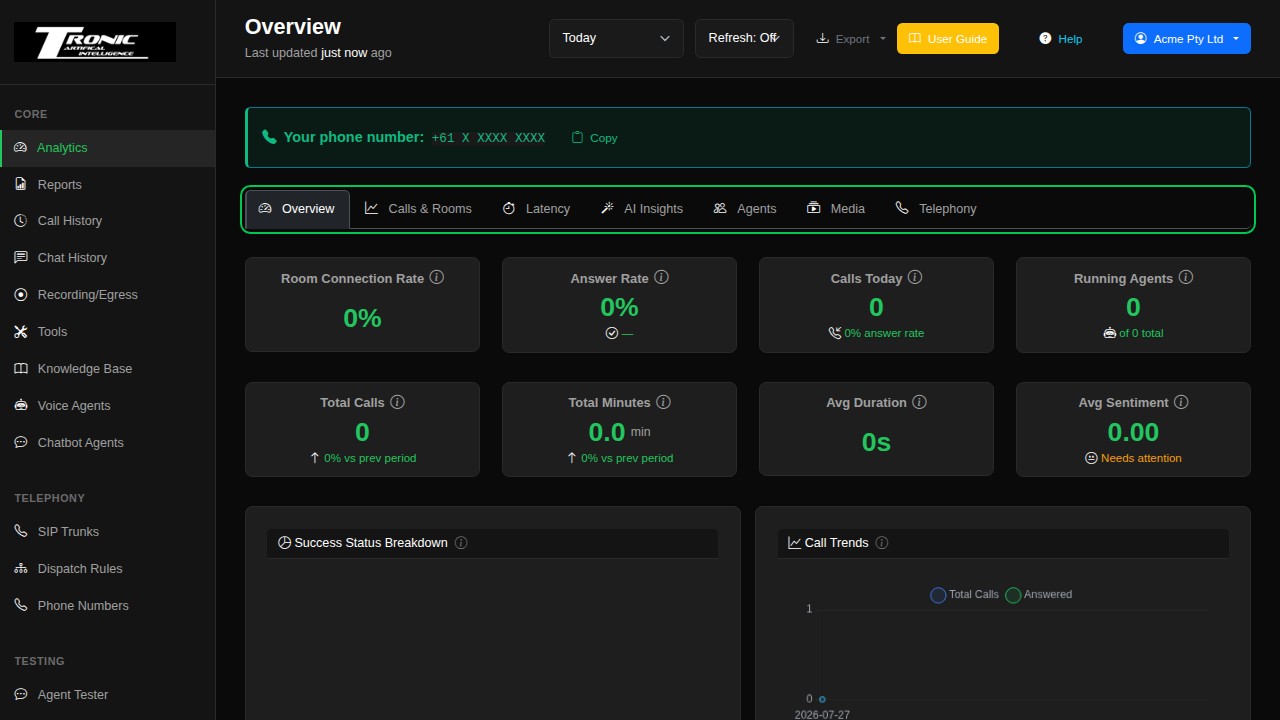
- Overview — the headline numbers: calls, minutes, answer rate, average duration, running agents and overall sentiment.
- Calls & Rooms — call volume over time.
- Latency — how quickly your agents respond. Lower is better; this is the number to watch if callers say the agent feels slow.
- AI Insights — themes and sentiment drawn from your conversations.
- Agents — the same figures broken down per agent, so you can see which one is doing the work.
- Media — audio quality measures.
- Telephony — the phone side: connection and completion rates.
Call History
Every call, with duration, cost, transcript, summary and recording.
This is the page you’ll live in. Every call your agents handle lands here within moments of hanging up.
Finding a call — the filters
Search by phone number, or narrow by agent, direction (inbound or outbound), date range, status, health, or the AI model used. The × beside the Search button clears everything.
What each column means
- Time — when the call started, in your local time.
- Duration — how long it lasted.
- Call ID — the reference to quote if you contact support about a specific call.
- From / To — the caller and the number they rang.
- Direction — inbound (someone rang you) or outbound.
- Agent — which agent handled it, and the AI model it used.
- Cost — what that call cost you. ACTUAL means it’s a final figure.
- TTFB — “time to first byte”: how quickly the agent started replying. A rough speed indicator.
- Health — a 0–100 score for how technically smooth the call was. It measures responsiveness, not whether the agent gave good answers.
- Transcript — opens the conversation.
Tick the boxes on the left for bulk actions, and use Export to download the filtered list as a spreadsheet.
The call detail view
Click any row to open it. Three tabs across the top: Overview, Conversation (the full transcript, turn by turn) and Summary (an AI-written précis of what happened and what was agreed).
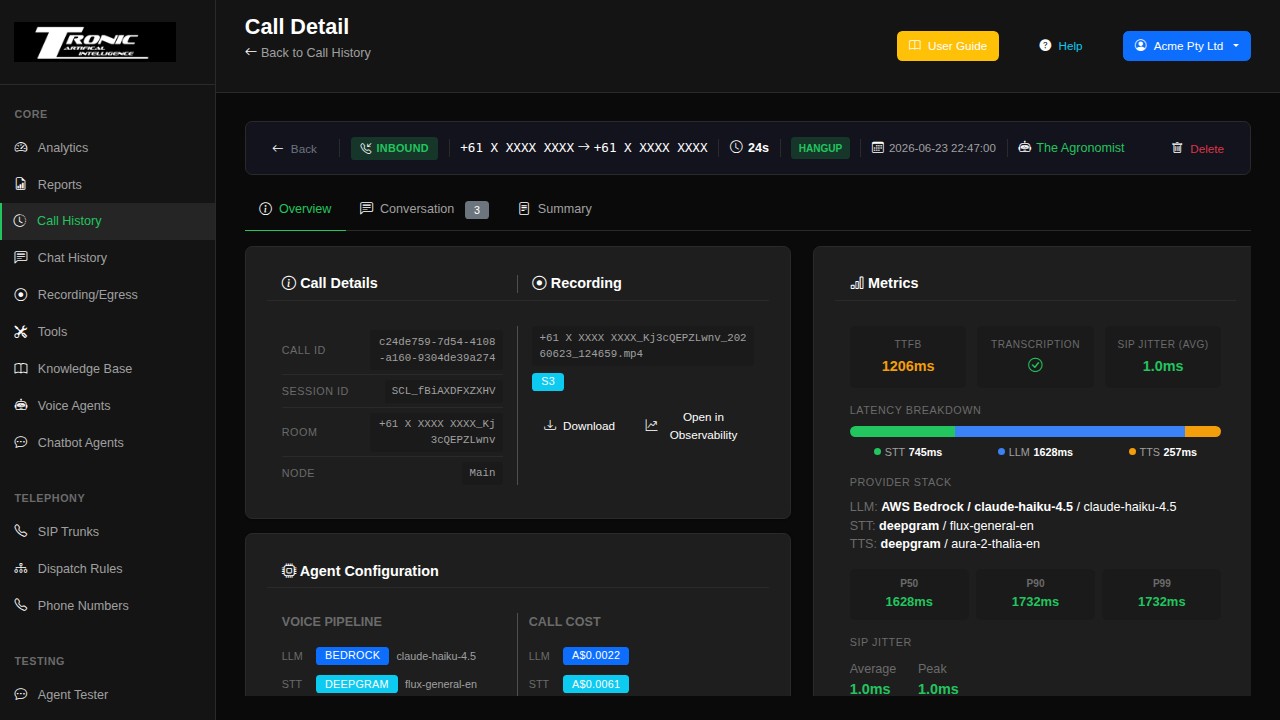
The Overview tab shows:
- Recording — play it in the browser or download it (if Auto-Record was on).
- Call Cost — broken down by component, with the total and an effective per-minute rate. View per-model breakdown shows the detail.
- How the call ended — whether the caller hung up, the agent ended it, or it was cut short by a limit. The first question anyone asks about a bad call.
- Extracted details — the fields you asked for on the agent’s Advanced tab (callback number, job type, suburb) shown as their own values, so you don’t have to read the transcript to find them. See Data extraction.
- Which agents were involved — if the call was passed between agents, you can see where it changed hands.
- Metrics — response times and audio quality for that specific call. Useful evidence if you ever need to report a problem.
Chat History
Conversations handled by your website chat agents.
The chat equivalent of Call History. Every conversation a visitor has with your website widget appears here, with the same filtering and export options.
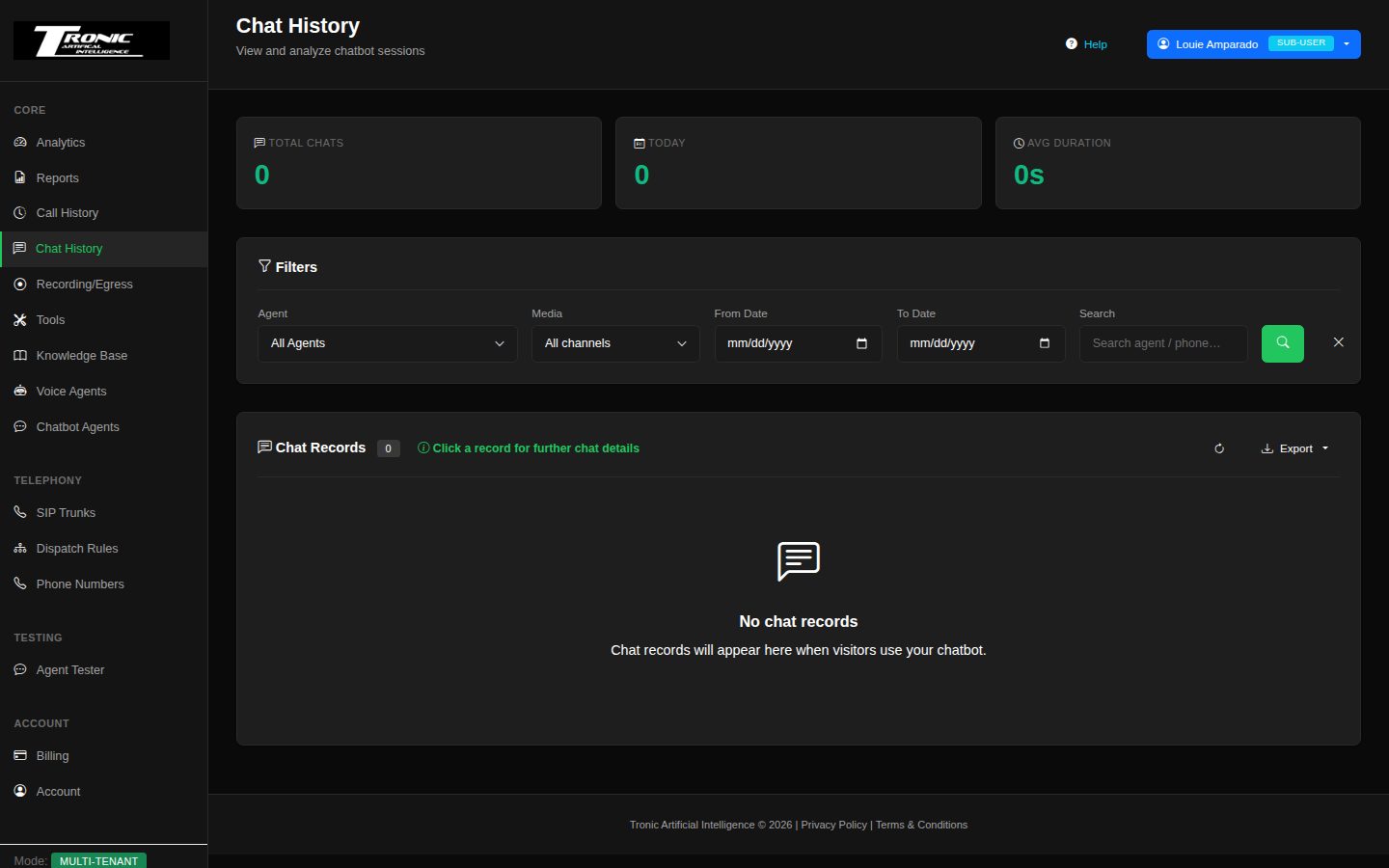
Filter by agent or date, click any row to read the full exchange, and export the list when you need it outside the dashboard. If this page is empty but your widget is live, check the Domains tab of the chatbot editor — the widget only runs on the sites you’ve allowed.
Recording / Egress
Play back and download your call recordings.
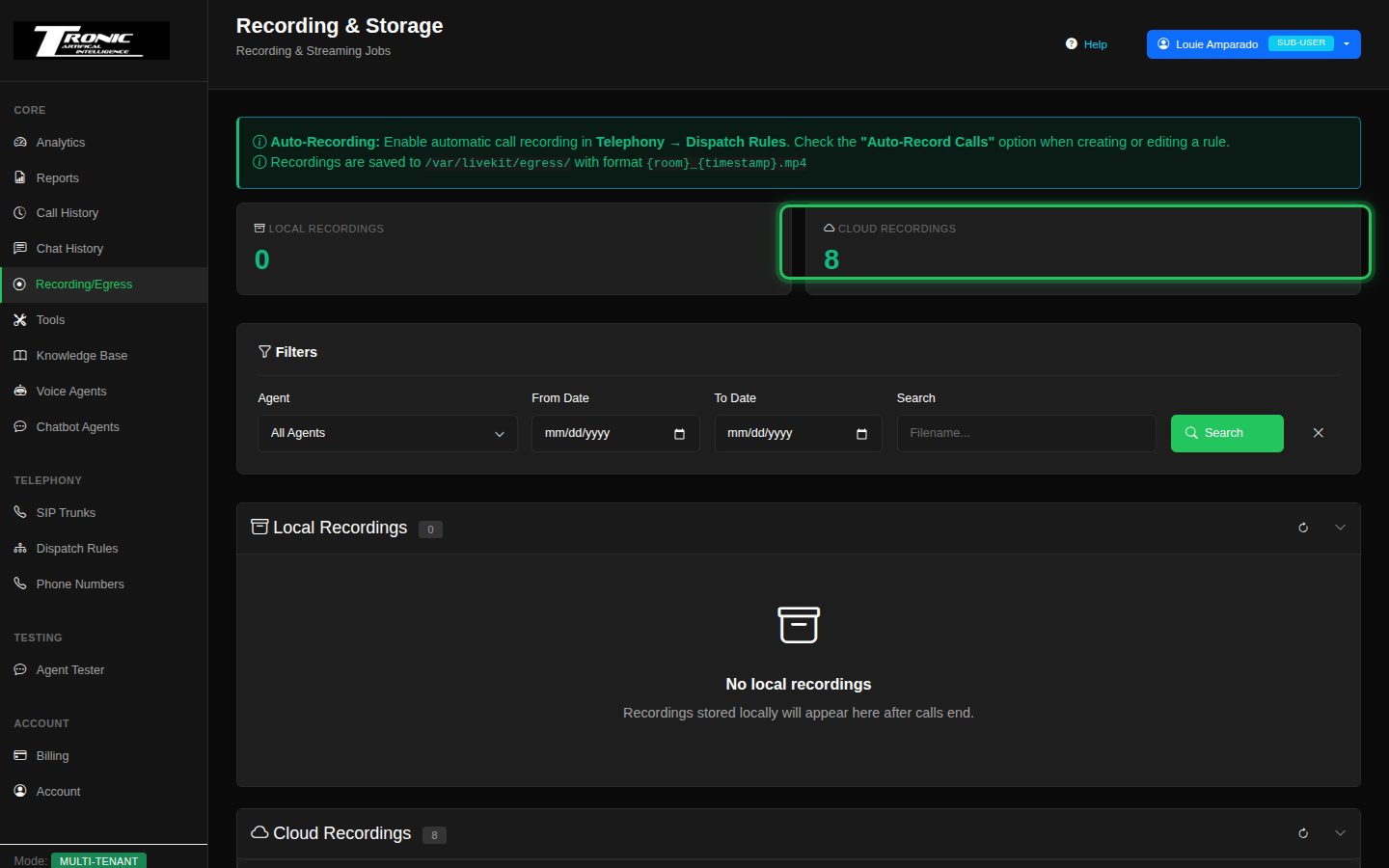
You can also reach a call’s recording directly from its call detail page, which is usually quicker when you’re chasing one specific conversation.
Reports
Automated email summaries of your call activity.
Rather than logging in to check, have the dashboard email you. Reports can go out after every call, or on a schedule such as a daily wrap-up each evening.
The reports list
- Name / Trigger / Agents / Recipients: what the report is, what sets it off, which agents it covers, and who receives it.
- Delivery: whether it goes out by email or webhook.
- Last Sent / Runs: when it last fired, and how many times it has run, so you can confirm it’s working.
- Status: whether the report is active or paused.
- Actions: pause (or resume) a report without deleting it — handy for a noisy one; Run Now sends it straight away to test the delivery (a per-call report run this way has no call attached, so most details are blank); edit; download the n8n file (failsafe reports only); delete — this cannot be undone.
- Recent Executions: below the list, a log of every send attempt — the Report, its sent/failed Status, the Agent and Trigger involved, the Recipients, any Error message (why a send failed), and the Time. Your first stop when a report doesn’t arrive.
Creating a report
Click New Report. The form is the same for every report type; the parts that don’t apply to the type you pick are hidden.
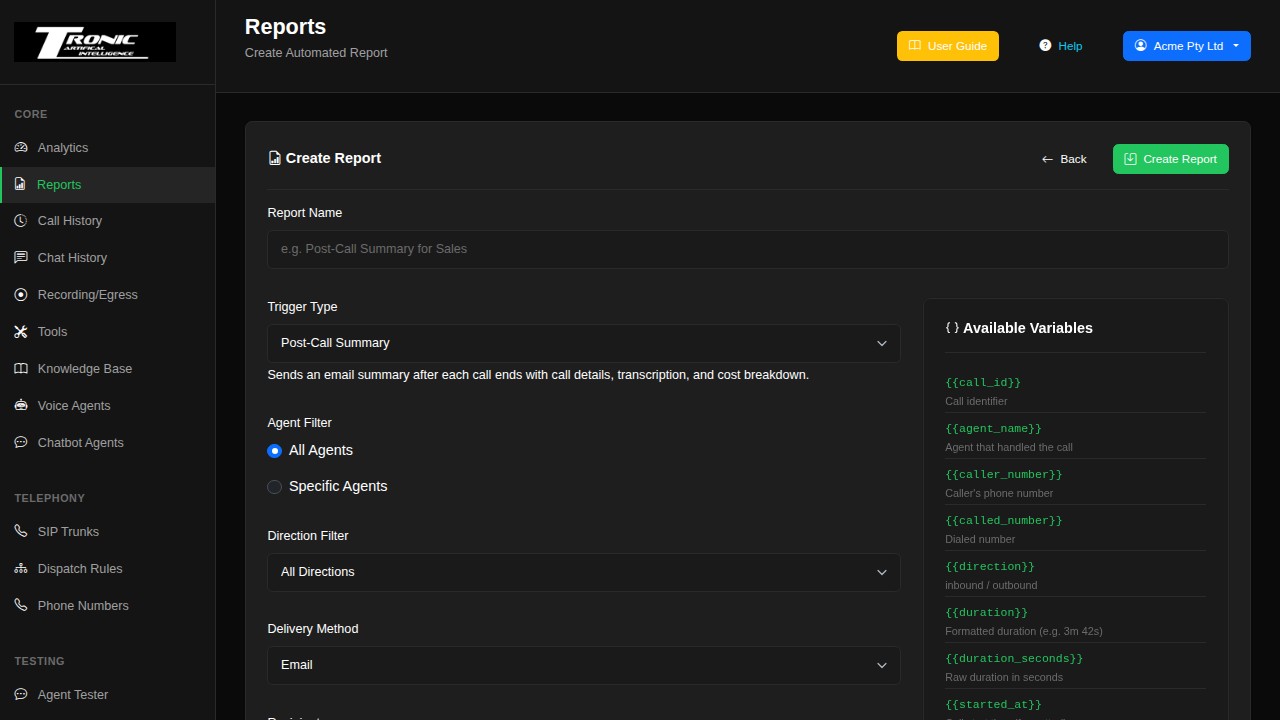
1 Name it and pick a trigger
- Report Name: anything that helps you recognise it later, e.g. “Daily summary to management”.
- Trigger Type: what makes the report send — after each call, once the AI has analysed a call, on a daily/weekly schedule, or when a particular event happens. The description under the box says what the chosen type does, and each type has its own page under Report types.
2 Choose which calls it covers
- Agent Filter: All Agents, or Specific Agents — then tick the voice agents and/or chatbot agents to include. (Hold Ctrl, or Cmd on a Mac, to pick more than one.)
- Direction Filter: All Directions, Inbound Only or Outbound Only. (Chatbot conversations count as inbound.) Hidden for the types where it means nothing, such as the Scheduled Summary.
3 Set the schedule (Scheduled Summary only)
- Frequency: Daily or Weekly.
- Day of Week: for weekly reports, which day it goes out.
- Time (UTC): the send time. Note this is in UTC (world time), not your local time zone — adjust accordingly.
4 Choose how it’s delivered
- Delivery Method: Email (the usual choice) or Webhook (sends the report data as JSON to a web address — for connecting to other systems).
- Recipients: the email addresses that receive the report — add as many as you like.
- Email Template: which email design to use. When you pick a trigger and no template is chosen yet, the matching one is filled in for you, and a warning appears if the chosen template was built for a different type.
- Webhook options: if you chose Webhook — the Webhook URL, the authentication type (None, Basic Auth, Bearer Token or API Key Header), any custom headers, and which fields to include in the payload (the panel on the right turns into a list of tick boxes).
Save the report and check its Status shows it as active. Done — it now sends itself.
Report types
Each type below has its own page: when it sends, what’s in it, which settings apply, and the fields you can pick for a webhook.
- Post-Call Summary — one email after every call or chat, with the details, transcript and cost.
- AI Conversation Analysis — one email once the AI has summarised a call: summary, sentiment, intent and extracted data.
- Scheduled Summary — a daily or weekly digest of call numbers and totals.
- Widget Abuse — Daily Limit Reached — when a website chatbot hits its daily session limit.
Post-Call Summary
One email (or webhook) after every call or chatbot conversation ends. Best sent to whoever follows up on calls.
- When it sends: within about 30 seconds of a call ending. Chatbot conversations send too (see the chatbot note under Creating a report).
- What’s in it: who called and which number they rang, the agent, the direction, start and end times, the duration, how the call ended, the number of turns and the agent’s average response time, the full transcript, the call’s cost (the total, plus the AI model, speech recognition, voice and phone-line parts where they’re known), a link to the call’s page, a link to the recordings page when the call was recorded, and the callback details if the call was marked for a callback.
- What’s not in it: the AI summary and the agent’s Data Extraction Fields — they aren’t ready when the call ends. Use AI Conversation Analysis for those.
- Settings that apply: Agent Filter, Direction Filter, delivery.
- Webhook extras: a webhook also receives the transcript as a list of
speaker/text lines, and can include
tool_calls— every tool the agent used, with its result. Ticktool_call_http_detailsas well to include what each webhook tool sent and got back. - Fields (webhook payload):
call_id,agent_name,caller_number,called_number,direction,duration,duration_seconds,started_at,ended_at,end_reason,turn_count,avg_latency_ms,transcription,total_cost,llm_cost,stt_cost,tts_cost,sip_cost,recording_url,dashboard_link,callback_requested,callback_phone,callback_time,callback_notes.
AI Conversation Analysis
Arrives a little after the call, once the AI has analysed it. Usually the more useful per-call email, and the one to use for sending call results to a CRM.
- When it sends: as soon as the call’s AI summary is ready. If the summary isn’t ready after 5 minutes, the report goes out without it — unless the dashboard is still retrying the summary, in which case it waits (up to an hour) and then sends either way.
- What’s in it: everything in the Post-Call Summary, plus the short and detailed AI summary, what the caller wanted, the sentiment and its score, key topics, the outcome and its details, action items, whether follow-up is needed, the caller’s name, email and phone if they gave them, and every Data Extraction Field set on the agent (the booking date, the order number…).
- Settings that apply: Agent Filter, Direction Filter, delivery.
- Fields (in addition to the Post-Call Summary’s):
summary,detailed_summary,caller_intent,sentiment,sentiment_score,key_topics,outcome,outcome_details,action_items,follow_up_needed,extracted_name,extracted_email,extracted_phone,extracted_data(all the Data Extraction Fields as one JSON object — the one to use for a webhook).
Scheduled Summary
The digest — call volumes, durations and cost totals for the period. Best for managers who want the shape of the day, not every call.
- When it sends: daily, or weekly on the chosen day, at the chosen time (UTC). A daily report covers the 24 hours before it sends; a weekly one the 7 days before. It never sends for a time slot from before the report was created. If a send fails it tries again every 5 minutes, up to 3 times, then waits for the next slot.
- What’s in it: the period and dates, total calls and minutes, the average call length, inbound and outbound counts, completed and missed calls, the total cost and the average cost per call, the five busiest agents, and the busiest hour (UTC). Test calls are left out.
- Settings that apply: the schedule, the Agent Filter and delivery. With Specific Agents, every figure — the call counts, minutes, cost, busiest agents and busiest hour — covers only the calls and chats of the agents you ticked.
- Fields:
period,date_range,total_calls,total_minutes,avg_duration,inbound_count,outbound_count,completed_count,missed_count,total_cost,avg_cost_per_call,top_agents,busiest_hour,dashboard_link.
Widget Abuse — Daily Limit Reached
A warning that a chatbot’s website widget has reached its daily session limit and has paused for the rest of the day — normal busy traffic, or someone trying to run up your AI costs.
- When it sends: the moment a chatbot reaches its Max sessions per day (the chatbot editor’s Daily Limit (Abuse Protection) setting). Once per chatbot per day (UTC).
- What’s in it: the chatbot, the limit it reached, when, and a link to the chatbot’s settings so you can raise the limit.
- Settings that apply: Agent Filter (tick chatbots), delivery. The matching email template is System-Widget Abuse Alert — pick it yourself.
- Fields:
agent_name,agent_id,cap,hit_at,dashboard_link.
Walkthrough: a daily management digest in two minutes
- Step 2: Reports → New Report → name it “Daily summary”, Trigger Type Scheduled Summary.
- Step 3: Frequency Daily, pick a Time (remember it’s UTC — e.g. 21:00 UTC for a 7am AEST inbox).
- Step 4: Delivery Email, add the recipients, save, check its Status shows it as active.
- Step 5: next morning, confirm it arrived; if not, the Recent Executions log’s Error column tells you why.
Walkthrough: feed call results into another system (webhook)
- Step 1: in your other system (CRM, n8n, Make, Zapier, a spreadsheet automation), create an incoming-webhook and copy its URL.
- Step 2: New Report → Trigger AI Conversation Analysis (so the payload includes the summary and extracted data), pick the agents it covers.
- Step 3: Delivery Webhook → paste the URL, set the authentication your endpoint expects (None / Basic / Bearer / API Key Header), and tick which fields to include in the payload — fewer fields = simpler to handle on the other side.
- Step 4: save, make a test call to the agent, and watch the Recent Executions log — a green sent status means your other system received the data; a failed one shows the exact error the endpoint returned.
n8n Failsafe Wizard
The most expensive call is the one that nearly worked: the caller was halfway through booking, the line dropped, and the enquiry vanished. The n8n Failsafe Wizard button (top of the Reports page) builds a safety net for those lost leads.
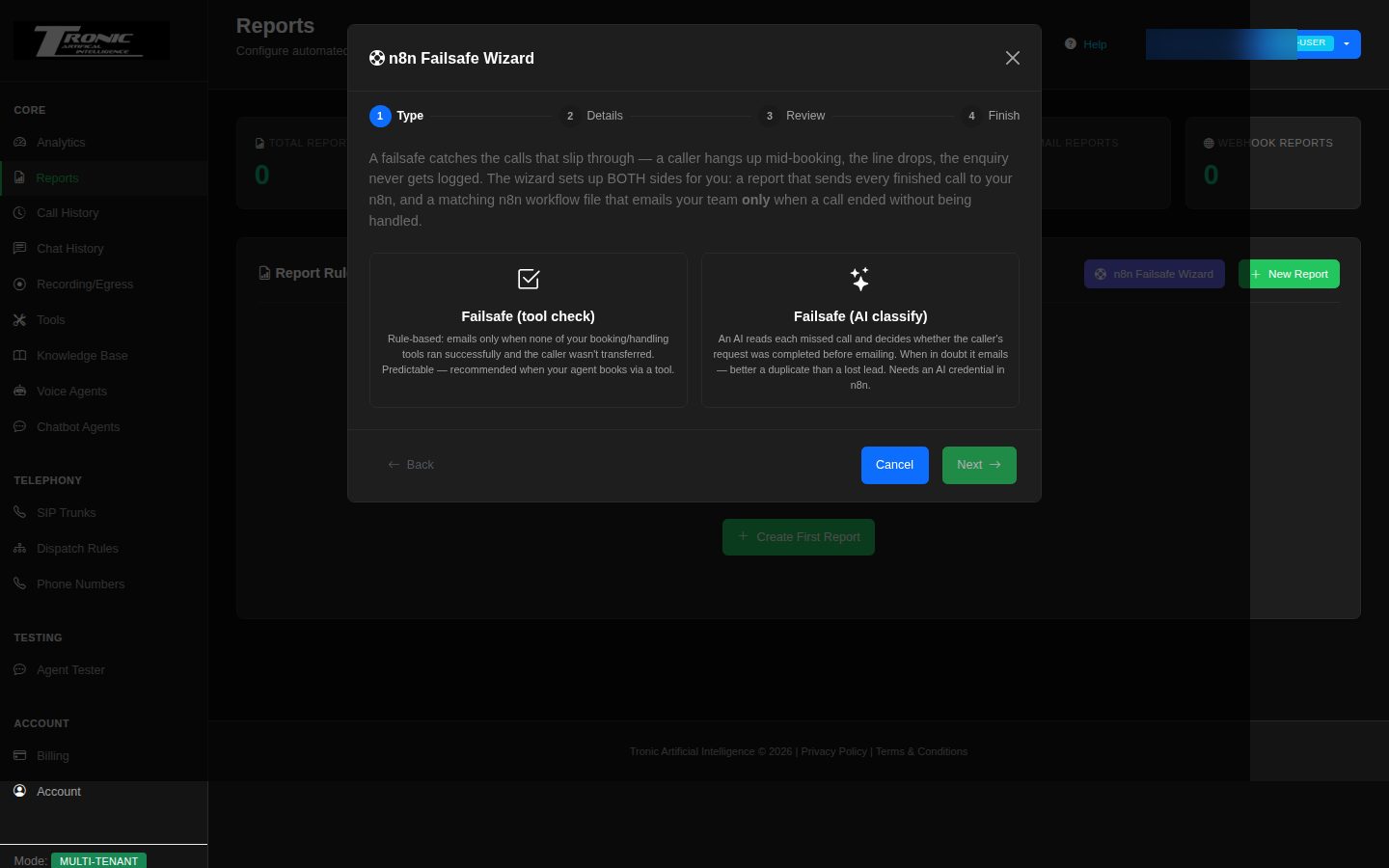
When a caller hangs up before their booking or enquiry is completed — the line drops, they give up mid-way, the tool never runs — an n8n workflow emails your team the caller’s details so someone can ring them back. If the booking or cancellation tool did run successfully, or the caller was transferred to a person, nothing is sent. The wizard creates both sides in one pass: a post-call report with webhook delivery already configured (address, security key, field list), and a matching n8n workflow file you download and import — guaranteed to fit together.
- Failsafe (tool check): rule-based. You tick which of your tools mean “the call was handled” (your booking / cancellation / enquiry tools). An alert goes out only when none of them completed successfully — a tool that ran but failed still alerts, because that lead is still lost. Optionally, AI reads the transcript and puts the caller’s name, spoken phone number and request into the email.
- Failsafe (AI classify): an AI reads each missed call and decides whether the request was completed before emailing. When in doubt it emails — better a duplicate alert than a lost lead. Needs an AI (OpenRouter) credential in n8n.
- Enquiry keywords: optional comma-separated words (booking, quote, hire …). If set, only calls mentioning one of them alert — keeps wrong numbers out of your inbox.
- Handoffs: by default a hand-over to another AI agent does NOT count as handled — the second agent still has to complete the booking, so the alert still fires if it doesn’t. A checkbox flips this if you prefer. Transfers to a human always count as handled.
- Withheld numbers: a caller with a hidden caller ID who says their number out loud is still alerted on — the AI pulls the spoken number from the transcript.
https:// and be reachable from the internet — not an address
on your own network. An n8n cloud account works straight away; a self-hosted one needs a real
domain name with a certificate.
Billing Overview
Your balance, this month’s usage, and recent activity.
Tronic Cloud is pre-paid. You hold a credit balance, and calls draw it down as they happen — so there’s no end-of-month invoice to be surprised by, but there is a balance to keep an eye on.
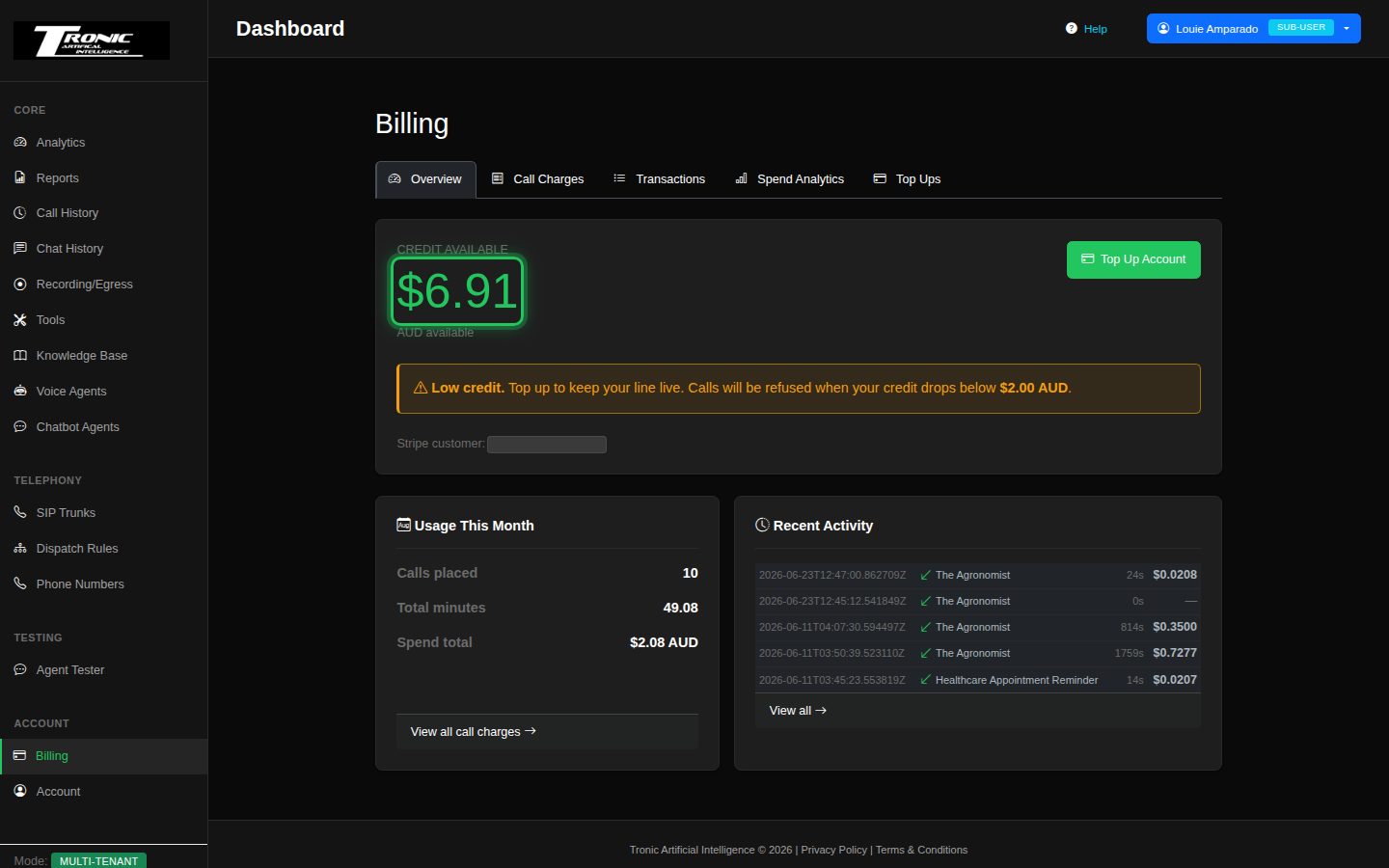
The page also shows Usage This Month (calls placed, total minutes and spend) and Recent Activity — the last handful of charges, so you can see at a glance what’s been drawing your balance down.
Call Charges
An itemised cost for each call.
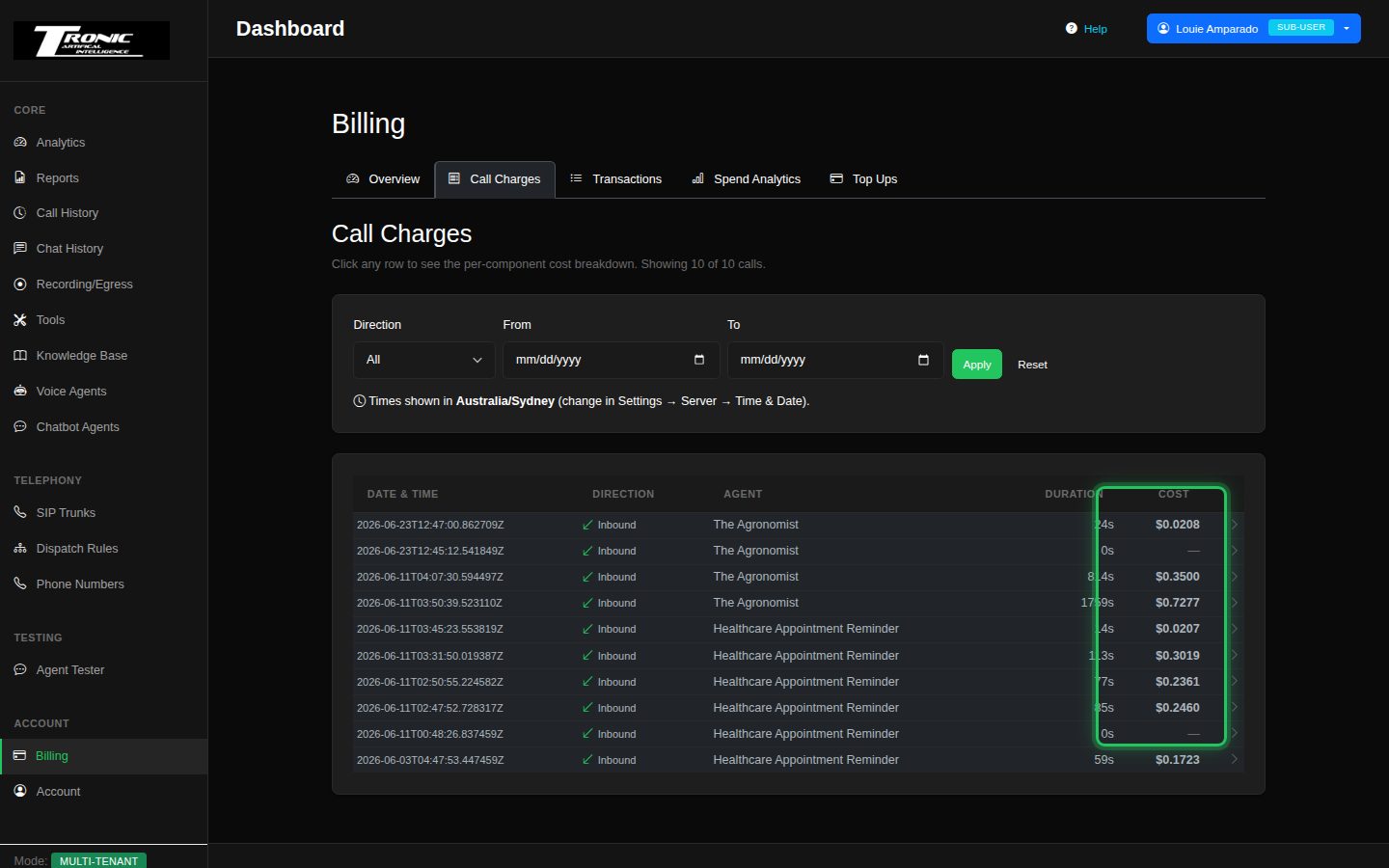
How a call is priced
Each call is made up of several separately-metered pieces:
- Speech recognition — turning what the caller says into text, charged by the minute.
- The AI model — the thinking, charged by the amount of text processed.
- The voice — turning the agent’s words into speech, charged by the amount spoken.
- Telephone minutes — the call itself.
They’re added together into the figure you see. Short, efficient calls cost very little; the surest way to reduce your spend is an agent that gets to the point.
Transactions
Your money-in, money-out history.
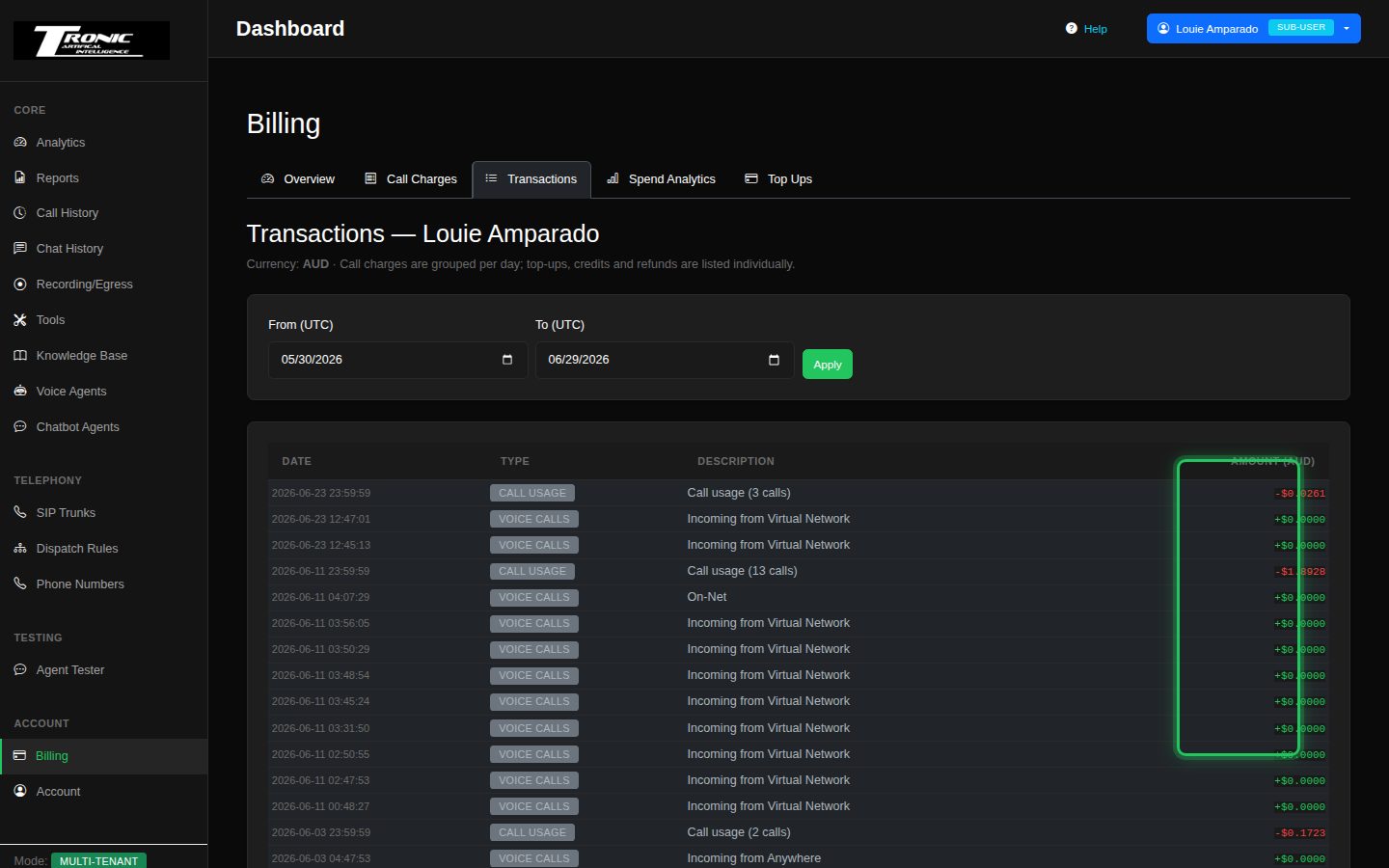
You’ll see top-ups (card payments you’ve made), credits (amounts we’ve added, including your $10 starting credit) and charges (usage drawn down). This is the page to reconcile against your card statement.
Need a tax invoice or receipt for your accountant? Email support@tronic.com.au with the date and amount and we’ll issue it.
Spend Analytics
Where your money actually goes.
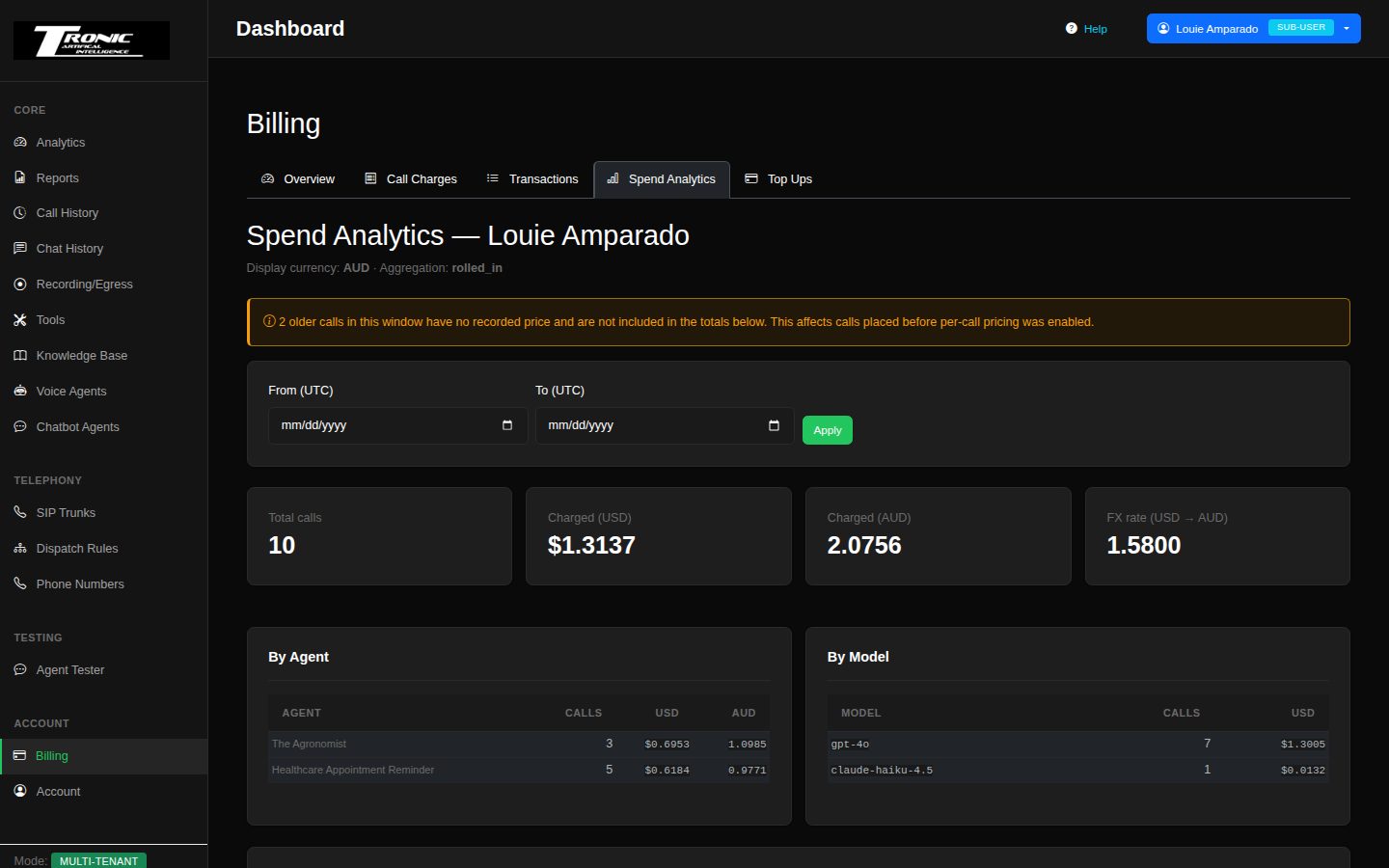
Set the date range, then read the two breakdowns. By agent tells you which agent is costing you money — useful if one is unexpectedly expensive. By model shows which AI services are driving it, which is what to look at if you’re considering switching an agent to a cheaper model.
Top Up Balance
Add credit securely by card.
$ Add credit
Open Billing › Top Ups, enter an amount, and pay by card through our secure checkout. Payments are handled by Stripe — Tronic Cloud never sees or stores your card number. Your balance updates automatically once the payment clears, usually within seconds.
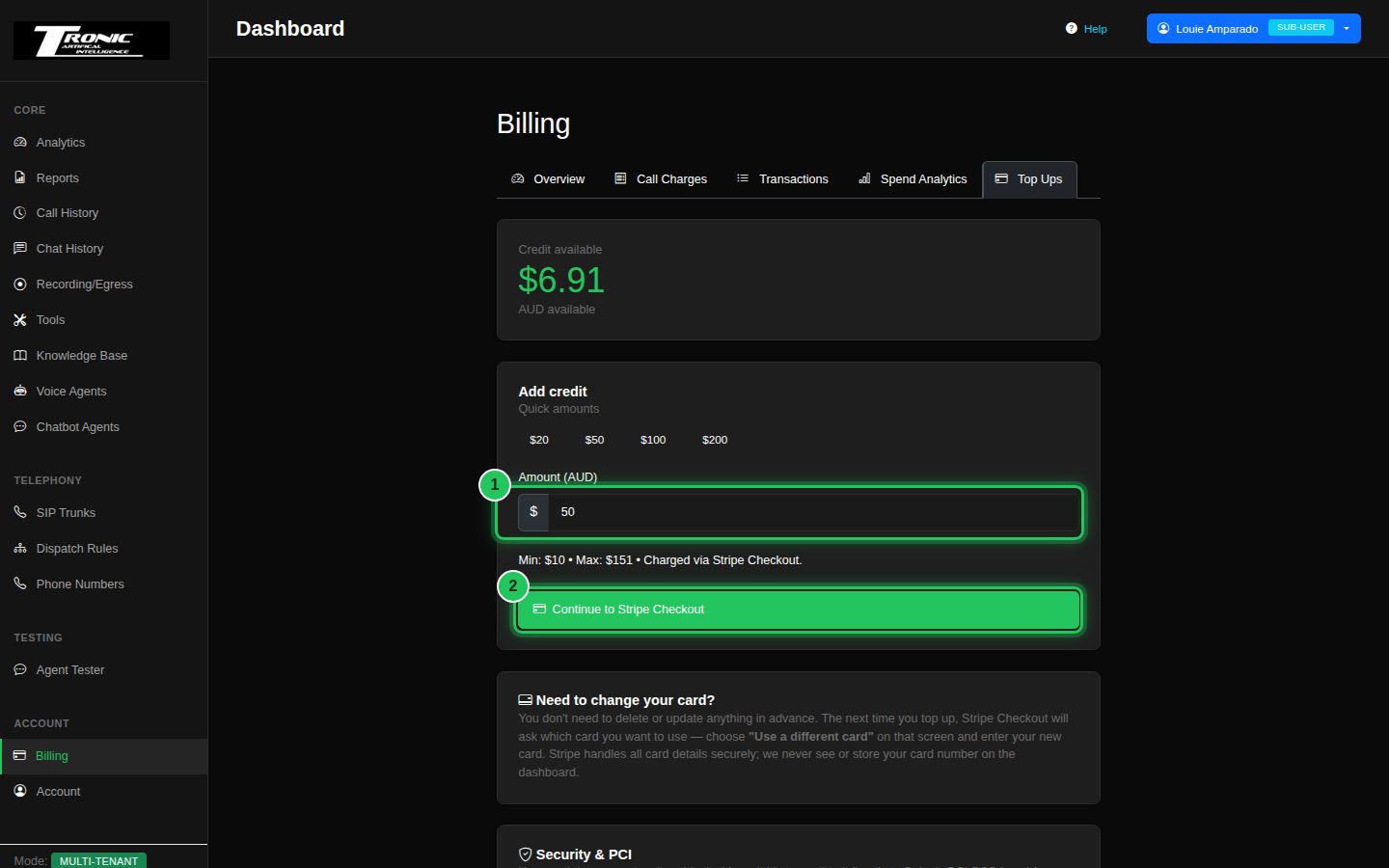
Your bank may ask you to confirm the payment in its app or by SMS — that’s standard card security, not something we control. If a payment is declined, nothing is charged and your balance is unchanged; try again or use a different card.
Account Settings
Your company details and contact information.
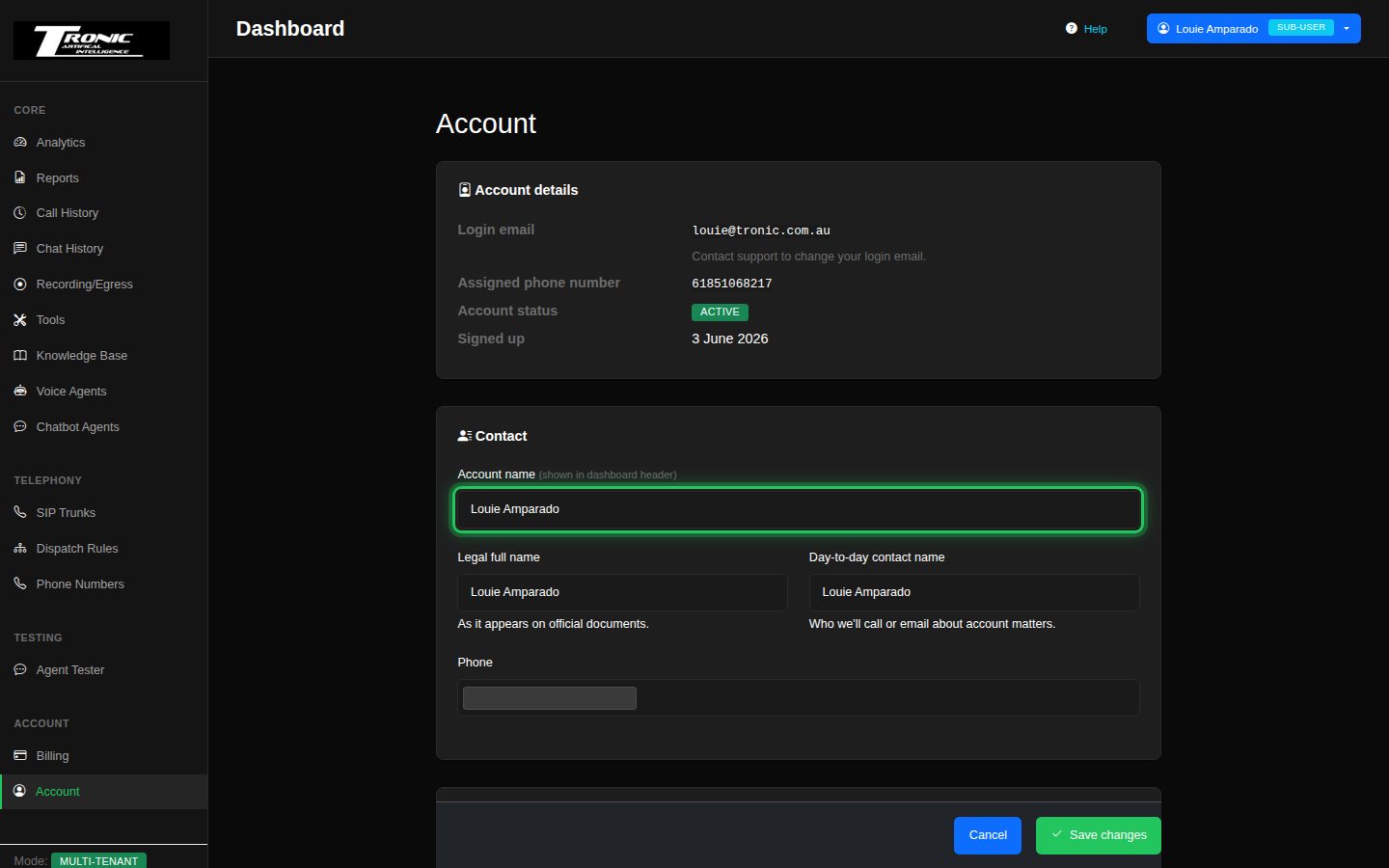
Account details (read-only) shows your login email, your assigned phone number, your account status and when you signed up.
Contact is editable:
- Account name — what shows in the dashboard header.
- Legal full name — as it appears on official documents, used for invoicing.
- Day-to-day contact name — who we’ll call or email about account matters.
- Phone — your contact number (not your agent’s number).
Click Save changes when you’re done.
Troubleshooting & FAQ
The questions that come up most, and what to check first.
My phone isn’t being answered — the four checks
Work down this list in order. One of these four is the answer almost every time, and you can do all of them in about two minutes.
- Is the agent running? Open Voice Agents. The agent must show RUNNING. If it says stopped, press the green Start button — that’s the whole fix.
- Does the dispatch rule point at that agent? Open Dispatch Rules and click the pencil. If the rule names a different agent — or one you’ve since deleted — calls go nowhere. Pick the right one and save.
- Is your credit above the cut-off? Open Billing. Below the cut-off shown there, incoming calls are refused before they reach your agent. A top-up restores service within seconds.
- Are you ringing the right number? Confirm it on Phone Numbers. It’s also in your welcome email.
If all four are fine, the call should be in Call History. If it isn’t there at all, the call never reached us — email support with the time you rang and the number you rang from, and we’ll trace it.
My campaign stopped on its own halfway through.
Almost always one of two things, and they behave differently.
Operating hours. If you ticked Restrict calls to specific hours, the campaign pauses itself at the end of the window and the badge reads Paused. Nothing is wrong. It starts again on its own at the next opening and carries on down the list — you don’t need to touch it.
Money. If your balance has run low it stops making calls, but what happens to the untried numbers depends on how low. If the account has been suspended, the remaining numbers simply wait, and the campaign carries on by itself once you top up. If there is still some credit but not enough to start a call safely, the numbers it tries get marked failed instead — so after you top up, use Retry Failed to go back over them.
My calls have no recording.
Recording is off unless you turn it on. Telephony → Dispatch Rules → edit your rule → tick Auto-Record Calls. It applies to calls from that point on — earlier calls can’t be recovered.
The agent is slow to respond — there’s a long pause before it speaks.
Check the Latency tab on the Overview page and the metrics on an individual call. Common causes: a “thinking” AI model chosen on the Behavior tab instead of a fast one, or a very long system prompt. Shortening the prompt often helps more than people expect.
The agent keeps mishearing names, products or suburbs.
Two fixes, best used together: set the correct language on the Speech Recognition tab, and list the troublesome words in the System Prompt so the agent knows to expect them.
My calls cut off after a set time.
Check Resource Limits on the agent’s Advanced tab — there may be a maximum call length set. Raise it if your calls legitimately run longer.
Who ended the call — the caller or the agent?
Open the call in Call History. The detail page records how the call ended.
How do I make the agent transfer callers to a real person?
Tools → assign the transfer tool to your agent, then tell the agent in its System Prompt when to use it: “If the caller asks for a human, or is upset, transfer the call.”
The chat widget doesn’t appear on my website.
Check the Domains tab of the chatbot editor first — your site’s address must be allowed. Then confirm the embed snippet actually saved on your site and that you’re looking at the live page rather than a cached copy.
How much are my calls costing me?
Billing → Call Charges for individual calls, or Spend Analytics for the pattern over time. Every call also shows its own cost on its detail page.
Why was I charged for a browser test?
Because a test uses the same AI services as a real call. The amounts are tiny, and test sessions are marked as tests in your Call History.
Do I need a phone number to try an agent?
No — use the Agent Tester to talk to an agent entirely in your browser.
What happens if the AI provider I’m using has an outage?
Set fallback models on the agent’s Behavior tab and calls will automatically continue on a backup provider instead of failing.
What happens if I delete something?
Deleting an agent, a collection or a rule is permanent and there’s no undo. Call history is unaffected by deleting an agent. If you’re unsure, stop the agent instead of deleting it — a stopped agent costs nothing.
Why does it say “Sub-User” next to my name?
It’s just a label on the account menu — it doesn’t limit anything you do. Every login on a Tronic Cloud account carries it, including the main one. Ignore it.
Can my website chatbot talk out loud?
Yes. On the chatbot’s Voice tab, change Chat Mode. The friendliest option for a website is Voice with avatar — visitors still type, but the answers are spoken, and the browser never asks for microphone permission. See Letting your chatbot talk.
How do I get a real person to take over a website chat?
Turn on Human Handoff on the chatbot’s own tab, and point it at a web address your team watches — usually an n8n workflow that posts into Slack, Teams or your help desk. Your team member replies from there and the visitor sees it in the chat. See Handing a chat to a real person.
How do I get the agent to book appointments?
Tools → Webhooks → n8n Wizard, and pick Calendar booking (Cal.com) or GoHighLevel appointments & sales. The wizard builds both the tool and the matching workflow so they fit together. See The n8n Wizard.
It won’t accept my n8n web address.
Two rules. It must start with https://, and it must be an address reachable
from the internet — not one on your own network like
http://192.168.1.50:5678 or localhost. An n8n cloud account
works straight away; a self-hosted one needs a real domain name with a certificate.
Where do I put the number the agent transfers callers to?
Tools → Agent Tool Assignments → Configure next to the agent → switch on the transfer tool, and the destination fields appear underneath it. Each agent can transfer somewhere different.
I set up a handoff between agents and nothing happens.
Check the AI model. Handoffs aren’t supported on every model — the editor shows an orange warning above the handoff switch when the one you’ve chosen can’t do them, and in that case your handoffs are silently ignored on calls. Switch to a model the warning names.
My agent shows a red “Config Error” badge.
That badge means one of the AI services your agent uses isn’t responding to us. It isn’t something you can fix from your side — those connections are ours. If the agent is also failing to answer calls, email support and quote the agent name.
I can’t see a page this guide mentions.
Some features are enabled per account. If something in this guide isn’t in your menu, it isn’t switched on for you — contact support and ask.
How long is my data kept?
Indefinitely. Your call records, transcripts, summaries and recordings are not deleted on a timer — a call from two years ago is still in Call History, and its recording still plays. The same goes for your website chat conversations.
That means you don’t have to race a deadline to save anything. It also means the record stays there until somebody removes it, so:
- You can delete things yourself — individual recordings from the Recording / Egress page, and calls from Call History. Deleting is permanent.
- Keep your own copies of anything critical anyway. Use the download button on a recording, and Export on Call History for transcripts. Your own archive is the one you control.
- Tell callers what you do with recordings. If you record calls, your privacy policy should say so and say you keep them. Obligations vary by industry and state, so check what applies to your business.
Glossary
Plain-English translations of the terms in the dashboard.
- Agent — the AI that answers your calls or chats.
- System prompt — the standing instructions that tell the agent who it is and how to behave.
- Greeting — the first thing the agent says when it answers.
- Dispatch rule — the setting that says “calls to this number are answered by that agent”.
- SIP trunk — the connection between the phone network and your agents. Yours is set up for you.
- Knowledge base — documents you upload so the agent can answer from your own information.
- Tool — something the agent can do as well as say: transfer a call, hang up, or send details to another system.
- Webhook — a tool that sends information to another system over the internet.
- Campaign — a list of phone numbers your agent rings, instead of waiting to be rung. See Campaigns.
- Egress — the dashboard’s word for call recording.
- LLM — “large language model”: the AI that does the thinking.
- Speech recognition (STT) — turning the caller’s speech into text.
- Text to speech (TTS) — turning the agent’s words into a voice.
- Latency — the delay before the agent replies. Lower is better.
- Credit / balance — your pre-paid funds. Calls draw this down.
- Inbound / outbound — a call to you, or a call from you.
- Handoff — passing a conversation from one agent to another. A transfer is one the caller is told about; a transition is one they don’t notice.
- Human handoff — on a website chat, passing the conversation from the chatbot to one of your team.
- n8n — an automation tool that connects your agent to other software (your CRM, calendar, spreadsheets). The wizards in the dashboard build ready-made n8n workflows for you.
- Data extraction field — a detail you’ve asked the agent to pull out of every call, such as a callback number, shown on the call record.
- Health score — a 0–100 rating of how technically smooth a call was. It measures responsiveness, not whether the agent gave good answers.
- TTFB — “time to first byte”. How quickly the agent started replying. A rough speed indicator on each call.
Getting help
When something isn’t right, here’s how to get it sorted quickly.
Start with Troubleshooting & FAQ above — it covers the great majority of questions. If that doesn’t resolve it, email support@tronic.com.au — or simply reply to any email we’ve sent you about your account.
What to include when reporting a problem
Including these turns a day of back-and-forth into a single reply:
- The Call ID from Call History, if it’s about a specific call — this is the single most useful thing you can give us.
- The date and time it happened, and the number that was rung.
- Which agent was involved.
- What you expected to happen, and what happened instead.